Cadet Tech : Psyched Up-Dates!
Showing posts with label Psyched Up-Dates!. Show all posts

Wednesday, September 27, 2023

Custom Building Blocks in Docs + Smart Chips = 😍

11:38 AM 1
Custom Building Blocks in Docs + Smart Chips = 😍


Use Smart Chips and tables inside docs to create custom workflows, resources and materials for yourself and students. Select your creation, create a custom building block and reuse whenever you need! 

1. Create the layout and add the elements you want. I like a table for this. 


2. Add Smart Chips to make it amazing 😍... Don't know what Smart Chips are? Check out my post here. 


3. Select what you want to make a block


I have made a Google doc with a few great templates that you can create custom blocks from. Simply make a copy of my doc highlight my tables (1 at a time) and create a custom block for yourself! I would love to see the ways you are going to use this amazing tool.

📑Copy My Template


Tuesday, April 25, 2023

🛸Not a Space Ship... A Smart Chip

11:12 AM 0
🛸Not a Space Ship... A Smart Chip

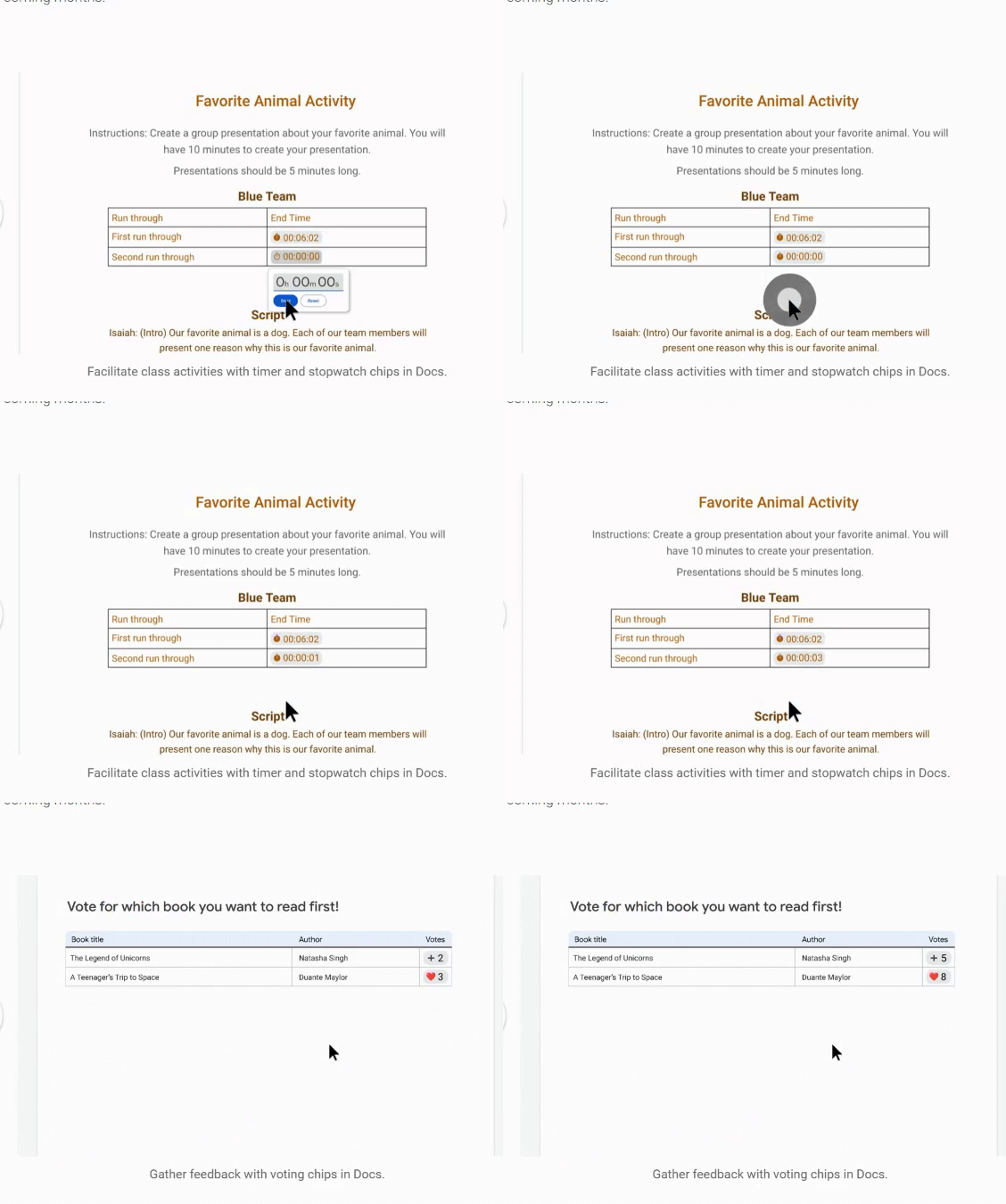
Add a timer or a stopwatch, tag teammates and tasks, even embed files... you can do all of these things and more with smart chips. 

What's a smart chip? 

How do I add them? 

Why didn't I know about this sooner? 

Let me answer these questions for you and while I am at it I can answer the all encompassing question - Are we alone in the universe? Ha, not really, I can't answer that, but I certainly can give you all the deets to getting started with smart chips now!

Smart Chips are interactive elements that you can add into docs and sheets by typing the "@" symbol. 


Tag People

@ - then start to type their name (recent people you have shared docs with appear under people)


Date

@Date -Select a day, @tomorrow, @yesterday


Files- Insert a chip for a file 

@file- or @start typing the name of the file. You can also paste a link to the file and then press Tab. Note- Be sure the file you chip in is shared with view rights so they can see it.


Even Better... Insert a YouTube Video into Google Docs as a Smart chip and watch in preview mode
Copy the share link of the video > Paste into doc and select (or press tab) to insert the smart chip.


Add a timer or a stopwatch 

@timer, @stopwatch
Image Credit: Eric Curts - Ctrl Alt Achieve


Voting Chips

@vote
Image Credit: Eric Curts - Ctrl Alt Achieve

Create Custom Building Blocks

Building blocks are pre made templates that allow you to use dropdowns for status tracking, email drafts, meeting notes etc. Now you can create your own building block and save it to reuse and add with a simple @.
Great for Lesson Plans, project management, labs, study guides and more! 


Image Credit: Eric Curts - Ctrl Alt Achieve


Monday, February 27, 2023

Save time, Stress, and Grading with Kami Questions

1:53 PM 0
Save time, Stress, and Grading with Kami Questions


Kami is so much more powerful that just a PDF tool. In addition to it's amazing feedback tools, Kami now supports auto and teacher scored questions (in Beta)! Many of us think Kami is a great tool for assigning students PDF's to annotate... which it is! But you can also build lessons and student activities directly in Kami using the rich tools available in the editor. 


To get started with Kami questions: 

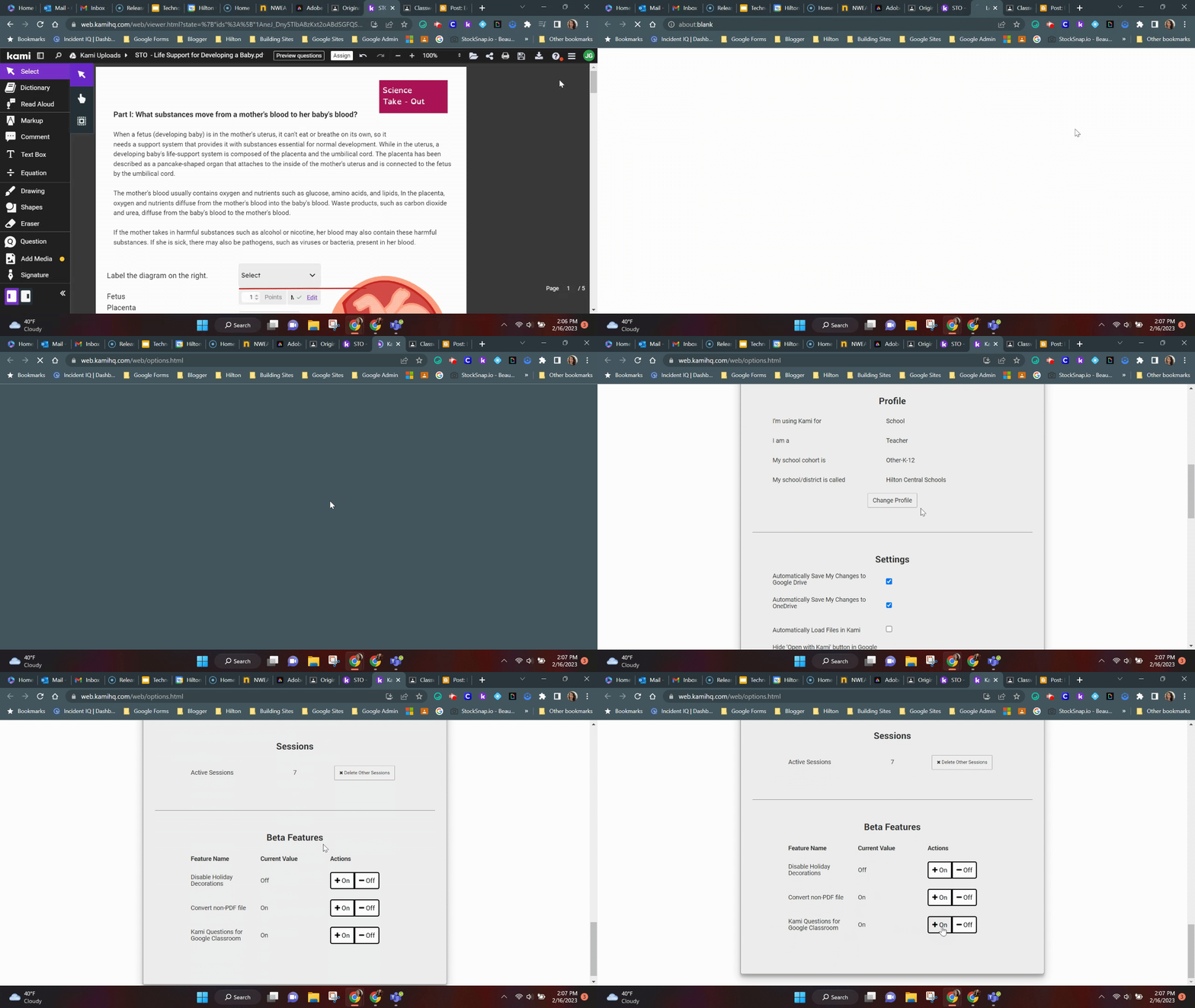
1. Turn on the Beta questions (keep in mind that Beta means it may have a few weird quirks, I'll do my best to point them out as we go through it).


- Go to Settings (upper right profile icon) > Scroll down to Beta Features > Toggle on Questions


2. Create your content! You can bring in your own content with copy paste, insert fresh content with the text, drawing, image tools and more! 

>

* Pro Tip: Use text recognition on old PDF's to copy and paste content into new text boxes in Kami


3. Insert questions for students 

-Kami has multiple choice, dropdown, or short answer questions you can add anywhere in your document. In the answer key you can set key words or phrases. Kami short answer responses are Not case sensitive. 


4. Use the Kami grade by page feature in Google Classroom to score student's work and add feedback

Here are some details on how auto grading works: 


Multiple Choice, Checkboxes, and Dropdown

Single-answer questions:

- The student's answer that matches the answer key exactly will be graded as “Correct”.


- Otherwise, it will be graded as “Incorrect”.


Multiple-answer questions:

- The student’s answer that includes no correct option will be graded as “Incorrect”, and no credit will be given.


- Besides that, the student’s answer that includes at least one correct option (but includes incorrect options or doesn’t match all correct options) will be graded as “Inaccurate”, and no credit will be given. However, you are able to adjust the points manually when viewing students’ work in Kami Grader.


Short Answer
- When “Allow partial matches” is NOT selected: The student's answer that matches any answer option exactly (the same word order, spelling, spacing, and punctuation) will be graded as correct.


- When “Allow partial matches” is selected: The student's answer that includes any answer option exactly (the same word order, spelling, spacing, and punctuation) will be graded as correct.


- You are able to adjust the points manually when viewing students’ work in Kami Grader.
Additional details here

he student's answer that matches all correct options exactly will be graded as “Correct”, and full credits will be given.

Friday, October 14, 2022

🤯Custom Notebooks in Kami with Linked Pages and Sections!

10:47 AM 0
🤯Custom Notebooks in Kami with Linked Pages and Sections!


That's right... you heard me correctly. You can create a customizeable notebook for students with tabs and linked pages in Kami! 

Check out my example Notebook here: https://kami.app/mQP-imw-yX6-Ag5

It only takes a few steps, and a little finese and you will have a sweet notebook for students. Here is how I did it:

- I created the base of my notebook using Google Slides. Here I customized the size, background, and created my links to sections. Use my Slides Template and Customize It

- I used Canva to create a cover page and section background. Use my Canva Template and Customize It

- Then I convert it to Kami by uploading or selecting the document from my drive

- Then used split and merge to add my notes pages and resources into the sections that I wanted for students. 


Here is a tutorial on how to do this


Hopefully the functionality of the "Push Changes" feature will make this even better! 


Tuesday, September 27, 2022

😿Sad about losing Quizlet? Knowt More!

12:30 PM 0
😿Sad about losing Quizlet? Knowt More!
Another year without quizlet are sad times no more... Launched this September is a tool called Knowt. A free flashcard tool with Quizlet set importing, class options, and self study mode. 

Sign up at https://knowt.io/

I used the Sign in with Google SSO button (You, and your students should too) 

From your home you can Explore Notes, Flashcards and Textbooks created by other users (mostly students)


From the plus sign on your home page or a right click you can create: 
- Folders
- Notes
- Upload files from Drive or your Computer to create notes
- Create Flashcards


You can also create classes and assignments. This feature seemed to be a little quirky to me and is just out of beta so it can be glitchy. I was unsuccessful with the connect Google Classroom option under classes, but maybe you will be. You can invite students using a code. 


You can create or find notes inside Knowt on topics to create assignments for students. Here I use the explore tool to find a set from an APUSH chapter. This process is the same as creating your own notes and words for students. Here I will duplicate to a class.


If you duplicated a note to the class you want to make sure you go in and share out that notebook


If you want to be able to edit content that you find from the explore you will want to "Duplicate to Notebook". This will create your own copy that you can edit. 


You can also create and import flashcards from Quizlet. Creating and importing terms and definition is super sleek. 


Student View of assignments. Once students join your class you can create assignments in Knowt. Here my test student opens the Chapter 1 Homework I assigned above. 


Lastly, the study set options are really nice. There are new study types and quiz options coming mid month! 

Friday, September 16, 2022

📰 Classroom Newsletters and Announcements with Gmail Layouts

2:00 PM 0
📰 Classroom Newsletters and Announcements with Gmail Layouts


Introducing Gmail Layouts! 

When you compose a new email in Gmail you now have the ability to apply predesigned layouts and set default styles such as colors, fonts and images. 

Access the layouts

Click Compose
Select Layouts from the ribbon at the bottom of your draft email


Set Default Styles

Select colors, fonts and images that are saved to your layout for the next time you want to use a layout

Customizing a Template

Once you have selected a template swapping out the text, images and links is a breeze! 

Friday, May 13, 2022

📣Dropdown Chips in Google Docs... Endless Possibilities!

2:15 PM 0
📣Dropdown Chips in Google Docs... Endless Possibilities!
You can now create and insert custom dropdown chips in Google Docs! 


You can insert dropdown menus inline with text by typing @drop and selecting dropdown or going to Insert - Dropdown. You can also insert them as a pre made building blocks that you can edit using the Insert - Building Blocks menu. 

Inside the same document you can reuse your dropdowns by typing or inserting a dropdown and selecting a previously created dropdown but they do not show up across documents. To reuse dropdowns from one document to the other you can copy and paste your dropdown into your doc and edit as needed. 

Here are some great applications: Writing status, Close reading, Cloze Reading, Self Regulatory Checklists, Student Reflections, Rubrics, Peer Review... So Much More! 

Here is a quick look at making a dropdown chip: 


Are you loving these dropdown chips? Checkout these examples of ways you can use dropdown chips: 

Eric Curts from Ctrl + Alt + Achieve - Cloze Reading Activity


Friday, December 17, 2021

🎄Merry Motemas! - Updates, Tips, Tricks and More!

1:32 PM 0
🎄Merry Motemas!  - Updates, Tips, Tricks and More!


Mote is an incredible extension that allows you to seamlessly integrate audio into Google Classroom, Docs, Slides, and now Google Forms!

🚀 #Hypermotes- The fastest (and only way) to insert voice into the body of a Google Doc. Use for pronunciation, clarification, examples, or to connect with learners. 


🎙️Level up accessibility and engagement in your Google Forms. New Features: Multiple choice audio, and voice feedback in quiz mode! 


📺Moteminutes- A must watch YouTube playlist that showcases all of Mote's greatest features in one minute or less. 


🎄 12 days of Motemas - Follow along the Christmas break countdown of awesome features and integration ideas for Mote. Check out Day 2 Audio QR Code Greeting Cards and Day 3 - Daily Voice Journal 

Follow for more Motemas! 


Bonus! Check out these amazing templates and way to use Mote with your students

https://learn.mote.com/the-hub/


Wednesday, August 18, 2021

Back to School with Cadet Tech! Updates and Tips for Gearing Up and Gearing Back In

10:10 AM 0
Back to School with Cadet Tech! Updates and Tips for Gearing Up and Gearing Back In
Check out this month's issue of the Cadet Tech Buzz

Thursday, March 25, 2021

Seriously Amazing Updates to Screencastify

2:17 PM 0
Seriously Amazing Updates to Screencastify


Screencastify has completely overhauled their drawing and recording tools in both desktop record and tab record. 

Here are the highlights: 
🚚Move the toolbar anywhere on the screen
🤩Add fun emoji stickers
🎆Turn your mouse into fabulous fireworks
🎥Turn off and on your webcam easily

Here is how you can add pizzazz to your videos now:
1. Enable your drawing tools in either desktop record or tab record. 

Select "Show More Options" and Toggle on "Show Drawing Tools" 

2. Use the new recording toolbar! 


Screencastify also released a blur tool in the video editor. This is super handy if you need to create a video where there is information you may not want viewers to see but need to show a process. Here is how it works! 

🎥 Record your screen as normal. 
🎬 Pop the video into the video editor
💻 Blur the content you need 
🤩 Export the video

Monday, February 22, 2021

The OG! Originality Reports in Google Classroom

1:51 PM 0
The OG! Originality Reports in Google Classroom


Originality reports are built into the Google Classroom assignment editor. It allows both you and your students to run a report comparing turned in documents to the web. It is a built in plagiarism checker... Currently Google Classroom limits you to five originality reports per Google Classroom. In a pinch, you could have students join an additional classroom to turn in assignments if you needed more.


So how does it work? Simple! 

1. Check the box in the assignment editor to run originality reports on the assignment. 


2. Either you, or your students, or both, can then generate a report on the documents attached to the assignment that compares its originality.

You - In the Google Classroom grading window you can generate originality report


Your students- When students look at their work attached to the assignment they can press run on the originality report.


3. That's it! 

So what is it looking for. It is looking at the text in the student document and comparing that text to text on the web. What it doesn't do, compare documents across your Google Classrooms within the assignment to see if students are copying and pasting from one another. 


Is there a way to check that? You Bet! 


1. Open up a students turned in Google Doc. 

2. Go to Tools > Compare Documents

3. Select the document from a Google Drive folder you want to compare it to. You can search by name as well! 


4. Wa-lah! You are officially a master of plagiarism in your Google Classroom

Monday, August 19, 2019

Get Ready for Some UPDATES!!!!

8:00 AM 0
Get Ready for Some UPDATES!!!!
Seeing all of your favorite tech tools get amazing updates makes the transition back to school just that much sweeter. While we were off enjoying the sun and going to beaches to look for sharks... in my case, our favorite tools got some pretty sweet updates. Here is the rundown of some of my favorites:

Flipgrid

Massive updates from Flipgrid! New shorts camera, new emoji's, on-screen whiteboard, updated Disco Library, FlipgridAR, and more!
Shorts Camera: http://blog.flipgrid.com/news/shorts

- Tell your story by creating, trimming, and rearranging unlimited video Clips. You can also upload videos from your device and record an introductory video or summary to add even more context!
- Show your work by flipping on the new Whiteboard Mode with Live Inking.
- Add context by overlaying photos from your camera roll, emoji, and text as Stickers on your video.
- Apply unique video Filters to set the tone: Warm, Cool, Super Warm, Super Cool, Pixel, B+W, and Old Town

See image overlays here: https://flipgrid.com/s/376baeb28299
See the new whiteboard here: https://flipgrid.com/s/7e9af759feb1
Matt Miller put together a huge rundown of the new cameras on his blog here: http://ditchthattextbook.com/2019/08/06/shorts-season-an-introduction-to-the-new-flipgrid-camera

Flipgrid Topic Menu: New interface makes it super easy to navigate, pin topics and customize the student experience in Flipgrid

New Disco Library New weekly top 30 from classrooms all over the world, tag and share your favorite topics in "My Favs", browse and use their partner playlists from awesome ed tech partners.

FlipgridAR: Create augmented reality experiences by generating QR codes for Flipgrid created videos with the new camera tools. Check out their post here: https://blog.flipgrid.com/news/ar

Check out a rundown of the updates http://blog.flipgrid.com/news/launch

Google Classroom Grading Rubrics

We have been selected for the Beta program of Grading Rubrics in Google Classroom. When you create an assignment in Classroom you can now attach a grading rubric to it! How to create and grade with rubrics: https://support.google.com/edu/classroom/answer/9335069

FAQs: https://docs.google.com/document/d/1cfyhgId7ozjx8mQc-obayrAtxoG87_fXQNKUPRzfa7Q/edit

Quizzes


Team mode in Quizzes! When you host a game you can select team mode. Students are automatically assigned to a team. Each individual students performance contributes to team accuracy. Get individualized student reports and get ready to play again!

EdPuzzle

Live Mode, Open Classes, Google Classroom Integration and Grade Sync


Breakoutedu

New Breakout Edu Games! Breakout Edu released over 600 new standards aligned games: https://www.breakoutedu.com/blog/2019/8/15/600-new-content-aligned-games
Parent Night Game: https://platform.breakoutedu.com/game/back-to-school-night-for-parents#_

Google Drive

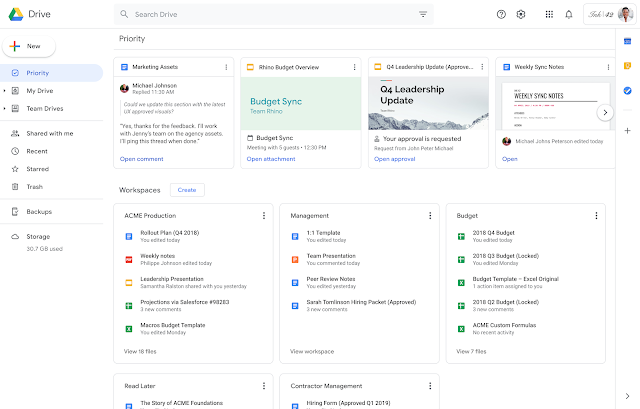
New priority page in Google Drive. Google Drive will now tag the files it feels most important to you as "priority". You can access these files from the priority tab. You can also set this as your default Google Drive homepage from your Drive Settings.


Workspaces: You can now group multiple files together from Drive, shared files, and shared drives for easy access in a workspace. See launch details here:

Monday, July 22, 2019

Branded YouTube Accounts Suspended

10:34 AM 0
Branded YouTube Accounts Suspended


YouTube has suspended YouTube Accounts that have a Branded Channel. A branded channel is a YouTube channel that had a different name other than your G Suite Account Name. ex. JaxGilmore (My Channel). When you go to YouTube and try to log in it will take you to a page that says your account is suspended. We have requested that all teachers accounts be unsuspended until July 2020. Once they process this request, we will send out info regarding how to obtain your data and create an unbranded channel account. If you are able to log in and you are not redirected to a page that says your account is suspended you don't have to do anything.

Monday, February 4, 2019

New Google Classrooms for New Quarters with Classroom Copy

1:00 PM 1
New Google Classrooms for New Quarters with Classroom Copy
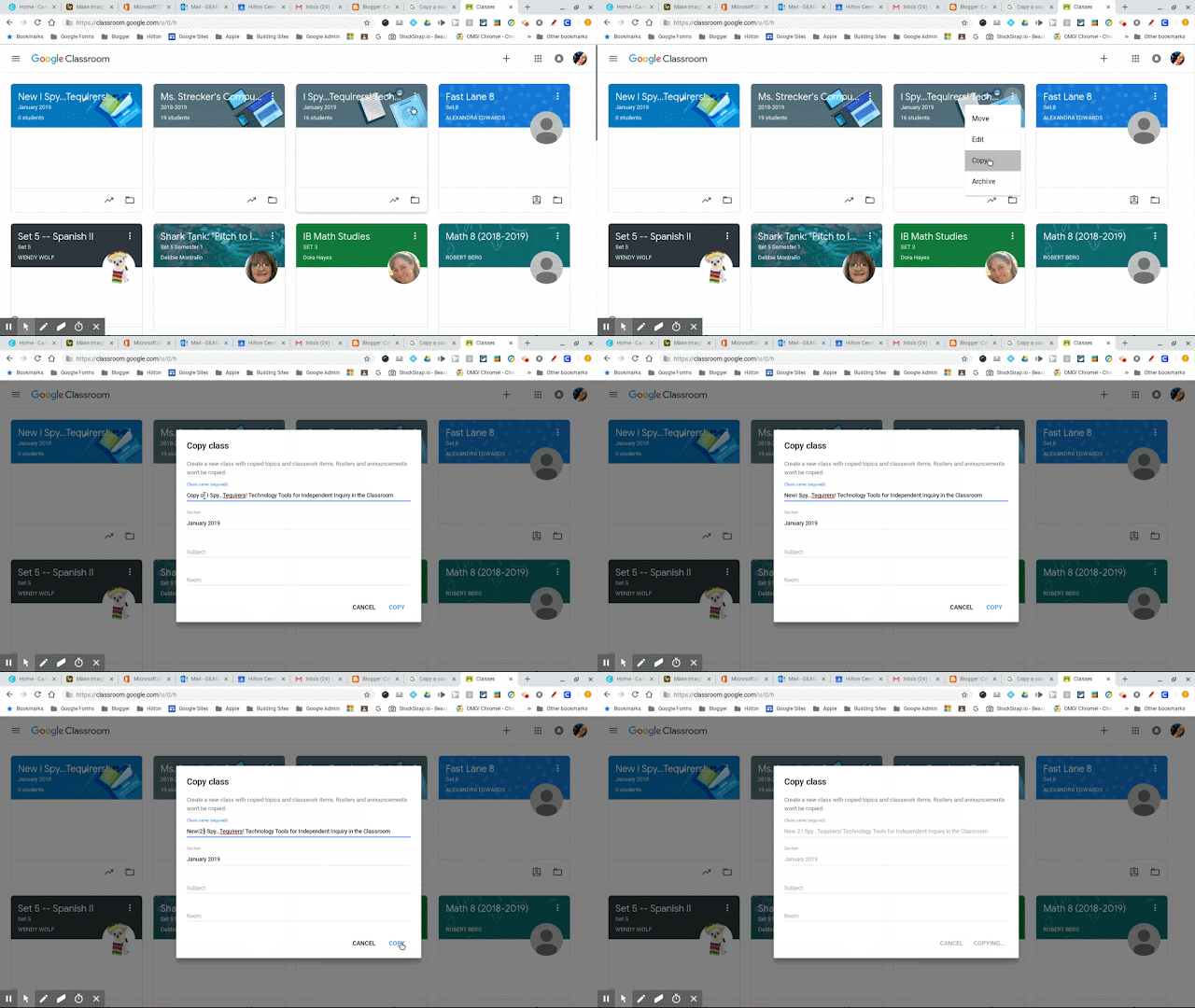
Use the Copy option from your Google Classroom home to make a new course with the same content in Classroom.

From your classes page, click on the three dots of the course to copy


Classroom will create a new course without any items in your stream, and revert all of your posts back to draft


It will also remove all of your students so you are ready to give them the new code!

Friday, January 11, 2019

Because It's Friday!

3:00 PM 0
Because It's Friday!

Google Classroom Updates!

I am sure you have noticed the new sleek, modern, scandanavian style design of your Google Classrooms. You may love this new minimalist design, or hate it if you are Mr. P, either way, be sure to check out the many new themes that Google Classroom now has to offer. Now that all of your Google Classroom dreams have come true with drag and drop assignment arrangement in the Classwork tab, you can kick back and enjoy your weekend. Be sure to check out these new awesome features as well as your Google Classroom Gradebook and Coming Soon Locked Quizzes!


Speaking of updates.... Check out these new ready to use Breakout EDU games in 2019


https://www.breakoutedu.com/blog/2018/11/20/winter-holiday-games-awkpl


Challenge Redux!

We are kicking of 2019 with a fresh teacher challenge. Simply subscribe to our blog (if you haven't already) to will a Chromebook charging station for your classroom.
Winner will be drawn Friday January 18th. Enter your email to the right where it says "GET IN THE KNOW" -->


Wednesday, December 19, 2018

Winter Break Updates!

10:25 AM 0
Winter Break Updates!

Check out the new Beta of Google Classroom Gradebook!

With Gradebook beta, teachers can:

- View and edit all student grades from a new Grades page.
- See overall grades and share them with students.
- Create weighted grade categories for overall grade calculations​.We have some Badge recipients!


Create Categories and Set Grade Settings


Ultimate Tweeter Badge

Jeff Green
Kate Gilmore
Jamie Miner
Laura Mayer
Angela Reichert
Christine Rice

Voice and Choice Guru!

Jenny Ames
Emilia Bovenzi
Diane Campbell
Courtney Fay
Colleen Grego
Jamie Hill
Coleen MacCracken
Scott Michel
Angela Reichert
Christine Rice
Laura Shellhammer
Jess Thompson
Natisha Wieser

Streamline Grading with Kami!


Catch up on Google EDU in 90

Googles Education Channel on YouTube will give you all you need to know from Tips to Tools and more!


Wednesday, May 30, 2018

Some Juicy Pear Deck Updates Increase Ease, Accessibility, and Reflection Possibilities

11:06 AM 0
Some Juicy Pear Deck Updates Increase Ease, Accessibility, and Reflection Possibilities
You might remember trying Pear Deck once or twice and then going on about your life. Pear Deck has since totally been redesigned and their approach has completely changed! Basically, it is a lot more accessible and all the things you hated about it are gone...which means you might actually want to use it now.

The News:
1. Pear Deck is now exclusively a Google Slides Extension.
2. There are no more limits or subscriptions or workarounds to worry about that will make it more difficult to use, all the free features are very sustainable. You can just plan and rock it!
3. There are some pretty fun templates that might streamline your student feedback and formative assessment.

How do I use it now:
1. If you do not have it yet, go to Google Slides, click Add-ons, Click Get Add-ons and add Pear Deck.
2. Make a Google Slides Presentation or open one that you have already made.
3. To any slide to which you'd like students to respond, open the Pear Deck add-on (in Add-ons).


From here you can choose how you want students to respond, whether it be in text, multiple choice, numbers, or a few other options. Draggable and drawing slides only last your first 30 days.

If you have any Slides or PowerPoint presentations hanging around, why not throw in some checks for understanding? Student responses (which they've given on their Chromebook) can then be projected for the class with the click of a button.


I also like the templates, especially the T-chart template. Anytime you are doing a T-chart, students can type or draw right in it and it can be instantly projected.


If you are presenting, just click present and share the code with your students.

Friday, December 15, 2017

Version History in Google Docs

1:08 PM 2
Version History in Google Docs
The version history in Google docs is a very powerful tool. It allows you to track changes, name versions, and see where students have made changes and when they made them. Within each revision you can expand the drop down arrow to see more detailed revisions. If you are looking at a document and you see one large block of text in blue with no revisions, chances are the student pasted that text. A typical paragraph can have up to 20 revisions. Also, if you have assigned a Google Doc through Classroom you will get a notification when students try to share that doc with others. Watch the video below to see how to access and use version history.


Additionally, there is an exceptional extension called Draftback that will compress every change made in a document into a live video. You can view the changes that are made in the document in real time. Here is how it works:
Install Draftback Extension

Once you have installed the extension, click on the Draftback button in any turned in Google Doc


Once you generate the Draftback you can watch it as a video: