Cadet Tech : How To You Do?
Showing posts with label How To You Do?. Show all posts

Thursday, January 11, 2024

You Flip'n Forgot about Me... ✌🏽Really Great Ways to Engage Students with Flip

11:27 AM 0
You Flip'n Forgot about Me... ✌🏽Really Great Ways to Engage Students with Flip


Remember that time we did the Flip (Formally Flipgrid) tech incentive? It was the hottest tool, and really cool and everyone signed up for it and we all, students and teachers, got burned out by it?? 

I bet that might be the last time you used it. Since then, they have rebranded, increased functionality, and are still offering a Flip'n (see what I did there?) cool platform that you can use to ignite engagement. 

I recently watched a Ditch Summit Episode with the Merrills EDU - If you have never heard of them they are fantastic. They love Flip! Granted they work in a more primary setting, but two of the interACTIVE activities they presented I saw great value in and wanted to share! 

#1 Let the Dice Decide

- Student Agency and choice = engagement. Using discussion questions in Flip and a simple die create a platform where students are responding to prompts, analyzing text, reflecting on learning, or reteaching a concept based off the number they roll on the die. 

-If they roll a number twice, they can respond to a response within that question. 

-Simple... Yet super effective


#2 Flip Stickers

Flip stickers are images with transparent backgrounds that can be added to your videos in Flip. Flip has fun stickers and emoji's built in, but to really make connections, sometimes you need to make your own. You can create these in any graphic platform like Canva or Adobe Express. If you are trying to use a photo and remove pieces and create spots of transparency Adobe Express was easier. If you are trying to use cute elements to make a character, Canva would be best. I'll show it in both.

Log into Adobe Express with your @ga.hiltoncsd.net account. Do not use the "Sign in with Google button". Manually sign up/in with email and then select "Company or School Account" 

Create a new design I made one 8.5"x8.5"

Creating a sticker in Adobe Express. 

Creating a sticker in Canva. You can use my file template here


Ideas for using Flip Stickers: Perspective, character emotion, setting, details, events and more! 


Thursday, March 16, 2023

🍔Hungry?... Grab a Cyber Sandwich!

10:07 AM 0
🍔Hungry?... Grab a Cyber Sandwich!


Cyber Sandwich is a 20-30 minute EduProtocol where students use critical thinking and collaboration to execute a "compare and contrast" while synthesizing concrete understanding. Jon Corippo would say: Reading, writing and thinking all in one bun 🍔!

The Gist: 

1. Take two aspects of a category that you would like students to compare. 
    ex: Primary source documents for Global I on a topic.

2. Divide students into groups of two and share a Google Slide template with them for dissecting their sandwich. Get the template here

3. Give each pair of students the two different "things" you want them to digest (get it, 😜). This can be articles, pages from a book you are reading, videos, documents, tables etc. 
Each student will spend 10 minutes reading their document and list important details or information from that document.

4. Students will spend 5 minutes discussing their findings with their partner and complete a Venn diagram highlighting details unique to each document and details common to both. 

5. Using the shared Venn diagram each students will then synthesize a summary paragraph with details from each document. You can even use a guiding question here. 

Tips: 

It won't be perfect the first time...EduProtocols are instructional practices that are meant to become practice in your routine. The more you use and students get comfortable with the flow the more successful they will be
- It is designed to be a 20 - 30 minute activity. Keep summary paragraphs short. You can build capacity for this over time and expand the task, think essay or DBQ.


Friday, November 4, 2022

🧠🤖 Study Guides with Automated Feedback in Forms

9:54 AM 0
🧠🤖 Study Guides with Automated Feedback in Forms

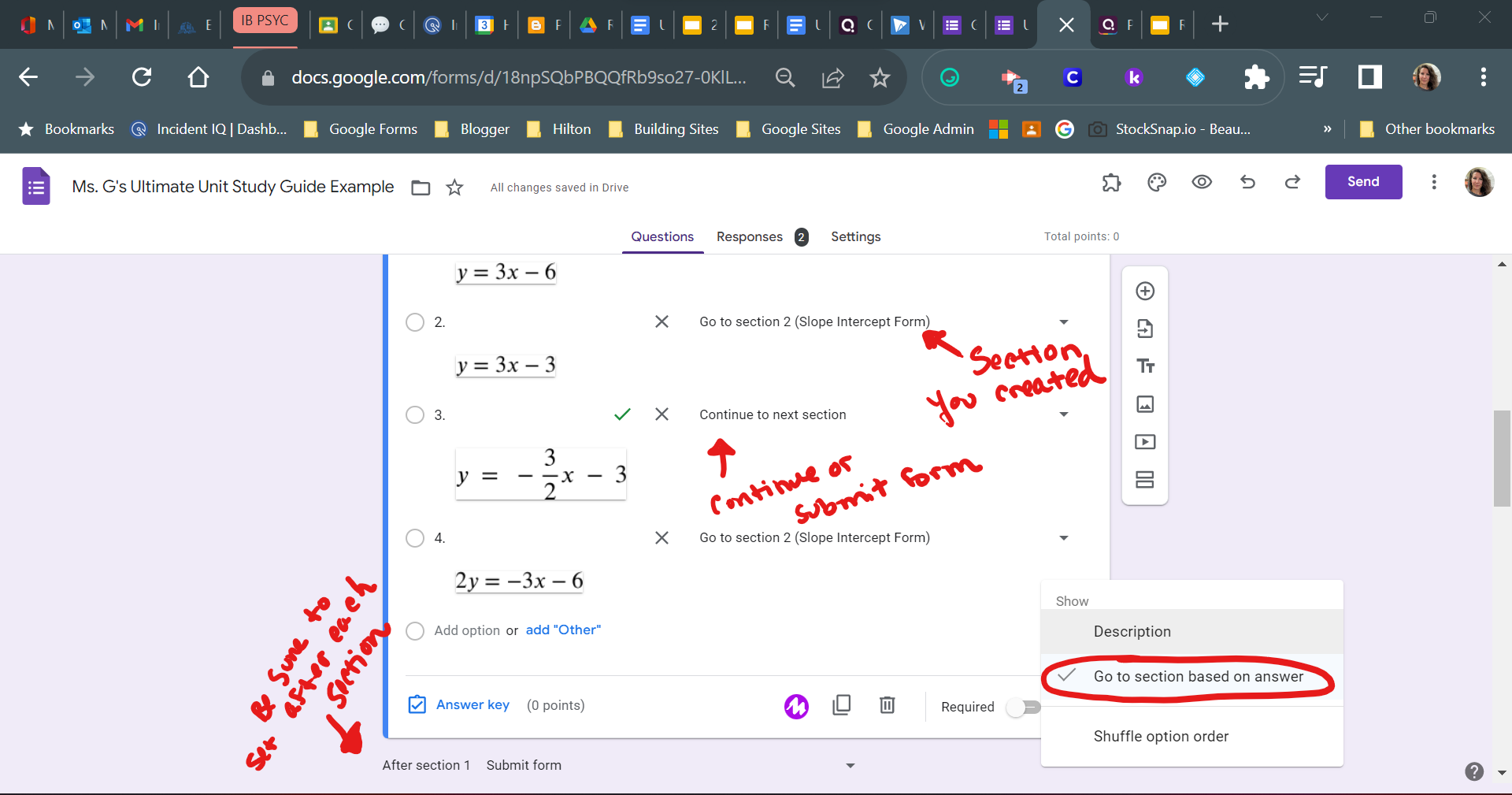
I have said this before and I will keep saying it. Google Forms is one of the most versatile tools we have! You can customize a form to provide feedback to students based on the answers that they submit as well as navigate them to various sections. With a few clicks, you can have the ultimate study guide, self assessment, review activity and more! 

With the addition of the auto save in Google Forms (Yay for updates!) students can come back to their form for up to 30 days which saves their progress automatically. I even created some templates for you to copy and use, see below! 


Check it out! 

Here is a breakdown of the steps 

1.  Create your form. You want your form to be a "Quiz" which means it will allow you to mark responses as "correct" or "incorrect". Keep in mind, these don't have to be right or wrong they could be as simple as "I Can" statements around what they should know. 


2. Set the feedback for your "correct" or "incorrect" responses. You can link to notes pages, review sheets, videos, etc.


If you wanted to create a study guide that jumps students to sections based on their responses here is how to do that. 

1. Create and title the sections. Add directions, resources, questions, whatever you want students to review.

2. Select the question that you want to determine where the student goes next. Click the three dots and choose "Go to section based on answer". Set the each choice to either go to that specific section you created or "Go to next section" if you want them to continue through the form or submit at the end of that section. 


Copy the Templates below! 

Unit Self Check Template

Unit Study Guide Template

Friday, October 14, 2022

🤯Custom Notebooks in Kami with Linked Pages and Sections!

10:47 AM 0
🤯Custom Notebooks in Kami with Linked Pages and Sections!


That's right... you heard me correctly. You can create a customizeable notebook for students with tabs and linked pages in Kami! 

Check out my example Notebook here: https://kami.app/mQP-imw-yX6-Ag5

It only takes a few steps, and a little finese and you will have a sweet notebook for students. Here is how I did it:

- I created the base of my notebook using Google Slides. Here I customized the size, background, and created my links to sections. Use my Slides Template and Customize It

- I used Canva to create a cover page and section background. Use my Canva Template and Customize It

- Then I convert it to Kami by uploading or selecting the document from my drive

- Then used split and merge to add my notes pages and resources into the sections that I wanted for students. 


Here is a tutorial on how to do this


Hopefully the functionality of the "Push Changes" feature will make this even better! 


Tuesday, September 27, 2022

😿Sad about losing Quizlet? Knowt More!

12:30 PM 0
😿Sad about losing Quizlet? Knowt More!
Another year without quizlet are sad times no more... Launched this September is a tool called Knowt. A free flashcard tool with Quizlet set importing, class options, and self study mode. 

Sign up at https://knowt.io/

I used the Sign in with Google SSO button (You, and your students should too) 

From your home you can Explore Notes, Flashcards and Textbooks created by other users (mostly students)


From the plus sign on your home page or a right click you can create: 
- Folders
- Notes
- Upload files from Drive or your Computer to create notes
- Create Flashcards


You can also create classes and assignments. This feature seemed to be a little quirky to me and is just out of beta so it can be glitchy. I was unsuccessful with the connect Google Classroom option under classes, but maybe you will be. You can invite students using a code. 


You can create or find notes inside Knowt on topics to create assignments for students. Here I use the explore tool to find a set from an APUSH chapter. This process is the same as creating your own notes and words for students. Here I will duplicate to a class.


If you duplicated a note to the class you want to make sure you go in and share out that notebook


If you want to be able to edit content that you find from the explore you will want to "Duplicate to Notebook". This will create your own copy that you can edit. 


You can also create and import flashcards from Quizlet. Creating and importing terms and definition is super sleek. 


Student View of assignments. Once students join your class you can create assignments in Knowt. Here my test student opens the Chapter 1 Homework I assigned above. 


Lastly, the study set options are really nice. There are new study types and quiz options coming mid month! 

Friday, September 16, 2022

📰 Classroom Newsletters and Announcements with Gmail Layouts

2:00 PM 0
📰 Classroom Newsletters and Announcements with Gmail Layouts


Introducing Gmail Layouts! 

When you compose a new email in Gmail you now have the ability to apply predesigned layouts and set default styles such as colors, fonts and images. 

Access the layouts

Click Compose
Select Layouts from the ribbon at the bottom of your draft email


Set Default Styles

Select colors, fonts and images that are saved to your layout for the next time you want to use a layout

Customizing a Template

Once you have selected a template swapping out the text, images and links is a breeze! 

Tuesday, March 8, 2022

📷 Scan Documents and QR Codes with the Updated Chrome OS Camera!

2:38 PM 0
📷 Scan Documents and QR Codes with the Updated Chrome OS Camera!


Student Chromebook Cameras not only scan QR codes but now they scan documents as well! 

Here is how fabulous it is...

📷 Open the camera app

🔍Press the scan button

📝Choose "document" to scan hand written work, Choose "QR" to scan in a code

👍🏽 That's it! 

Thursday, February 3, 2022

Graphics, Presentations and More... Upgraded Access with Canva EDU!

10:56 AM 2
Graphics, Presentations and More... Upgraded Access with Canva EDU!


We have upgraded to district access with Canva! You get access to Edu designs and graphics, create and share templates and designs with your team, and Google Classroom assignments and integration with students. 

It's super easy to sign up for the HCSD Canva! Here is our district join link

Here is a quick walk through of signing into the HCSD Canva account. Wevideo is on the struggle bus with their Chromakey so enjoy the green screen behind me 😜

Creating design templates and assigning them to students is super easy too! 

You can design and assign directly to Google Classroom 

Students can easily sign up using the same district join link and steps as you did. Once students have signed up you can assign them templates and have them turn into you via google classroom. Use the Google Classroom option to post blank template assignments and provide a streamlined turn in process for students. 

The student turn in process is super streamlined. Here is how students can turn in Canva assignments


Friday, December 17, 2021

🎄Merry Motemas! - Updates, Tips, Tricks and More!

1:32 PM 0
🎄Merry Motemas!  - Updates, Tips, Tricks and More!


Mote is an incredible extension that allows you to seamlessly integrate audio into Google Classroom, Docs, Slides, and now Google Forms!

🚀 #Hypermotes- The fastest (and only way) to insert voice into the body of a Google Doc. Use for pronunciation, clarification, examples, or to connect with learners. 


🎙️Level up accessibility and engagement in your Google Forms. New Features: Multiple choice audio, and voice feedback in quiz mode! 


📺Moteminutes- A must watch YouTube playlist that showcases all of Mote's greatest features in one minute or less. 


🎄 12 days of Motemas - Follow along the Christmas break countdown of awesome features and integration ideas for Mote. Check out Day 2 Audio QR Code Greeting Cards and Day 3 - Daily Voice Journal 

Follow for more Motemas! 


Bonus! Check out these amazing templates and way to use Mote with your students

https://learn.mote.com/the-hub/


Friday, November 12, 2021

New Quarter, New Grades, New Classroom

10:00 AM 0
New Quarter, New Grades, New Classroom


Start your new quarter off on the right foot with a fresh Google Classroom

Pros

- Students can't continue to turn in old assignments
- Less content in the Classwork section
- Easily see grades by quarter in the Gradebook
- Restart originality reports for plagiarism/ cheat checks back to 5
- Students feel like they have a "fresh start" in your class

Set it up

1. Create a new Google Classroom and Invite students
2. If you are syncing your grades to Infinite Campus, unlink your old Google Classroom and link your new one
3. Archive the old Google Classroom for students so their homepage gets cleaned up

That's it! 


Wednesday, October 6, 2021

Gimkit... More then just a game for your students!

8:24 AM 0
Gimkit... More then just a game for your students!

Gimkit is a versatile tool for your classroom that enables you to engage students in a gamified format for review, practice, assessment and more!

Here is what you get: 

-Live play in 12 different modes including the new Jeopardy mode! 

-Flashcard review and practice

-Gimkit ink - student generated content visible to you or the class. Think presentations or jigsaw activities 

-Gimkit kit collab - allow students to participate in the question generation process

What can you do? 

Use live play to review and practice. Dust off those retrieval protocols and pull questions from your question bank all year to target key skills and concepts. Use the homework assign for independent practice and study - think flashcards. Allow students to be the teacher and design their own questions on topics with Kit Collab. Also, create unique learning activities where students can share ideas, discuss topics, present information and more with Gimkit Ink! 

Here are a few crash course tutorials to get you in and running in a jiffy! 

Set up a class and get ready! 

 
 Create a kit  
 Gimkit Ink

Wednesday, February 3, 2021

Quiz Assignments with Google Forms Save Time and Grading!

11:30 AM 0
Quiz Assignments with Google Forms Save Time and Grading!


Grading is just one more thing on the ever growing To-Do list. Save time and energy using Google Forms to do your grading for you. Better yet, it integrates seamlessly into Google Classroom to assign, import scores and provide immediate feedback for your students. Even better? If you are syncing grades to Infinite Campus your score can export from Google Classroom directly into IC. Have I sold you yet? 

Ok, ok... Let's take a look at how to use Google Forms Quiz Assignments to make all of your grading dreams come true. 

Step 1 - Make a Google Form Quiz. You can either start a blank quiz inside Google Classroom by clicking Create Assignment- Quiz Assignment or you can go to Google Forms and create a quiz there
Step 2 - Have students take the quiz 
Step 3 - Import student's quiz scores into Google Classroom 
Step 4 (Optional) - Once you return scores to students you can export your grades to Infinite Campus


Friday, November 20, 2020

Google Classroom Cleanup!

1:13 PM 0
Google Classroom Cleanup!
Overwhelmed by your Classwork tab from Quarter 1? Make a copy of your Classroom to save as a template for next year and delete your old posts you are no longer accepting work on! You may want to keep a master class so you know next year what you did when. If you keep a copy of your google classroom and name it "master" or "template" you can always use that to make new copies for next year. Click the three dots in the upper right on your classroom home to make a copy.
Now you can go to town deleting old assignments in your classroom
If you need to see deleted posts from your classroom you can always show deleted posts at the bottom of your classwork tab

Wednesday, September 23, 2020

Google Classroom Grading Hack with Rubrics

1:45 PM 0
Google Classroom Grading Hack with Rubrics
Mr. Gilmore shared a great tip on how to use a rubric in Google Classroom's grading window to quickly score student work. Create a 5 point grading rubric that you will attach to assignments you want to score in classroom. When you open the assignments to score you can click the point value for each student then return the scores. Check out this quick video tutorial

Friday, April 24, 2020

Set up Guardian Summaries in Google Classroom

1:10 PM 0
Set up Guardian Summaries in Google Classroom
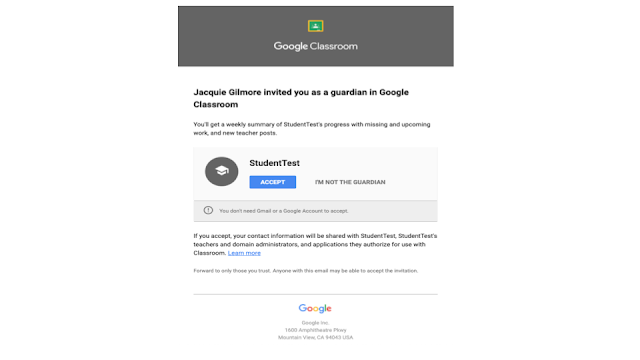
With all of us using Distance Learning, it is important to be able to communicate with guardians whether students are tuned into our Google Classroom assignments. Guardian email summaries allow you to invite guardians to receive daily or weekly classwork summaries for your Google Classroom.

To set this up:
1. Go to your People tab in Classroom

2. Type in your Guardian email for each student. Yes, unfortunately, you have to do this.

3. Once you invite guardians they receive an email to confirm how they want to receive their summary.


4. Once they accept, they select a daily or a weekly summary


5. A Guardian Summary gives them a simple view of all work and scores for their student


6. Push out a summary to students and guardians at any point

Wednesday, March 18, 2020

Setting up a Flipgrid

10:12 AM 0
Setting up a Flipgrid
Flipgrid is a great tool for connecting with students. Students can share videos back, show their learning, connect etc. Here are a few quick Flipgrid set up tools. If you need assistance setting-up Flipgrid reach out and we can walk you through it.

Overview


1. Create a Flipgrid Account


2. Create a Grid - Think of this as your classroom. If you are in Primary - I recommend you do student ID accounts and enter in your students manually. Student ID is how they join the Grid, I would use their first name for this.


3. Create Topics - Topics are prompts for students to respond to.


Looking at student videos and feedback


I made this quick guide to share login info with parents: Flipgrid Family Guide

Sunday, March 15, 2020

Distance Learning Resources

9:07 AM 0
Distance Learning Resources

Friday, December 6, 2019

200 points! NPR Student Podcast Challenge

10:05 AM 2
200 points! NPR Student Podcast Challenge

Earn 200 points for CTOD On the Hunt by participating in the NPR Student Podcast Challenge!

The NPR student podcast challenge is back, and it is amazing! NPR is hosting an opportunity for your students to submit a podcast they create to be nationally recognized. Podcast topics could be embedded into the curriculum, Genius hour topics, current event-related, anything of interest or importance

4 Reasons to Podcast with students
1. Easy to do - Students can use basic recording software on their Chromebook or phone.
2. Portable - You can listen anywhere.
3. Students Own it - Students own the entire process from inquiring, researching, creating, editing and producing.
4. Students have an authentic audience.

Check out the deets here:
https://www.npr.org/2019/10/22/771843477/the-npr-student-podcast-challenge-is-back


Guidelines to Remember

The contest is open to teachers with students between fifth and 12th grades.
Podcasts must be between three and 12 minutes long.
Podcasts must not include music.
Students can work with a class or extracurricular group to make their podcasts.
Students will need the help of a teacher to submit their podcast. The entry form is open to teachers only.

Possible Prompts

You can create your podcast entry in any class or extracurricular group, on any topic. If it helps, here are some suggestions.

Tell us a story about your school or community: about something that happened there — recently or in the past — that your audience should know about.
What is a moment in history that all students should learn about?
Show us both sides of a debate about an issue that's important to you.
What do you want to change about the world? What's a big change that you want to make in the future?
Explain something to us that kids understand and grown-ups don't.

Check out these resource guides:
Teachers: https://www.npr.org/2018/10/30/662116901/teaching-podcasting-a-curriculum-guide-for-educators
Students: https://www.npr.org/2018/10/30/662070097/starting-your-podcast-a-guide-for-students

Friday, September 6, 2019

Important YouTube Brand Account Information

1:32 PM 0
Important YouTube Brand Account Information
If you have created a YouTube Channel with a Channel name different than your Google Account Name you have created a YouTube Brand Account. In July, YouTube suspended these accounts because they violate operating terms. You may have received an email from Google in July stating this. We have requested that those accounts get unsuspended until July 2020 to allow you time to recover your YouTube Data. If you are not unsuspended you have until November to notify us to request that for you.

You have two options for managing your YouTube Account.

Option 1: Preserve your Channel as is and transfer it to a non school email account. You can make a new gmail for this and easily transfer ownsership of your account to a separate gmail. If you use your YouTube channel videos in other tech tools like EdPuzzle this option is for you. Nothing about your channel changes except who is the primary owner. Steps to do this are below.

Option 2: Create a new channel using your @ga.hiltoncsd.net account which is almost identical to your brand account with a standard channel name. You will need to download your YouTube data, and upload it to your new Channel. Steps to do this are below.

Instructional technology can help you with either option. Please let us know if you need help!


To check to see if you have a brand account click here: https://myaccount.google.com/dashboard


Steps for Option 1:
You can transfer the primary ownership of the Brand Account to another user before July 15, 2020. The new primary owner must either be (a) a G Suite account holder that is not in a G Suite for Education primary/secondary (K-12) school domain or (b) a consumer account holder (i.e. account@gmail.com).

https://support.google.com/accounts/answer/7311601


Steps for Option 2:
Use the Youtube Channel switcher to make a channel with your @ga.hiltoncsd.net email (again) - https://www.youtube.com/channel_switcher
**You may need to clear your history and cache.

Go to your Brand Channel using the switcher and then download your YouTube data: https://support.google.com/accounts/answer/3024190

Switch back to your new unbranded channel and upload your data.


Tuesday, March 19, 2019

Harry & David have Nothing on this Golden Wrapped Pear

2:29 PM 0
Harry & David have Nothing on this Golden Wrapped Pear


Apparently, you can buy really expensive Golden Wrapped Pears from Harry and David or you can use Pear Deck's amazing Flashcard Factory or Google Slides add on and get an even more fantastic pear for free.

Introducing the GOLDEN PEAR BADGE! Use either the Pear Deck Flashcard Factory or the Pear Deck add on for Google Slides to create an engaging activity for students to use in your classroom. Submit a quick reflection and share your file here to earn your badge:https://goo.gl/forms/WZIQAa72GBz0bkVp2

Pear Deck- Flashcard Factory

Use Pear Deck's flashcard factory to turn vocabulary review into an immersive learning experience for students. You supply the terms for students, they draw the definition and provide an example and voila - Flashcards! You can then import the set right into Quizlet and supply students with the study set for review. AMAZING!

1. Set up the terms you want students to use https://app.peardeck.com (you do not need an upgraded account)
2. Start The factory - Students follow on the screen.
3. Students build their examples and drawings for their vocabulary terms.
4. As a class, you vote for your favorite cards and teams get points
5. You can export your terms right to Quizlet
6. Your Pear Deck Vocab lists save directly to your Google Drive


We will walk you through the whole process start to finish!


Pear Deck - Google Slides Add On

Use Pear Deck add on in slides to add questions and activities directly into your lessons.
1. Go to Google Slides - Launch Add On
2. Choose a template slide- Feel free to edit them and add your own content
3. Present with Pear Deck - Choose whether students move through at their own pace or as a whole group

Quick overview video:


Google Slides + Pear Deck = Perfect Pear

Math Templates for Pear Deck