Cadet Tech : Google
Showing posts with label Google. Show all posts

Thursday, January 18, 2018

Doodle for Google

9:04 AM 0
Doodle for Google

Every year Google hosts a competition that allows students to use their imagination and submit a drawing to Google to be featured on the Google Homepage.

Introducing Doodle for Google!

This year's challenge: What Inspires You? Here is the gist: Students in grades K-12 are invited to take part in the 2018 Doodle 4 Google contest, and create an uplifting doodle that tells the world “What inspires me.” From crayons to clay, graphic design, or even food, young artists can utilize any materials to bring their creation to life. Like all Google Doodles, each doodle must incorporate the letters G-o-o-g-l-e. One national winner will receive a $30,000 college scholarship, a $50,000 technology package for their school/non-profit organization, and a behind-the-scenes experience with the Doodle team to transform their Doodle into an interactive experience on Google.com. The contest is open for entries from January 8th – March 2nd, 2018 – only 8 short weeks!

Check out their overview and entry directions on their blog: https://doodles.google.com/d4g/index.html


They also have a library of teacher guides and resources - https://doodles.google.com/d4g/classroom.html

Friday, December 15, 2017

Version History in Google Docs

1:08 PM 2
Version History in Google Docs
The version history in Google docs is a very powerful tool. It allows you to track changes, name versions, and see where students have made changes and when they made them. Within each revision you can expand the drop down arrow to see more detailed revisions. If you are looking at a document and you see one large block of text in blue with no revisions, chances are the student pasted that text. A typical paragraph can have up to 20 revisions. Also, if you have assigned a Google Doc through Classroom you will get a notification when students try to share that doc with others. Watch the video below to see how to access and use version history.


Additionally, there is an exceptional extension called Draftback that will compress every change made in a document into a live video. You can view the changes that are made in the document in real time. Here is how it works:
Install Draftback Extension

Once you have installed the extension, click on the Draftback button in any turned in Google Doc


Once you generate the Draftback you can watch it as a video:


Friday, June 2, 2017

Grab a To-Go Box and Pack Up your Google Drive When you Graduate

12:16 PM 0
Grab a To-Go Box and Pack Up your Google Drive When you Graduate

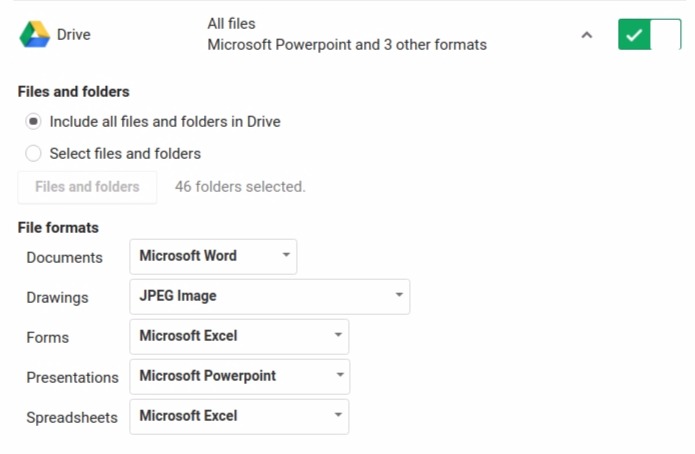
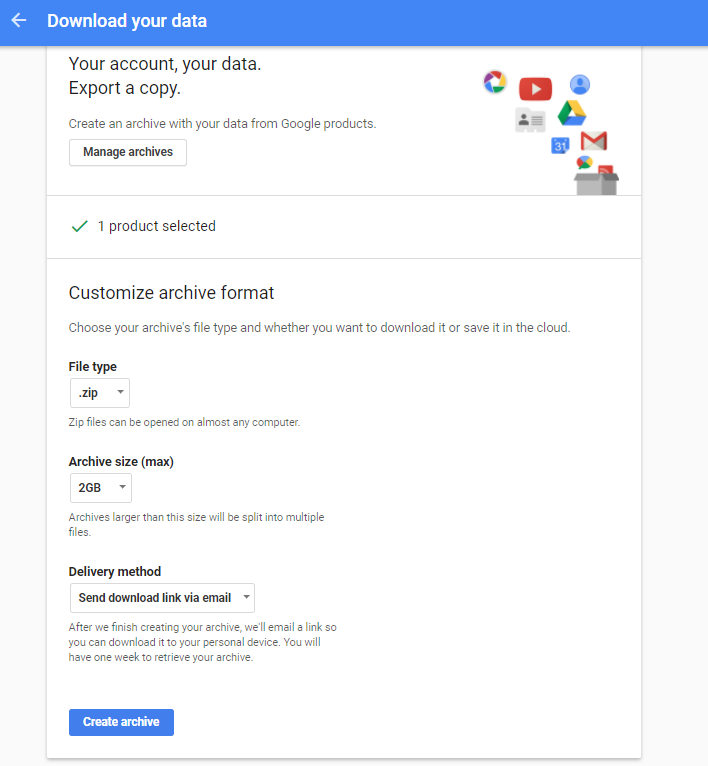
If you need to take any files with you when you graduate then Google Takeout is the tool you need. Below you will find a video tutorial that will walk you through the following steps.


Steps to create a Takeout:
1. Vist: https://takeout.google.com/settings/takeout
2. Select which Google Services you want to Export. At the very least, you want to select Google Drive


3. Click Next

4. Create your archive


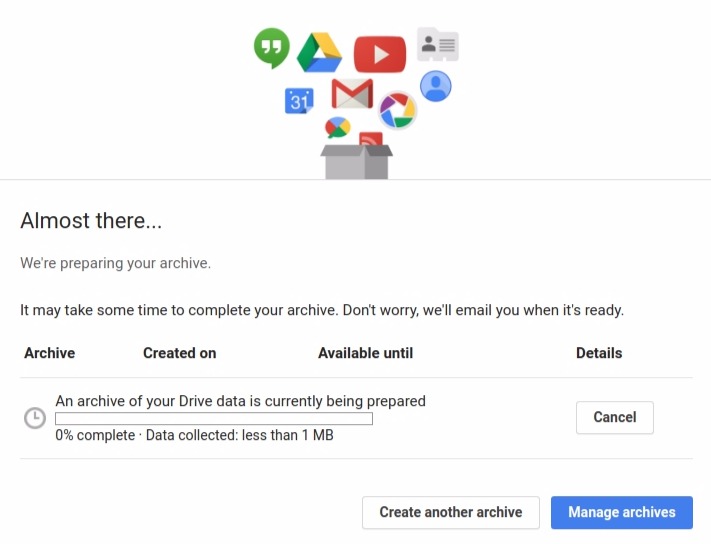
5. Google Takeout will prepare and finish your archive


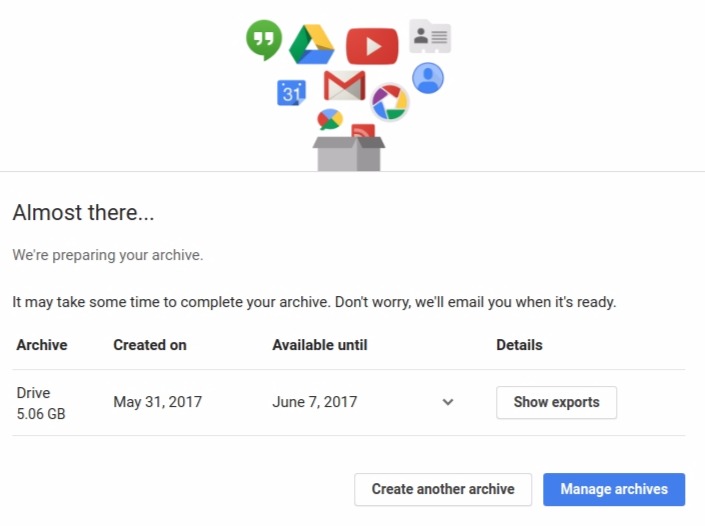
6. Once your archive is complete you will receive an email with your data


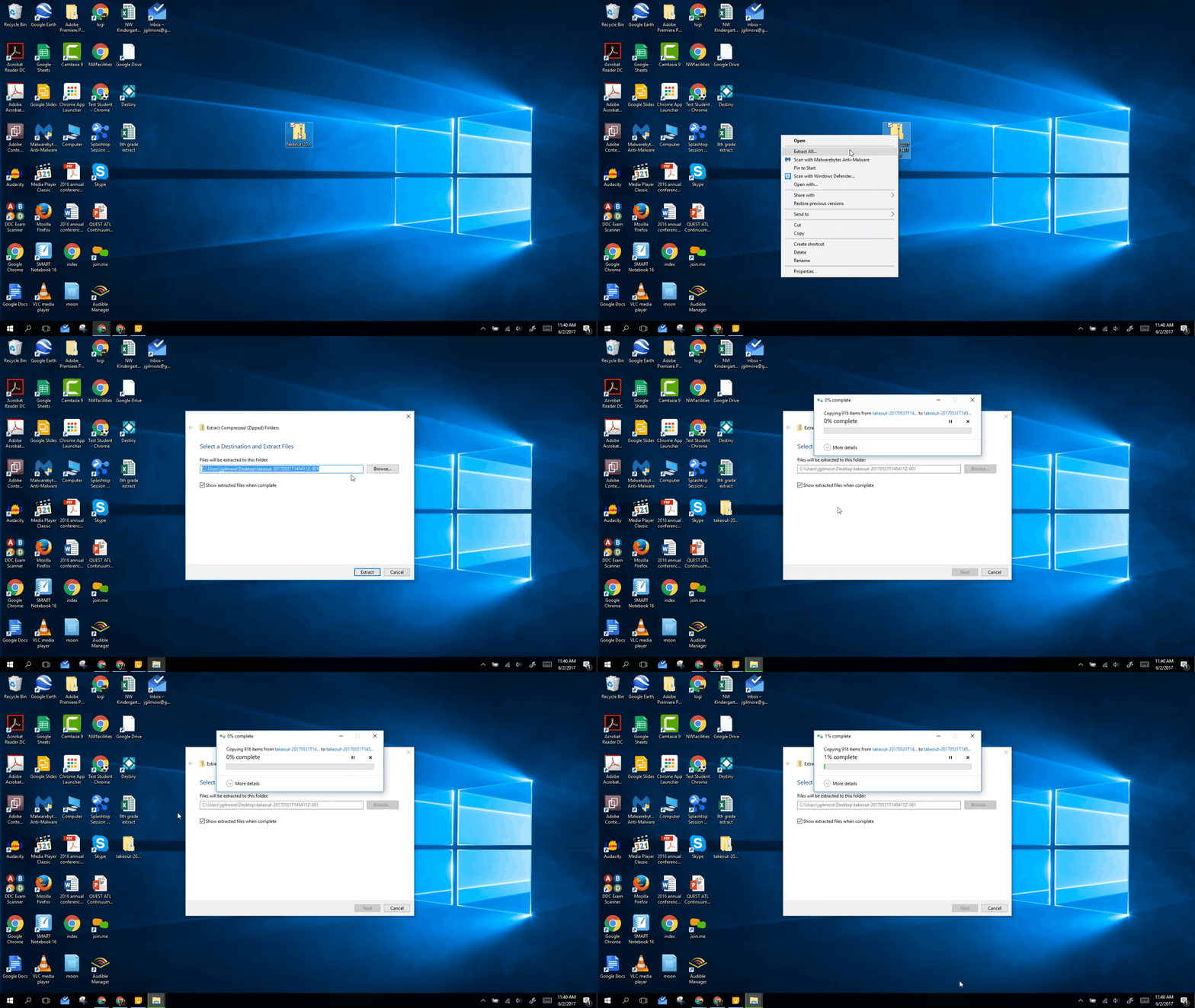
7. Your files will download as a .zip file. You will need to right click on it and extract the files


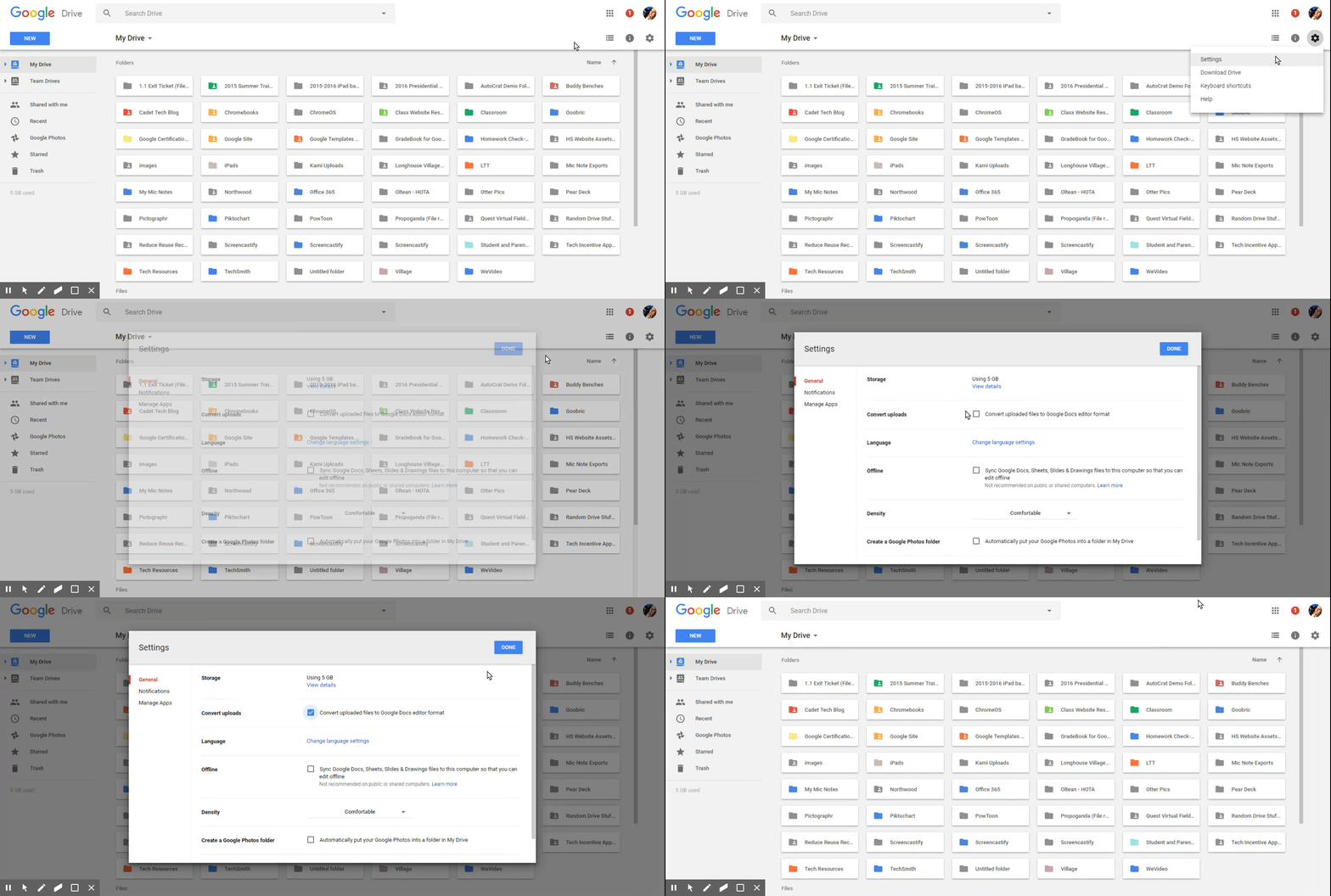
8. Set your New Google Drive to automatically convert uploaded files to Google Docs format


9. Upload your files and you are done!


Thursday, March 23, 2017

Game Changing Updates to Google Keep

10:29 AM 1
Game Changing Updates to Google Keep
I love Google Keep and here are three reasons to love Google Keep even more!

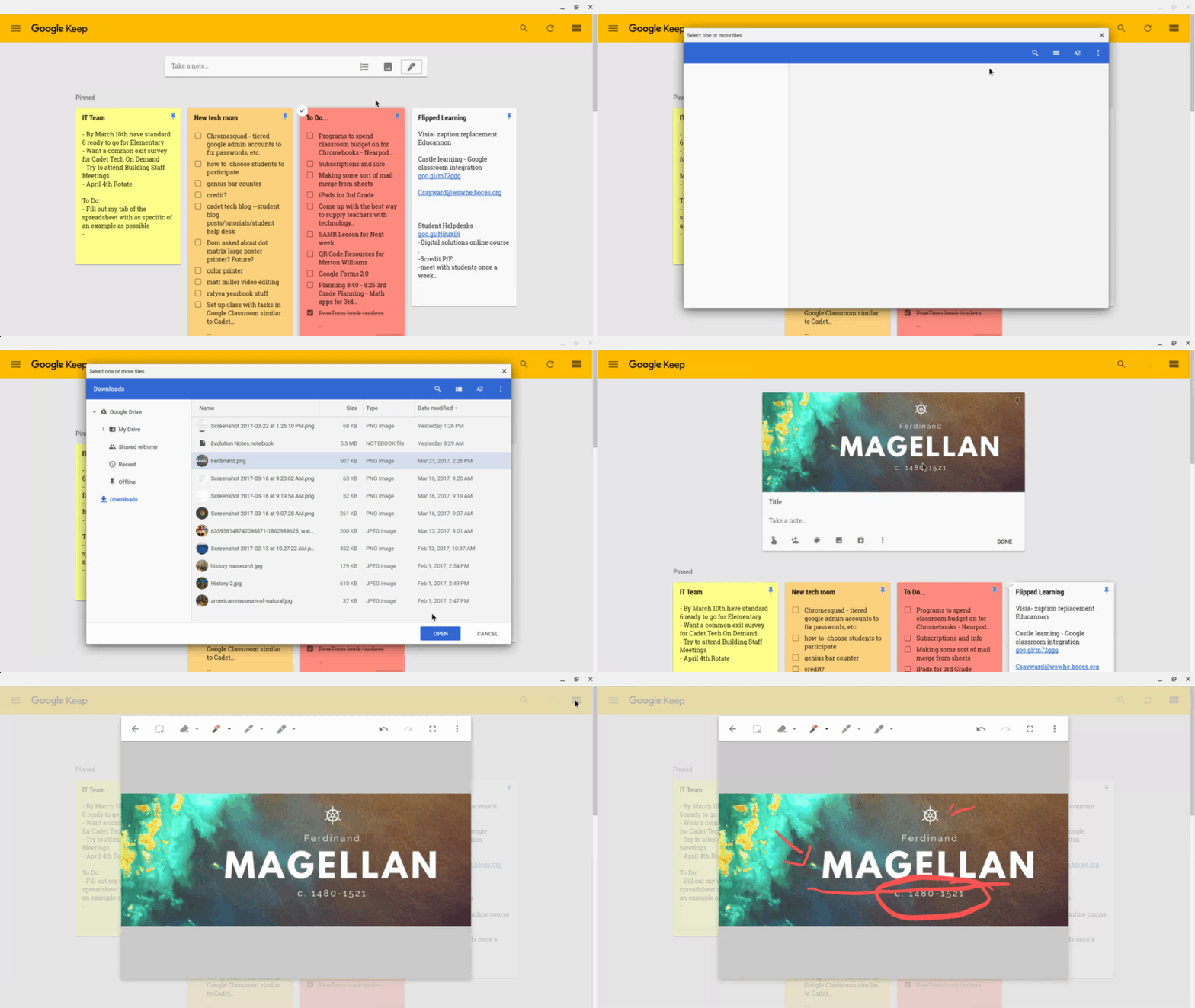
1. Handwriting Notes in Google Keep!
Click on the pen note to write a note or draw a picture


2. Annotate Images in Google Keep
Add an image note, click on your image and draw on top of it!


3. Google Keep Integration to Google Docs!
Open the Google Keep tool in Google Docs and Drag and drop your notes into your Doc


More Ways to Use Google Keep:


Use labels, tags, and colors to group notes together and identify them. Share your notes and colloborate together. Use the new image tool to snap a pic of a rubric and score student work, drop the rubric into student's docs. Save comments as Google Keep notes and drop them into your Google Doc. Check out this video and post for resources


http://www.controlaltachieve.com/2017/03/keep-grading-comments.html?m=1


Friday, April 29, 2016

Animated Gifs in the Classroom

1:58 PM 3
Animated Gifs in the Classroom

Animated Gifs are all the rage these days! They allow you to put a collection of images together and create a single animated image. They are also a great tool to use in the classroom. In Casey VanEpps and Jen Humphreys' fifth grade class they used animated gif creation to support learning and understanding the phases of the moon. Students used their iPads to gather images of each phase of the moon. They used the app GIF Maker to create the animated gif. Gif Maker has a simple and streamlined interface that allows you to add emojis, text, images, or both to a page. Add pages to stitch together as either an animated gif or video.


Using Google Docs with Animated Gifs

Students were then able to take their beautiful animated gifs and insert them into a Google Doc and write about what they learned. Some students used the new Google Docs template library on iOS to produce a slick doc with animations. Check out the final product below!

Templates, Templates, and more Templates!

1:57 PM 0
Templates, Templates, and more Templates!
Google Slides and Google Drawings are fabulous tools that allow you to do some pretty awesome things such as: layer objects on the page, utilize transparency, add animated images, and even customize the size of the page. These features make them perfect vehicles for different projects in your classroom. Get excited and mash up some tools to create amazing student projects!


Google Slides Templates

Facebook Page


Have students build a Facebook page on a famous figure, topic, or item. They can design page posts and come up with comments. Use the Canva App or Website to make a stunning Facebook cover photo.

Click Here to Make a Copy of the Template

Instagram Feed


Curate a series of images on an Instagram feed. Come up with taglines and hashtags that are relevant to the feed.

Click Here to Make a Copy of the Template

Twitter Profile


Create a twitter profile for a person, place or a thing. Students can posts tweets that would come from that profile.

Click Here to Make a Copy of the Template

Google Drawing Templates

Magazine Article 1


Click Here to Make a Copy of the Template

Magazine Article 2


Click Here to Make a Copy of the Template

Magazine Article 3


Click Here to Make a Copy of the Template


A few more:

Click Here to Make a Copy of the Template


Thursday, March 3, 2016

Google Forms and QR in the Classroom!

4:39 PM 0
Google Forms and QR in the Classroom!

QR codes can be an amazing tool for students. Since QR codes link to any URL you can virtually make anything a QR code!

Sean D'Abreu has started a trend mashing up QR Codes and Google Forms. We built a slick workflow where students scan in the QR code and submit which assignment they are missing and why. The Google Form then compiles all of the information and generates an email merge that pulls from a database of emails associated with that student. As soon as a student submits that they did not do their homework their parents are emailed with their submission reason. No more paper homework slips. Sean has helped set up some team members with the same workflow at Village and I have set up a few Forms for NW teachers as well! Check out my guide on creating a missing homework QR code check in: http://hiltoncadettech.blogspot.com/2016/03/missing-homework-check-in.html
Coleen Maccracken and Jen Sica also use QR code Google Forms for Maccria Points - Their classroom tool for student self management. Students scan in the QR code and enter their points for each day. Behind the scenes the spreadsheet compiles each students points for the week and even totals up the class for Sica and Maccracken.

Jen Humphreys and Casey VanEpps are using Google Forms for daily reflections following their "Genius 1/2 Hour" activities. Students use Google Forms for reflecting on their problem solving strategies, successes, struggles and utilization of different IB learner profile traits. In addition to this, Jen and Casey have dove head first into Google Forms using them for exit tickets and checks for understanding as well as quick pre assessment strategies to get a gauge on student understanding and learning.

These are just a few examples... The possibilities are endless!

Missing Homework Check In

3:47 PM 1
Missing Homework Check In
So you want to make a missing homework check in. Here are the steps to getting up and running with this:

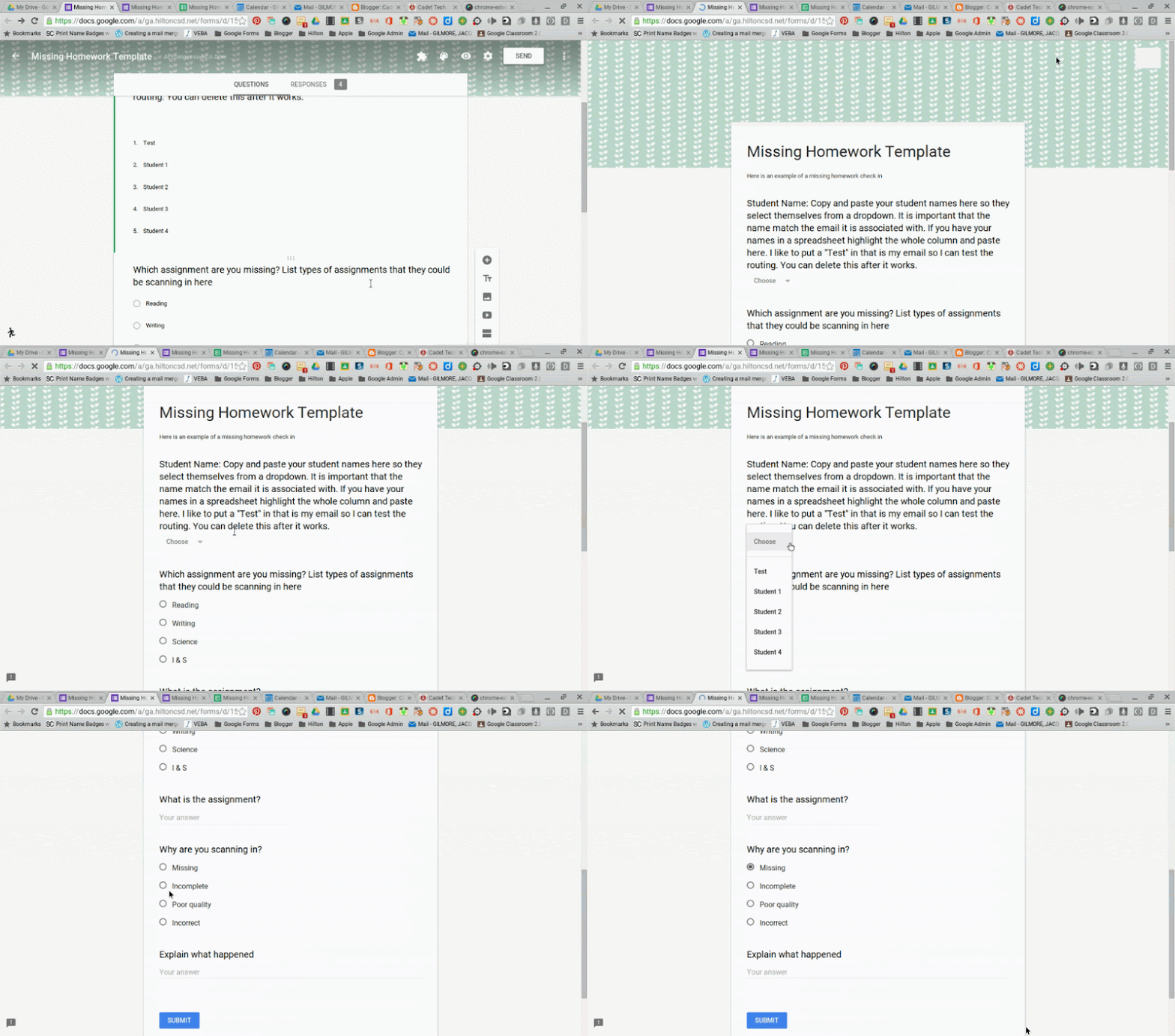
1. Create a Google Form where the student would select themselves from a list and check in the assignment that they are missing. It is important that the student name question is a dropdown so that the name that is captured by the form will match the email list associated with it.
Here is an example Missing Homework Check In

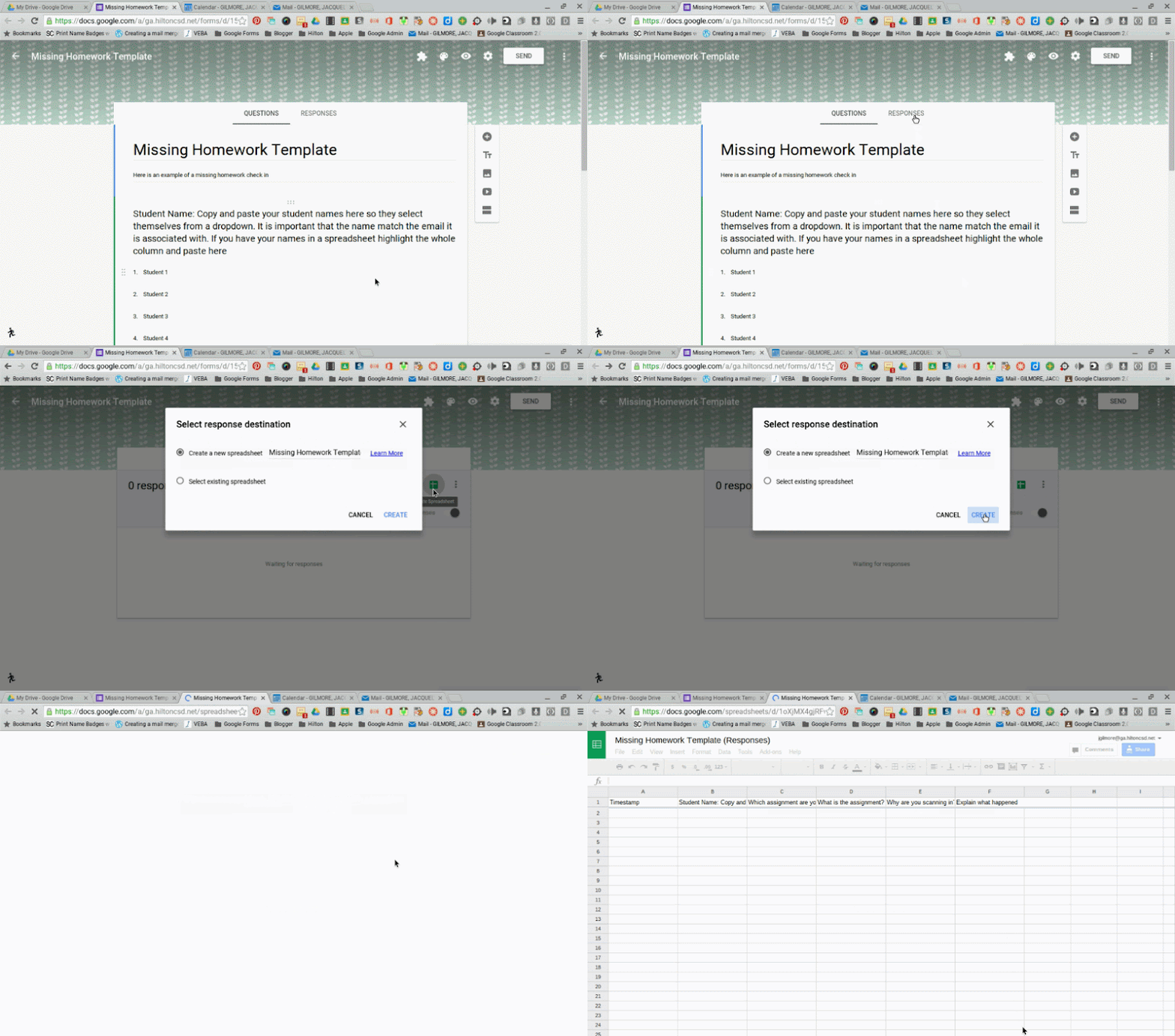
2. Once you have created the form. Click on the "Responses" tab to generate the spreadsheet to gather your form data.


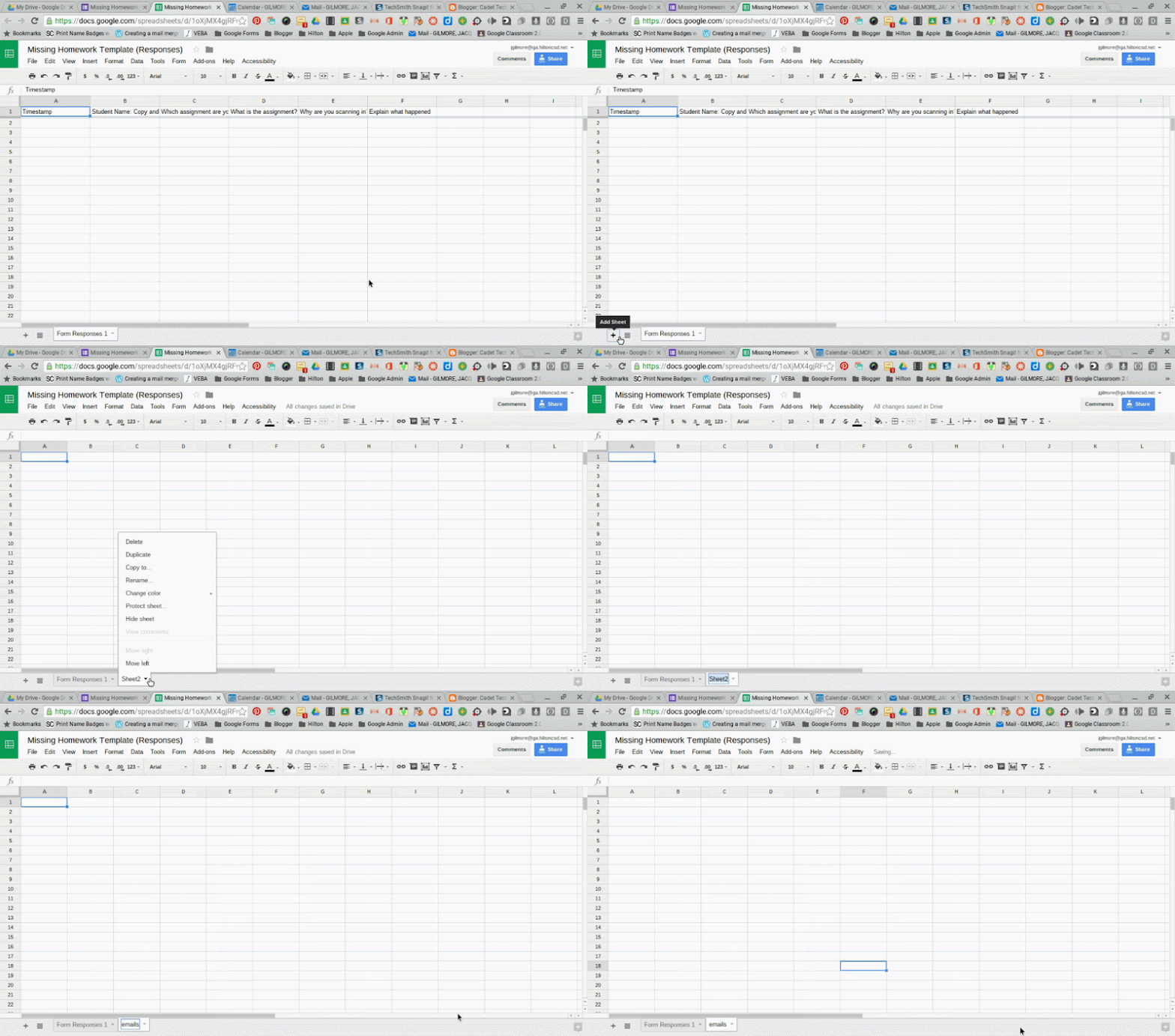
3. Every time your form is submitted the data will be collected into this spreadsheet. At the bottom of your spreadsheet create a new tab called "emails"


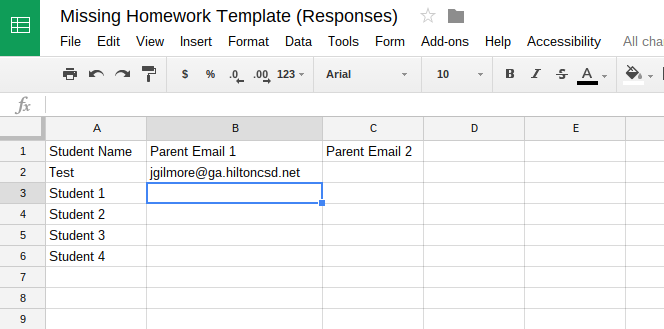
4. In this spreadsheet you want the following headers: Student Name, Parent Email 1, Parent Email 2.
In the Student Name column you want exactly the same names that you put in the Google Form dropdown question for student name. *Start with a Test that will be linked to your email so you can test the form routing. You do not need a Parent Email 2 column, this is optional.


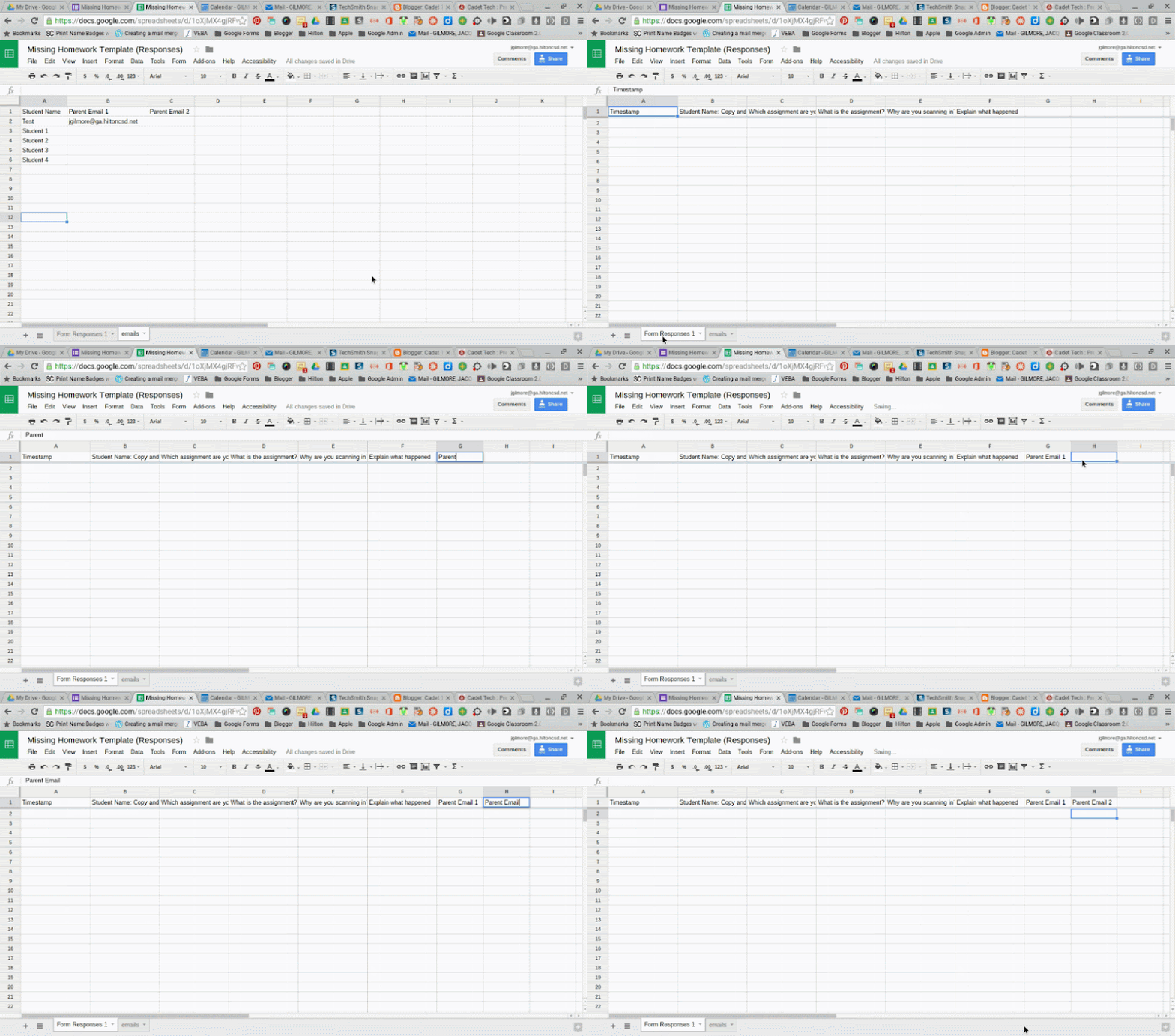
5. In the Form Responses 1 spreadsheet add a new column for Parent Email. If you added two columns to the spreadsheet for Parent Email 1 and Parent Email 2 you will need to add two columns to the spreadsheet.


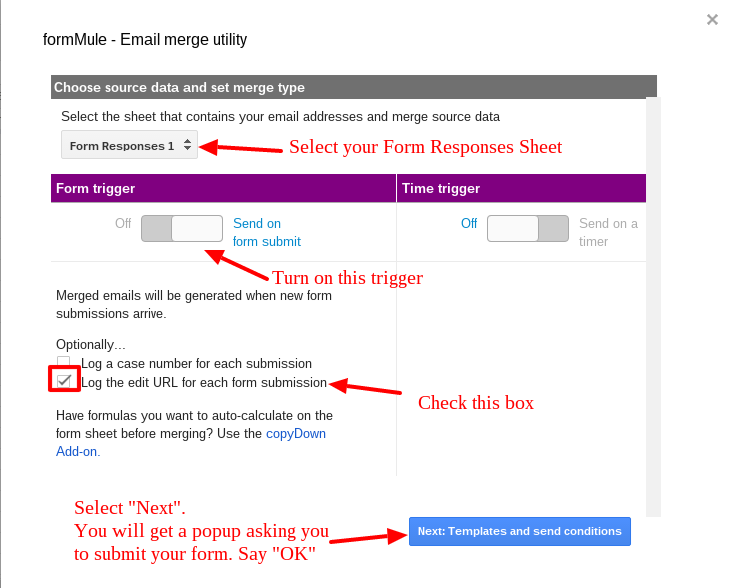
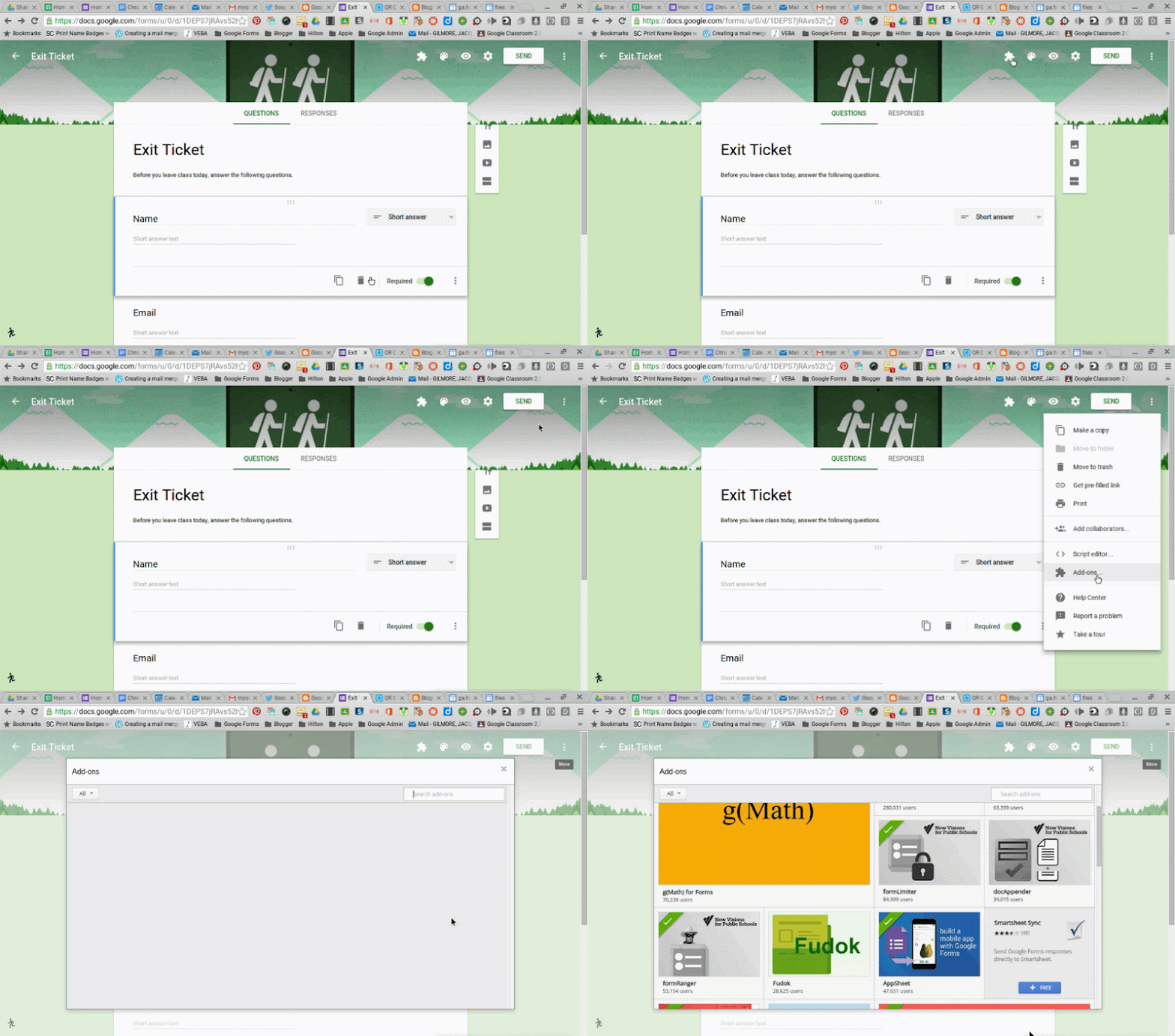
6. Run/add the Formmule Add-on. If you don't have it installed click "Get Add-ons" at the bottom of the menu.


7. Go back to your Google Form. Click "preview" and submit the form as the "Test" student you put in.


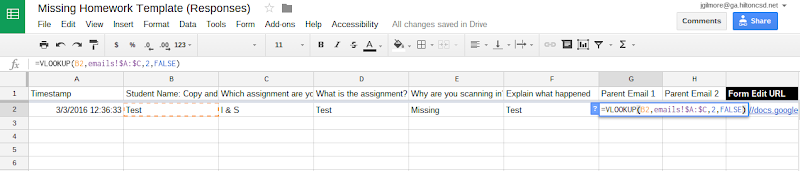
8. In your spreadsheet enter the following formula into the Parent Email Columns for your Test Student. *Note you only need to do Parent Email 2 if you choose to do two parent email columns in your spreadsheet.

Parent Email 1 Column (Copy and paste the formula from below
=VLOOKUP(B2,emails!$A:$C,2,FALSE)

Parent Email 2 Column (Copy and paste the formula from below)
=VLOOKUP(B2,emails!$A:$C,3,FALSE)


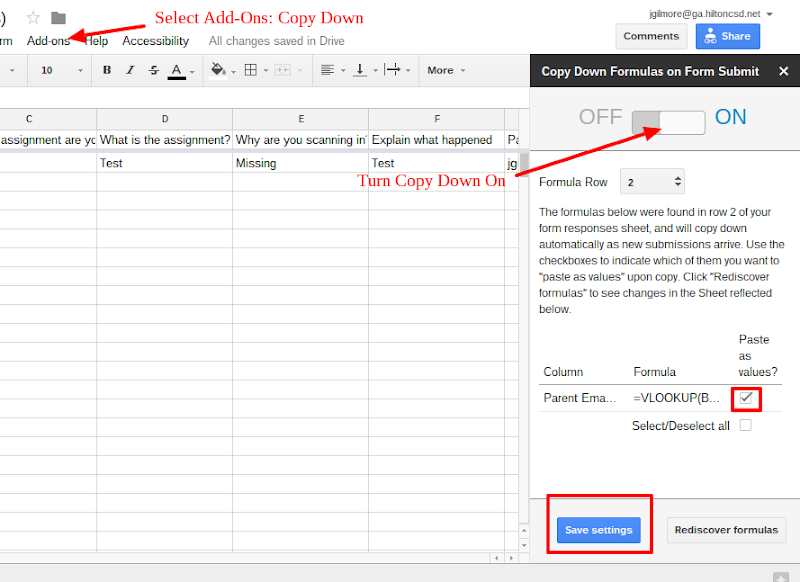
9. Run/add the CopyDown Add-on. If you don't have it installed click "Get Add-ons" at the bottom of the menu.


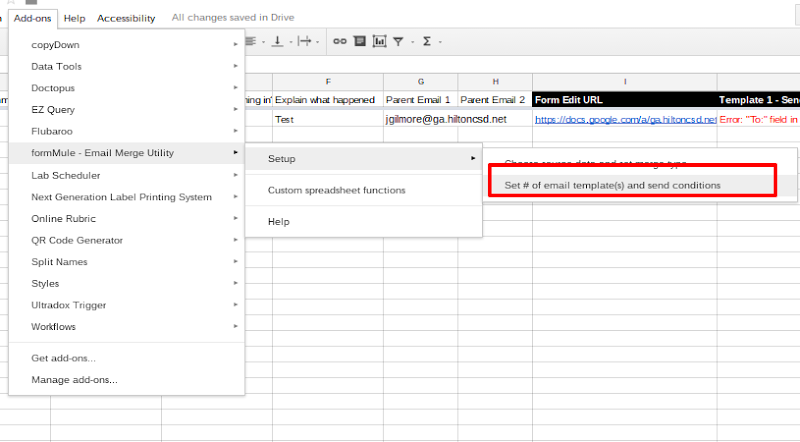
10. Once CopyDown is enabled you are set to set up your email templates. Go back to Add-Ons > FormMule


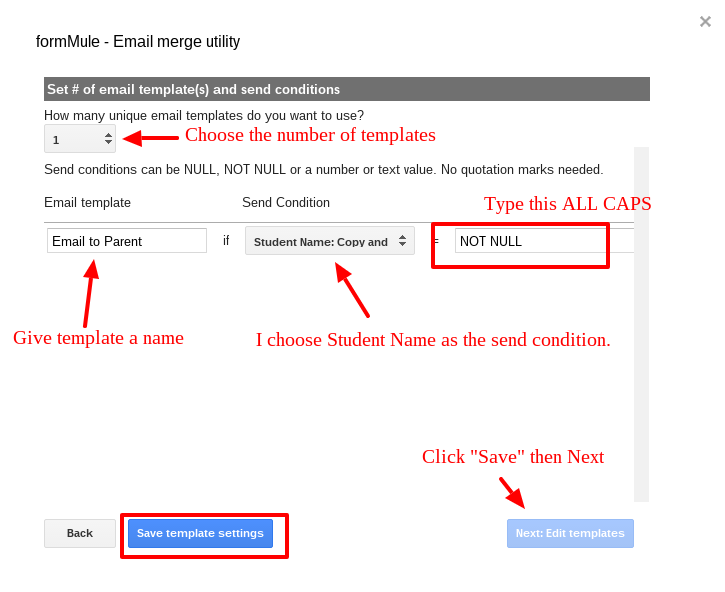
11. Choose the number of templates you want. Typically 1 will work. Give your template a name. Set the student name to be the send condition. Set NOT NULL as the trigger. Click "Save Template Settings" and then click "Next: Edit Email Templates". *Some teachers thought they would have everyone check in their homework and then only send emails to students who checked it in as Missing. In this case that question would become the send condition and then the answer to that question as the trigger.


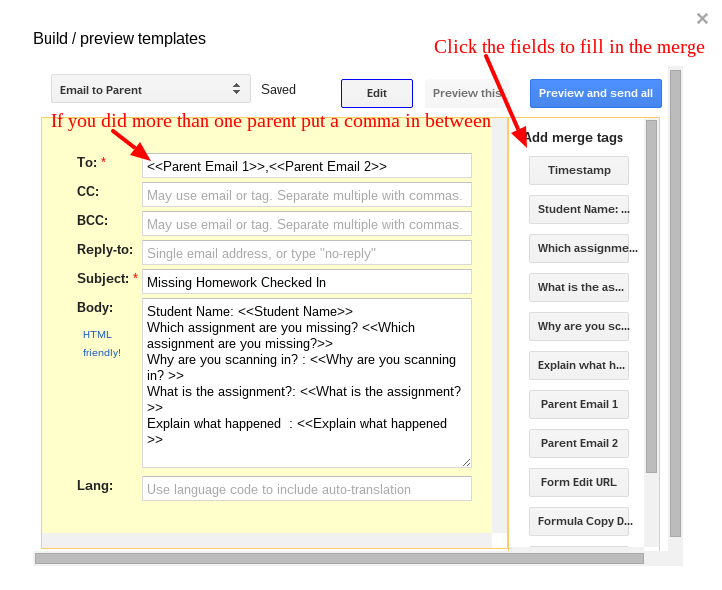
12. Select the fields from the form on the right to fill in the email template. Select Parent Email 1 and Parent Email 2 for the To field. *Note: separate emails with commas. Give you email a subject. I usually fill the body of the email with the students answers to the form questions. Just click on each one to merge the fields into the email.


13. Once this is done you should submit your form again as Test and see if it worked! You can see in the spreadsheet the log of the submissions and the email send status.

If you wanted to make your Form a QR code then you can take the link to the live form and do a QR code generator. If you are using this in a Chromebook classroom you can post the link in your Google Classroom for students to check it in.

Google Updates you will Love!

11:38 AM 0
Google Updates you will Love!
It's my favorite time of year, well... except for Christmas, it's the time of year where Google starts to revisit some of their Google Apps for Work (formally Google Apps for Education) and begin to make updates, enhancements, and improvements. Here are some of the latest updates!

Google Forms

Google Forms updated to a new interface in the fall. In our first Google Forms Cadet Tech On Demand course we explored the old versus the new. In the original release, the new interface left a few key features out. That is no longer the case! Not only did they incorporate the previous functionality of the old Forms into the new interface, they enhanced it as well!

Some key features:

  • Add-ons menu - You know I love me some Add-ons. Click on the Add-ons icon to run a currently installed add on to your Google Form. To get new Add-ons click on the settings icon.
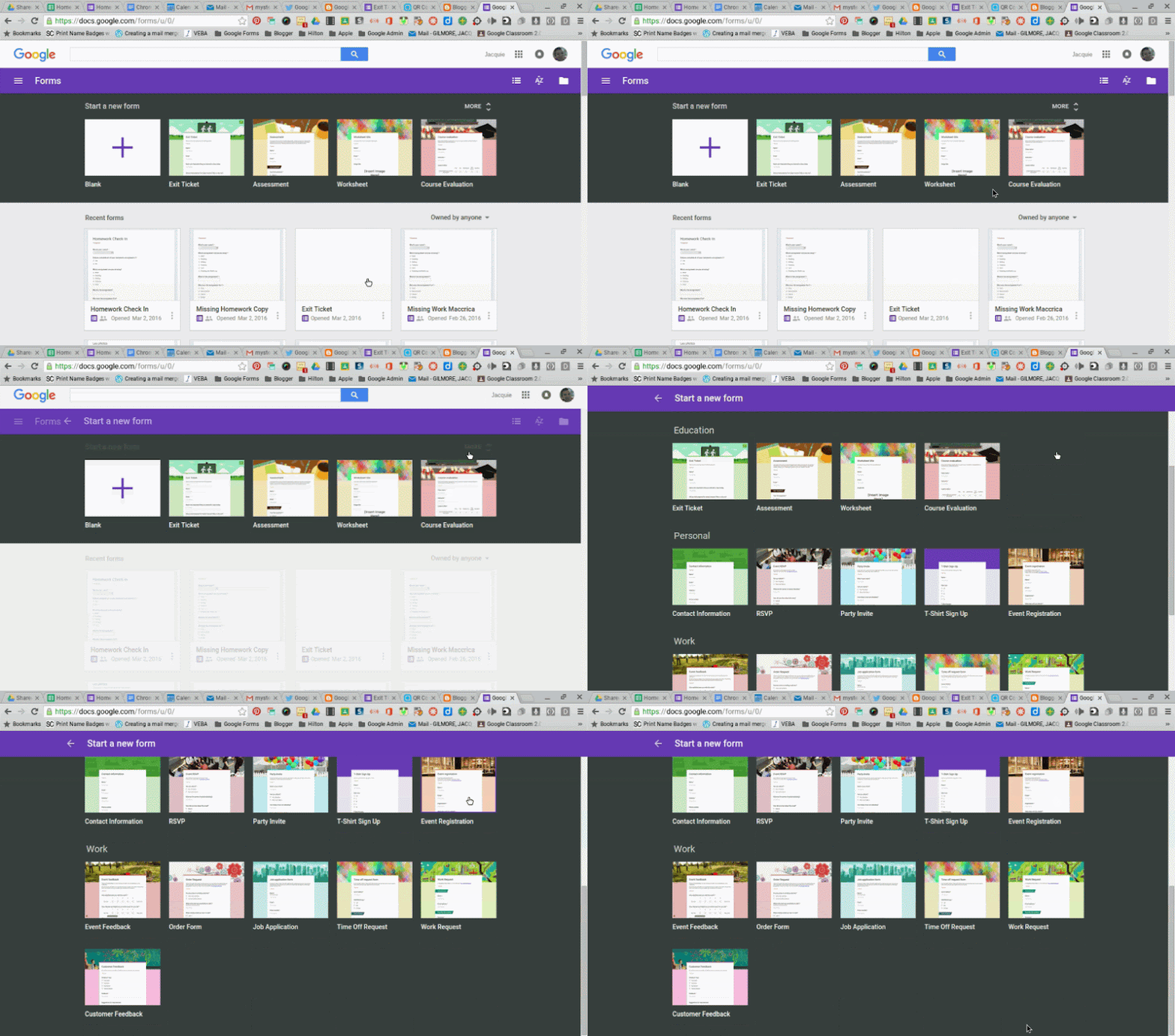
  • New Forms Template Gallery!
    http://forms.google.com
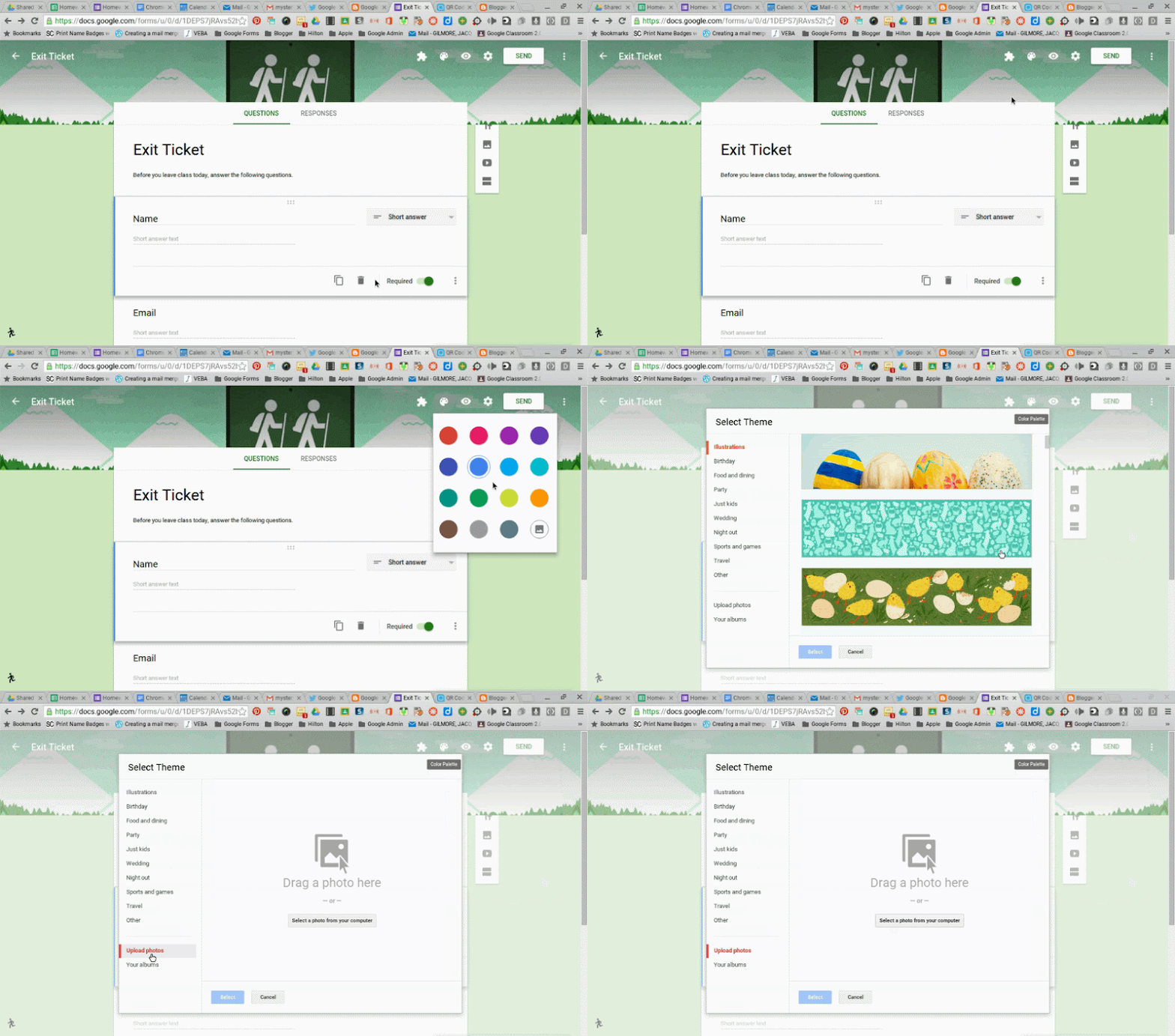
  • Customized Theme and Header options
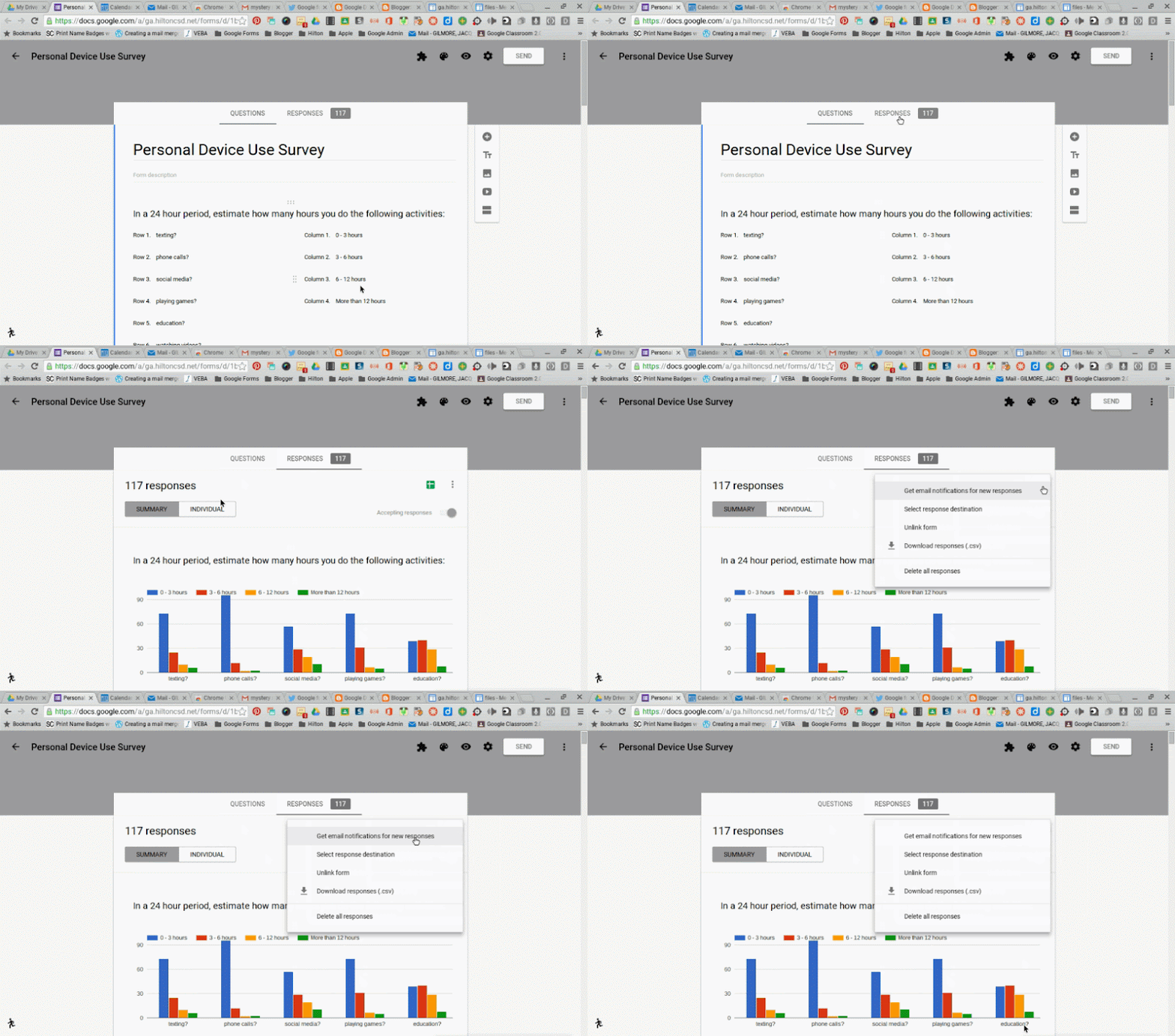
  • Individualized form results. Not only can you see a summary of your form responses. You can also see the individualized form submissions without having to go to the spreadsheet.
  • Email notifications for Form submissions- No longer do you need an Add-on for form submission notifications. Click on the Form Responses Tab to get email notifications when new Forms are submitted.

Friday, January 8, 2016

Curate a Virtual Museum Exhibition with Google Slides!

9:59 AM 1
Curate a Virtual Museum Exhibition with Google Slides!

Virtual field trips are all the rage these days! Now you can have students apply their learning on a topic and have them curate their own museum exhibit. David Lee Ed Tech has created a beautiful Google Slides template that provides students the space to curate two exhibits per room in a four room virtual museum. The template works by hyperlinking visitors between rooms and in depth looks at each exhibit. The best part is... It's Google Slides! It works on iPads, Chromebooks, and laptops and students can work together on the same exhibit by sharing their presentation with one another.

Click the link to create your own copy of the Google Slide Template: Virtual Museum Template. Reach out to your Instructional Tech Teacher at your building to get rocking and curating your own virtual museum exhibit with students.


Here is what the slideshow would look like:


If you would like to read more on how to utilize the template here is David Lee Ed Tech's post on the virtual museum template:
Virtual Museum Guide

Friday, December 4, 2015

Cadet Tech On Demand!

8:29 AM 0
Cadet Tech On Demand!


Cadet Tech On Demand Offerings


Google Classroom 1.0

- Get to know Google Classroom! This introductory component will teach you the basics of accessing, building and utilizing Google Classroom. We will be covering:
Setting up your Google Classroom
Updating your "About" Tab
Creating and posting announcements and assignments
Creating and asking Questions to your class
The basics of Grading and managing your Google Classroom

Google Classroom 2.0

- Amp up your Google Classroom! Dive into using the question tool to create and foster digital conversations with students, provide feedback using Google Docs and annotating tools on turned in assignments, export grades and manage grades, and explore different integration strategies.
Tools Include:
Google Docs - Options and advanced features
Goobric- Grading rubrics within Google Docs


Google Forms 1.0

- Meet Google Forms and see what Forms can do you for you. Find out how to use Google Forms for summative and formative assessment. Link up your forms with Flubaroo for automatic and hassle free grading. Automate individualized feedback, review documentation and email grades with the click of a button.

iMovie

-iMovie is a great tool that allows students to demonstrate learning by creating videos on their iPads. You can also use this to create your own instruction and to make videos to hook students on a new topic. For some examples on how to use iMovie as a student tool, check out these higher level examples: http://www.appsinclass.com/imovie.html
You will learn the basics of inserting video, images, and audio then expand upon the basics to using transitions, filters, cropping, finishing your video and sharing with your students.

Flipped, Tossed or Gently Shaken 1.0

- iMovie is a great tool that allows students to demonstrate learning by creating videos on their iPads. You can also use this to create your own instruction and to make videos to hook students on a new topic. For some examples on how to use iMovie as a student tool, check out these higher level examples: http://www.appsinclass.com/imovie.html
You will learn the basics of inserting video, images, and audio then expand upon the basics to using transitions, filters, cropping, finishing your video and sharing with your students.

One Note 1.0

-OneNote is a great solution to create an online binder with multiple notebooks, sections (similar to tabs), and pages. You can organize your subjects with all your notes using text, images, web clips, video and audio. You will learn the basics of creating notebooks and how to add various media. OneNote is available online and also can be viewed and edited on mobile devices. This course is a pre-requisite for a future course on OneNote Classroom Notebook; a great way to allow your students to have online binders that you can view anytime.

Notability Soup to Nuts

- This app has proven to be very useful on student iPads for students to write on PDF files that you share with your class (less paper!) and to create documents with more than basic typing. Learn the basics of how students can annotate and type on Notability files and more advanced topics including organization, inserting web clips, bookmarking, searching, recording voice and creating a video playback of their work. Notability supports differentiation for creation of documents. This class is open only to those using Notability on iPads.

Be sure to check out the details in MLP!

Tuesday, September 29, 2015

Google Calendar Integration into Classroom

3:17 PM 1
<h3>Google Calendar Integration into Classroom</h3>
Google Calendar is now fully integrated into Google Classroom. It provides a sleek and streamlined way for your students to manage assignment due dates right in Google Classroom as well as from their Calendar App!

Now in Google Classroom you have an option for "Calendar." You can get to this by clicking on the "Hot Dogs" (Three horizontal lines) in the upper left of your classroom home, or from the "Hot Dogs" inside your class.


Once in your Calendar you will see assignment due dates for the various classes that you teach or are enrolled. You can click on the assignment to navigate to it. As an instructor it takes you to the grading view. Here you can view who has completed the assignment and add comments and grades just like you would from the assignment in the stream. Your students will see the assignment details and be able to complete the assignment right from their calendar.


Your Google Calendar is automatically linked in the "About" tab of your Google Classroom. It is possible that your Google Calendar is grayed out it is because the link has not been created between the google apps. Once you post an announcement or an assignment to your class it will become live.


Google Calendar


You can also manage your Google Classroom Calendar right from your Google Calendar. Many of you want to be able to provide parent access to your Google Classroom for checking assignments. You can now share out your calendar with parents and they can view up and coming assignments. You can also add school events or important dates to this calendar for parents to view. If you add events here they do not show up on the Google Classroom side yet.


Parent Access

If you want to provide parent access or embed your Google Classroom Calendar into your blog or website you can do it from your calendar settings. Click on the little arrow on the left hand side of your Google Calendar and select "Share this Calendar."


In order for parents to see your calendar you will need to make your Google Calendar public. Check both boxes. Make sure you click "Save"


Once your Google Calendar is public you can then now get a link to your Google Calendar or embed it with the code provided. If your settings closed, click on the arrow again and choose "Calendar Settings."


Chromebooks come to Hilton

10:12 AM
<h3>Chromebooks come to Hilton</h3>


HCSD Chromebook Pilot Process and Application

The HCSD Chromebook pilot looks to evaluate Chromebooks as a viable student technology in both the 1:1 and shared environments.

Pilot Program Particulars

  • Three classroom sets of chromebooks will be distributed throughout the course of the pilot
  • Each teacher will have 100% access to a classroom Chromebook cart for 8 weeks
  • We will select 3 teachers for session 1 (10/20 - 12/21) and 3 teachers for the session 2 (1/4 - 3/11)
  • The pilot program is open to all teachers who submit an application
  • Selection process will be based on application to achieve a representative group of all types of users
  • Support will be provided throughout

Chromebook Pilot Timeline


Program Requirements/Time commitments
Upon applying for this program please keep in mind that all selected candidates must do the following:
  • Attend training sessions on October 19th and December 14th
  • Fill out a midterm reflection form
  • Complete final reflection and data collection survey and interview

Application

Please fill out this application to apply for the chromebook pilot Chromebook Pilot Application


Please contact Jacquie Gilmore with any questions pertaining to the Chromebook pilot program and application process.