Cadet Tech : Project Based Learning
Showing posts with label Project Based Learning. Show all posts

Thursday, January 18, 2018

Doodle for Google

9:04 AM 0
Doodle for Google

Every year Google hosts a competition that allows students to use their imagination and submit a drawing to Google to be featured on the Google Homepage.

Introducing Doodle for Google!

This year's challenge: What Inspires You? Here is the gist: Students in grades K-12 are invited to take part in the 2018 Doodle 4 Google contest, and create an uplifting doodle that tells the world “What inspires me.” From crayons to clay, graphic design, or even food, young artists can utilize any materials to bring their creation to life. Like all Google Doodles, each doodle must incorporate the letters G-o-o-g-l-e. One national winner will receive a $30,000 college scholarship, a $50,000 technology package for their school/non-profit organization, and a behind-the-scenes experience with the Doodle team to transform their Doodle into an interactive experience on Google.com. The contest is open for entries from January 8th – March 2nd, 2018 – only 8 short weeks!

Check out their overview and entry directions on their blog: https://doodles.google.com/d4g/index.html


They also have a library of teacher guides and resources - https://doodles.google.com/d4g/classroom.html

Friday, October 21, 2016

High School Library "Flexes" Its Space

1:07 PM 0
High School Library "Flexes" Its Space

The makerspace in the HS library is beginning to take shape and stretch its wings. This creative haven provides a variety of opportunities and resources for students to tackle all of their projects needs.
Here are some of the things the space has to offer:
  • Bank of amped up desktops equipped Wacom Tablets and Adobe Creative Suite
  • 3D Printer
  • Video Editing and Green Screening Station
  • Brainstorming and Collaboration Pods

This week students are preparing their first FOA for English. These gentlemen were able to use the space to screencast annotating the text with the Wacom Tablet while recording their oral commentary. Looking forward to seeing more students take advantage of this space and everything it has to offer!


Thursday, May 12, 2016

Three great tools for writing with students

1:22 PM 0
Three great tools for writing with students

Adobe Slate

1. Adobe slate - Web and App. Beautiful app and website that allows you to combine a combination of text, images, video and links to create a one page scrolling website. Jen Roberts at Nowthwood used Adobe slate for informational text writing with her sixth graders. Once students publish their Slates they get a public URL to share or link to. Students will need to create an Adobe ID, passwords require eight characters and our case sensitive. We recommend First initial(capital) last initial and 6 digits ex: Jg000000

Check out some amazing student examples

https://slate.adobe.com/cp/x456E/
https://slate.adobe.com/cp/7NHTX/
https://slate.adobe.com/cp/ZrLwe/
https://slate.adobe.com/cp/B99zr/

Creating an Adobe Slate


2. Storybird

Storybird - Web only but is Mobile friendly. Create beautiful chapter books, picture books and poetry with your students. Sign up as a teacher and invite students to join your class. Students will be able to read each other's stories. You can even invite parents to join with a view link and password. Use Storybird's art collection to inspire you writing.

Steps for Creating a Story with Storybird


Video Guides

Creating a story:
Storybird guide on how to create a story
https://storybird.com/blog/2015/11/how-create-picture-book/


Setting up a class:
Storybird guide on how to set up a class: https://storybird.com/blog/2015/10/how-create-class-storybird/


3. Story Creator

Story Creator- Free App. Allows you to draw or upload local images for your story. You can add text as well as voice recording on each page. When you are done you can share or publish your story.


Friday, April 29, 2016

Animated Gifs in the Classroom

1:58 PM 3
Animated Gifs in the Classroom

Animated Gifs are all the rage these days! They allow you to put a collection of images together and create a single animated image. They are also a great tool to use in the classroom. In Casey VanEpps and Jen Humphreys' fifth grade class they used animated gif creation to support learning and understanding the phases of the moon. Students used their iPads to gather images of each phase of the moon. They used the app GIF Maker to create the animated gif. Gif Maker has a simple and streamlined interface that allows you to add emojis, text, images, or both to a page. Add pages to stitch together as either an animated gif or video.


Using Google Docs with Animated Gifs

Students were then able to take their beautiful animated gifs and insert them into a Google Doc and write about what they learned. Some students used the new Google Docs template library on iOS to produce a slick doc with animations. Check out the final product below!

Templates, Templates, and more Templates!

1:57 PM 0
Templates, Templates, and more Templates!
Google Slides and Google Drawings are fabulous tools that allow you to do some pretty awesome things such as: layer objects on the page, utilize transparency, add animated images, and even customize the size of the page. These features make them perfect vehicles for different projects in your classroom. Get excited and mash up some tools to create amazing student projects!


Google Slides Templates

Facebook Page


Have students build a Facebook page on a famous figure, topic, or item. They can design page posts and come up with comments. Use the Canva App or Website to make a stunning Facebook cover photo.

Click Here to Make a Copy of the Template

Instagram Feed


Curate a series of images on an Instagram feed. Come up with taglines and hashtags that are relevant to the feed.

Click Here to Make a Copy of the Template

Twitter Profile


Create a twitter profile for a person, place or a thing. Students can posts tweets that would come from that profile.

Click Here to Make a Copy of the Template

Google Drawing Templates

Magazine Article 1


Click Here to Make a Copy of the Template

Magazine Article 2


Click Here to Make a Copy of the Template

Magazine Article 3


Click Here to Make a Copy of the Template


A few more:

Click Here to Make a Copy of the Template


Tuesday, March 22, 2016

Chick Hatching Live Stream!

10:26 AM 0
Chick Hatching Live Stream!

Village Elementary is hatching chicks! Sean D'Abreu and Beth Forman are hatching chicks in their classroom and we have them on this great Ustream feed. Check them out: http://www.ustream.tv/channel/22207779

Here is the embedded feed as well:

Eagle Cam

We also sent out a link to Mr. Presidents and The First Lady - a pair of Bald Eagles who have nested in the United States Capital National Arboretum. Check out their cam here as well! http://www.eagles.org/dceaglecam/


Wednesday, February 10, 2016

MW French Cuisine and Comics on Circulation

2:39 PM 0
MW French Cuisine and Comics on Circulation
Exciting student projects in production at Merton Williams!

French Cuisine!
First, Mrs. Herbert's French class piloted using Adobe Voice on their iPads to share French cuisine. The students viewed a sample from Northwood's Toy Project and also Mrs. Herbert's model video. They gathered images and made them professional looking using the Canva app. They worked in collaborative groups to create the video and included the recipe, the region it came from with interesting facts, the ingredients and basic cooking directions. Since these are early French speakers, some of the speaking is in  French (especially the food vocabulary) and some was in English. They did a great job of ensuring all students found images and participated in the recordings. Below is one sample from Zack, Aaron and Lucas.


Pathway of Blood Comic Book
Cheryl Sugrue and Angela Boccuzzi-Reichert teamed up to try a new way to demonstrate student learning. In the past students created booklets showing the path that blood takes as it travels through the heart and lungs before traveling through the body and back to repeat the cycle. Students had a variety of tools to create their drawings including pencils and paper, Notability, and other drawing apps. They used Comic Maker App to host their comics then shared them to Google Classroom as Google Slides. Note: Cheryl and Angela recommend using a different comic creation app or website since the free version of Comic Maker doesn't allow easy sharing of student work. Jacquie and several teachers have found Powtoons to be very useful for a project like this. 

See Kyle's Comic and Bryce's Comic (in PDF).


Here are some handouts Cheryl Sugrue shared via Google Classroom


Friday, January 22, 2016

Mystery Skype in the Classroom!

2:27 PM 0
Mystery Skype in the Classroom!

Fifth and Sixth grade classes are testing out their problem solving skills with Mystery Skype! Students are collaborating with other classrooms all over the country and even the world while using 21st century skills. What is better than that??

What is Mystery Skype?

Mystery Skype is a problem solving activity where students must ask Yes or No questions that will help them to identify the location of the classroom they are Skyping. As students ask questions, they refine their questions to narrow down the geographical possibilities and get closer to the other classes location.

Here are just a few reasons to Mystery Skype:
  • Creating a global community of learners
  • Critical thinking
  • Geography skills
  • Practicing listening and speaking skills
  • Authentic purpose for research
  • Collaboration
  • Communication
  • Challenge-based learning

Mystery Skype in Hilton

At Quest, Dave Moore Mystery Skyped with a class from Winnipeg, Canada! He broke his students up into groups including researchers, questioners, picture takers, greeters, answer recorders, and google document managers. The students all worked collaboratively by completing their job and contributing to the task. Mr. Moore's students were acting as great teammates and quickly understood why it was important that everyone do their job. The results of this Mystery Skype was an engaging class conversation on how to work collaboratively with peers, why it is important for everyone to do their part, and also the fun facts they learned about in regarding what life was like for a 6th grader in Winnipeg! The students in both classes had a great time and did not even realize they were practicing 21st century skills.


Today, Ms. Sica and Mrs. Tyler, Mr. VanEpps and Mrs. Humphreys got their feet wet with Mystery Skype between Village and Northwood! Students practiced their map skills, problem solving, and deductive reasoning to pin point the location of their Mystery Skype classroom! Ms. Sica rocked it out with an amazing mash up of 1:1 iPads and laptops utilizing the use of Google Forms for logging questions and updating a shared spreadsheet to record the questions asked, each class's answers, and refining their search field. Mrs. Tylers homeroom and Mr. VanEpps and Ms. Humphreys homeroom worked collaboratively between the two classes to determine the location of their Mystery Skype Classroom. They utilized a shared Google Doc for documenting the questions and responses and narrowing down their guesses. Mr. VanEpps was super techy and used Mirroring 360 with his iPad to have the two rooms join the Mystery Skyping. How Great!

Here are some great photos of the Mystery Skyping Magic!


Image Slider


If you are interested in setting up a #MysterySkype with your class reach out to your building's Instructional Tech support or fill out an Instructional Technology Support Request.


Book Trailers with PowToon

10:42 AM 0
Book Trailers with PowToon

Readers and writers workshop is getting mashed up at Northwood with the awesome web tool PowToon.

Fourth graders in Mrs. Cavallaro's and Mrs. Pignagrande's classes are so excited to share their book trailers that they made with PowToon! Students used the tool's capabilities to add characters, images, text, and even their own voice to share why you should read their book next!

Mrs. Cavallaro has created an amazing classroom blog this year with Blogger and has posted her students trailers there. Check them out! http://cavclassact.blogspot.com/

Mrs. Pignagrande's class presented their trailers yesterday. Check out some of our favorites:
Brianna Delisanti
Brady Gerig
Zamirah Diaz
Ryan Wahl

PowToon is a great tool that you could use for so many projects! Get started using PowToon today!

Friday, January 8, 2016

Curate a Virtual Museum Exhibition with Google Slides!

9:59 AM 1
Curate a Virtual Museum Exhibition with Google Slides!

Virtual field trips are all the rage these days! Now you can have students apply their learning on a topic and have them curate their own museum exhibit. David Lee Ed Tech has created a beautiful Google Slides template that provides students the space to curate two exhibits per room in a four room virtual museum. The template works by hyperlinking visitors between rooms and in depth looks at each exhibit. The best part is... It's Google Slides! It works on iPads, Chromebooks, and laptops and students can work together on the same exhibit by sharing their presentation with one another.

Click the link to create your own copy of the Google Slide Template: Virtual Museum Template. Reach out to your Instructional Tech Teacher at your building to get rocking and curating your own virtual museum exhibit with students.


Here is what the slideshow would look like:


If you would like to read more on how to utilize the template here is David Lee Ed Tech's post on the virtual museum template:
Virtual Museum Guide

Tuesday, January 5, 2016

Sixth Grade Toy Project Wraps Up With A Bang!

3:01 PM 0
Sixth Grade Toy Project Wraps Up With A Bang!

Students at Northwood geared up all December to pitch their toy to be inducted into the Strong Museum National Toy Hall of Fame. Each group presented on why their toy meets all the criteria to be the 60th toy inducted.

This year, in addition to a toy display board and presentation, students used the apps Adobe Voice and Adobe Slate to support their claim for their toy. The presentations were superb! Here are just a few of the presentations that really display the creativity and ingenuity behind the project. Think about all the ways you could use these awesome tools!


Paper


Clue


Scooter


Chalk


Check out Chalk's Adobe Slate: Chalk Adobe Slate


Nerf


Check out Nerf's Adobe Slate:Nerf Adobe Slate

Jenga


Check out Jenga's Adobe Slate:Jenga Adobe Slate


Operation


Check out Operation's Adobe Slate:Operation Adobe Slate


Friday, December 4, 2015

Cadet Tech On Demand!

8:29 AM 0
Cadet Tech On Demand!


Cadet Tech On Demand Offerings


Google Classroom 1.0

- Get to know Google Classroom! This introductory component will teach you the basics of accessing, building and utilizing Google Classroom. We will be covering:
Setting up your Google Classroom
Updating your "About" Tab
Creating and posting announcements and assignments
Creating and asking Questions to your class
The basics of Grading and managing your Google Classroom

Google Classroom 2.0

- Amp up your Google Classroom! Dive into using the question tool to create and foster digital conversations with students, provide feedback using Google Docs and annotating tools on turned in assignments, export grades and manage grades, and explore different integration strategies.
Tools Include:
Google Docs - Options and advanced features
Goobric- Grading rubrics within Google Docs


Google Forms 1.0

- Meet Google Forms and see what Forms can do you for you. Find out how to use Google Forms for summative and formative assessment. Link up your forms with Flubaroo for automatic and hassle free grading. Automate individualized feedback, review documentation and email grades with the click of a button.

iMovie

-iMovie is a great tool that allows students to demonstrate learning by creating videos on their iPads. You can also use this to create your own instruction and to make videos to hook students on a new topic. For some examples on how to use iMovie as a student tool, check out these higher level examples: http://www.appsinclass.com/imovie.html
You will learn the basics of inserting video, images, and audio then expand upon the basics to using transitions, filters, cropping, finishing your video and sharing with your students.

Flipped, Tossed or Gently Shaken 1.0

- iMovie is a great tool that allows students to demonstrate learning by creating videos on their iPads. You can also use this to create your own instruction and to make videos to hook students on a new topic. For some examples on how to use iMovie as a student tool, check out these higher level examples: http://www.appsinclass.com/imovie.html
You will learn the basics of inserting video, images, and audio then expand upon the basics to using transitions, filters, cropping, finishing your video and sharing with your students.

One Note 1.0

-OneNote is a great solution to create an online binder with multiple notebooks, sections (similar to tabs), and pages. You can organize your subjects with all your notes using text, images, web clips, video and audio. You will learn the basics of creating notebooks and how to add various media. OneNote is available online and also can be viewed and edited on mobile devices. This course is a pre-requisite for a future course on OneNote Classroom Notebook; a great way to allow your students to have online binders that you can view anytime.

Notability Soup to Nuts

- This app has proven to be very useful on student iPads for students to write on PDF files that you share with your class (less paper!) and to create documents with more than basic typing. Learn the basics of how students can annotate and type on Notability files and more advanced topics including organization, inserting web clips, bookmarking, searching, recording voice and creating a video playback of their work. Notability supports differentiation for creation of documents. This class is open only to those using Notability on iPads.

Be sure to check out the details in MLP!

Thursday, November 5, 2015

Using Infographics in the Classroom

12:40 PM 1
<h3>Using Infographics in the Classroom</h3>

Infographics are an amazing tool for presenting important information and facts in a visually appealing and approachable way.

Here are just a few ideas for using Infographics with students:
  • Explaining rules, processes, or concepts
  • Debating or comparing
  • Presenting an argument
  • Sharing data or showing trends
  • Timeline of events
  • Presenting research

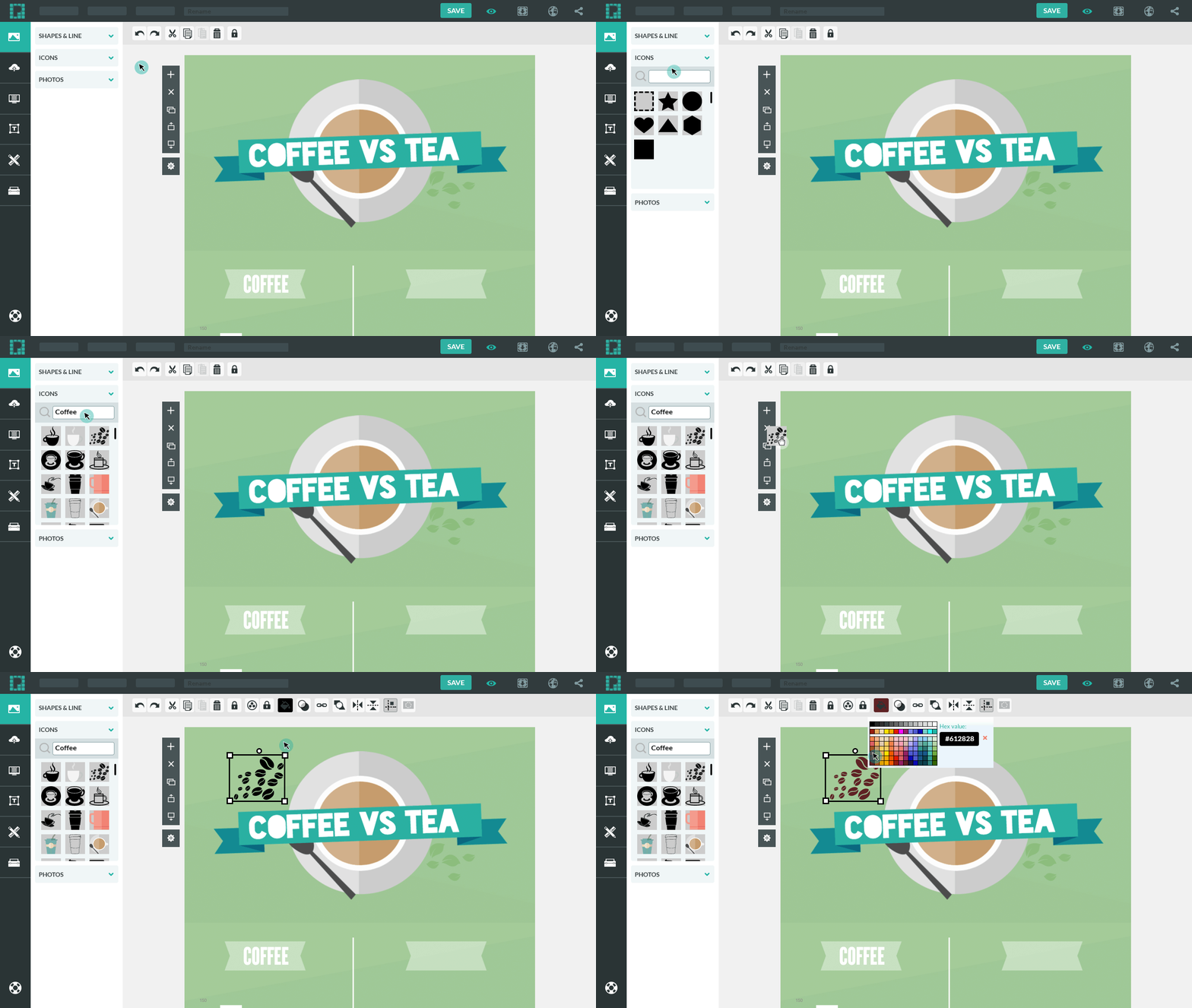
One of the best tools out there for creating Infographics is Piktochart. Piktochart is free, has a library of free templates, is easy to use, and integrates with student Google Accounts. Below is a guide for using Piktochart.

Using Piktochart

1. Log in to Piktochart with your Hilton Google (GA) Account


2. Select the style of your project. You can choose betweeen: Infographic, Presentation, Poster or Report. Below each category there are awesome free templates to choose from and use.


Main Menu:
Rename your Infographic and Save:


3.Once your template is open you want to add or edit your blocks of content. Click on the block of content. You can add, move, clone and delete blocks of content.


Cloning and Deleting:


4. Once a block is selected you can add:

Graphics:


Shapes and lines:


Upload Images:


Change the Background:


Add/Edit Text:


Insert Charts and Data:


Save and Export:


Check out their individualized guides for more help! Help Guides