Cadet Tech : Presentation Tools
Showing posts with label Presentation Tools. Show all posts

Monday, March 27, 2017

Reflection Skills, Literacy and Formative Assessment Through Pear Deck

10:51 AM 0
Reflection Skills, Literacy and Formative Assessment Through Pear Deck
Make presentations interactive using the Chrome App Pear Deck!
Pear Deck allows for teachers to integrate reflection questions, formative assessment prompts, or any kind of responses or tasks they may want students to perform. Teachers can choose to project the responses to share them with the class, or check them later after the presentation.

It is actually pretty easy and self-explanatory, but this post will walk you through it all if needed!

Exciting Features:
  • Allows students to respond and participate in real time.
  • Easy integration with Drive and Office.
  • Turn on "Student Pace Mode" to allow students to work through at their own pace, independently of a formal presentation.
  • Allows for free response, multiple choice, polls, numbered response, free drawing, graph paper drawing, or temperature checks (thumbs up/down).

Getting Started

Connect the Pear Deck app on your Chromebooks or iPads (in Safari) or go to Peardeck.com on a computer/laptop.

Sign in with Google to get started!


If you would like to work with a presentation you have already created, click to upload from Google Drive or from the computer.

If you need more help uploading a presentation (Slides, PowerPoint, PDF) this video may help...


You can also create a new presentation from scratch.

You can create, edit or add to the presentation using edit mode. Start by clicking a presentation and clicking the edit button. This feature will allow you to add any prompts or interactions you may want the students to work with.


Now you can add prompts, interactions, questions or content to the "student view" 

Feel free to watch the videos to learn how to input questions and prompts.


After Your Prompts Are In, What Do The Students See??


Students will see a split screen of the presentation or content you have selected and the opportunity to answer.


As the teacher, you can see the bar graph of your class responses LIVE. You might want to project the results, especially if it is a poll or opinion response. 

(what the teacher sees, which can be projected)

***After you create the prompts, make sure to save the presentation in Pear Deck. If Pear Deck recognizes the presentation as a PowerPoint or Slide file, it will limit the amount of times you can present.


Can I Create a Prompt While Presenting?

Of course you can! In presentation mode, click the + icon and you can add a variety of interactions on the fly for your students such as:

  • Thumbs up/down
  • Free Drawing
  • Grid Drawing (graph paper)
  • Free Response
  • Multiple Choice
  • Numeric Answer
  • True False
  • AND MANY MORE!
(Adding on the fly actually offers more options)

To add while presenting, click the + icon, select question type, the students' screens will change to allow for them to answer and the teacher can verbally ask a question. Refer to this video for help.


IDEAS, IDEAS, IDEAS

  • Run an interactive live poll with student feedback or opinions.
  • Students provide live document analysis.
  • Brainstorming with Pear Deck's answer clusters.
  • Visual learners can draw their responses, draw a battle map, draw a flowchart, or draw a brain web.
  • Live answers for math equations or graphing.
  • Labeling diagrams.
  • Creative drawing for live projection. 

***If you would like support in working with this tool, please reach out to your friendly LTT Instructional Technology Teacher.


Friday, January 22, 2016

Book Trailers with PowToon

10:42 AM 0
Book Trailers with PowToon

Readers and writers workshop is getting mashed up at Northwood with the awesome web tool PowToon.

Fourth graders in Mrs. Cavallaro's and Mrs. Pignagrande's classes are so excited to share their book trailers that they made with PowToon! Students used the tool's capabilities to add characters, images, text, and even their own voice to share why you should read their book next!

Mrs. Cavallaro has created an amazing classroom blog this year with Blogger and has posted her students trailers there. Check them out! http://cavclassact.blogspot.com/

Mrs. Pignagrande's class presented their trailers yesterday. Check out some of our favorites:
Brianna Delisanti
Brady Gerig
Zamirah Diaz
Ryan Wahl

PowToon is a great tool that you could use for so many projects! Get started using PowToon today!

Friday, January 8, 2016

Curate a Virtual Museum Exhibition with Google Slides!

9:59 AM 1
Curate a Virtual Museum Exhibition with Google Slides!

Virtual field trips are all the rage these days! Now you can have students apply their learning on a topic and have them curate their own museum exhibit. David Lee Ed Tech has created a beautiful Google Slides template that provides students the space to curate two exhibits per room in a four room virtual museum. The template works by hyperlinking visitors between rooms and in depth looks at each exhibit. The best part is... It's Google Slides! It works on iPads, Chromebooks, and laptops and students can work together on the same exhibit by sharing their presentation with one another.

Click the link to create your own copy of the Google Slide Template: Virtual Museum Template. Reach out to your Instructional Tech Teacher at your building to get rocking and curating your own virtual museum exhibit with students.


Here is what the slideshow would look like:


If you would like to read more on how to utilize the template here is David Lee Ed Tech's post on the virtual museum template:
Virtual Museum Guide

Tuesday, January 5, 2016

Sixth Grade Toy Project Wraps Up With A Bang!

3:01 PM 0
Sixth Grade Toy Project Wraps Up With A Bang!

Students at Northwood geared up all December to pitch their toy to be inducted into the Strong Museum National Toy Hall of Fame. Each group presented on why their toy meets all the criteria to be the 60th toy inducted.

This year, in addition to a toy display board and presentation, students used the apps Adobe Voice and Adobe Slate to support their claim for their toy. The presentations were superb! Here are just a few of the presentations that really display the creativity and ingenuity behind the project. Think about all the ways you could use these awesome tools!


Paper


Clue


Scooter


Chalk


Check out Chalk's Adobe Slate: Chalk Adobe Slate


Nerf


Check out Nerf's Adobe Slate:Nerf Adobe Slate

Jenga


Check out Jenga's Adobe Slate:Jenga Adobe Slate


Operation


Check out Operation's Adobe Slate:Operation Adobe Slate


Friday, December 4, 2015

Cadet Tech On Demand!

8:29 AM 0
Cadet Tech On Demand!


Cadet Tech On Demand Offerings


Google Classroom 1.0

- Get to know Google Classroom! This introductory component will teach you the basics of accessing, building and utilizing Google Classroom. We will be covering:
Setting up your Google Classroom
Updating your "About" Tab
Creating and posting announcements and assignments
Creating and asking Questions to your class
The basics of Grading and managing your Google Classroom

Google Classroom 2.0

- Amp up your Google Classroom! Dive into using the question tool to create and foster digital conversations with students, provide feedback using Google Docs and annotating tools on turned in assignments, export grades and manage grades, and explore different integration strategies.
Tools Include:
Google Docs - Options and advanced features
Goobric- Grading rubrics within Google Docs


Google Forms 1.0

- Meet Google Forms and see what Forms can do you for you. Find out how to use Google Forms for summative and formative assessment. Link up your forms with Flubaroo for automatic and hassle free grading. Automate individualized feedback, review documentation and email grades with the click of a button.

iMovie

-iMovie is a great tool that allows students to demonstrate learning by creating videos on their iPads. You can also use this to create your own instruction and to make videos to hook students on a new topic. For some examples on how to use iMovie as a student tool, check out these higher level examples: http://www.appsinclass.com/imovie.html
You will learn the basics of inserting video, images, and audio then expand upon the basics to using transitions, filters, cropping, finishing your video and sharing with your students.

Flipped, Tossed or Gently Shaken 1.0

- iMovie is a great tool that allows students to demonstrate learning by creating videos on their iPads. You can also use this to create your own instruction and to make videos to hook students on a new topic. For some examples on how to use iMovie as a student tool, check out these higher level examples: http://www.appsinclass.com/imovie.html
You will learn the basics of inserting video, images, and audio then expand upon the basics to using transitions, filters, cropping, finishing your video and sharing with your students.

One Note 1.0

-OneNote is a great solution to create an online binder with multiple notebooks, sections (similar to tabs), and pages. You can organize your subjects with all your notes using text, images, web clips, video and audio. You will learn the basics of creating notebooks and how to add various media. OneNote is available online and also can be viewed and edited on mobile devices. This course is a pre-requisite for a future course on OneNote Classroom Notebook; a great way to allow your students to have online binders that you can view anytime.

Notability Soup to Nuts

- This app has proven to be very useful on student iPads for students to write on PDF files that you share with your class (less paper!) and to create documents with more than basic typing. Learn the basics of how students can annotate and type on Notability files and more advanced topics including organization, inserting web clips, bookmarking, searching, recording voice and creating a video playback of their work. Notability supports differentiation for creation of documents. This class is open only to those using Notability on iPads.

Be sure to check out the details in MLP!

Thursday, November 5, 2015

Using Infographics in the Classroom

12:40 PM 1
<h3>Using Infographics in the Classroom</h3>

Infographics are an amazing tool for presenting important information and facts in a visually appealing and approachable way.

Here are just a few ideas for using Infographics with students:
  • Explaining rules, processes, or concepts
  • Debating or comparing
  • Presenting an argument
  • Sharing data or showing trends
  • Timeline of events
  • Presenting research

One of the best tools out there for creating Infographics is Piktochart. Piktochart is free, has a library of free templates, is easy to use, and integrates with student Google Accounts. Below is a guide for using Piktochart.

Using Piktochart

1. Log in to Piktochart with your Hilton Google (GA) Account


2. Select the style of your project. You can choose betweeen: Infographic, Presentation, Poster or Report. Below each category there are awesome free templates to choose from and use.


Main Menu:
Rename your Infographic and Save:


3.Once your template is open you want to add or edit your blocks of content. Click on the block of content. You can add, move, clone and delete blocks of content.


Cloning and Deleting:


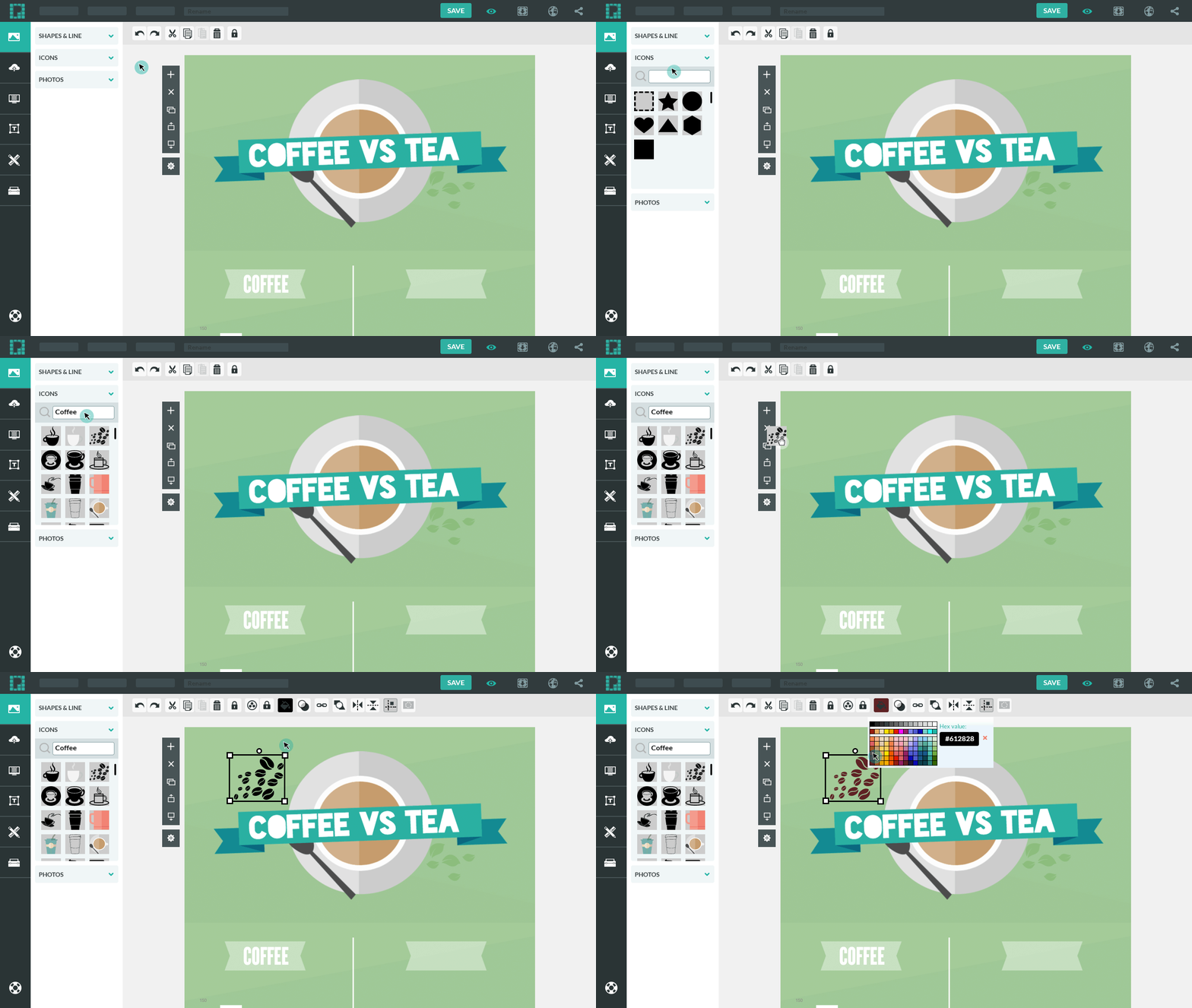
4. Once a block is selected you can add:

Graphics:


Shapes and lines:


Upload Images:


Change the Background:


Add/Edit Text:


Insert Charts and Data:


Save and Export:


Check out their individualized guides for more help! Help Guides