Cadet Tech : Google Classroom
Showing posts with label Google Classroom. Show all posts

Thursday, February 3, 2022

Graphics, Presentations and More... Upgraded Access with Canva EDU!

10:56 AM 2
Graphics, Presentations and More... Upgraded Access with Canva EDU!


We have upgraded to district access with Canva! You get access to Edu designs and graphics, create and share templates and designs with your team, and Google Classroom assignments and integration with students. 

It's super easy to sign up for the HCSD Canva! Here is our district join link

Here is a quick walk through of signing into the HCSD Canva account. Wevideo is on the struggle bus with their Chromakey so enjoy the green screen behind me ðŸ˜œ

Creating design templates and assigning them to students is super easy too! 

You can design and assign directly to Google Classroom 

Students can easily sign up using the same district join link and steps as you did. Once students have signed up you can assign them templates and have them turn into you via google classroom. Use the Google Classroom option to post blank template assignments and provide a streamlined turn in process for students. 

The student turn in process is super streamlined. Here is how students can turn in Canva assignments


Friday, November 12, 2021

New Quarter, New Grades, New Classroom

10:00 AM 0
New Quarter, New Grades, New Classroom


Start your new quarter off on the right foot with a fresh Google Classroom

Pros

- Students can't continue to turn in old assignments
- Less content in the Classwork section
- Easily see grades by quarter in the Gradebook
- Restart originality reports for plagiarism/ cheat checks back to 5
- Students feel like they have a "fresh start" in your class

Set it up

1. Create a new Google Classroom and Invite students
2. If you are syncing your grades to Infinite Campus, unlink your old Google Classroom and link your new one
3. Archive the old Google Classroom for students so their homepage gets cleaned up

That's it! 


Monday, September 20, 2021

No Adapter? No Problem... Mirror Student Screens with Google Meet

2:13 PM 0
No Adapter? No Problem... Mirror Student Screens with Google Meet
Having students share their screen and work is a great way to engage with students and thinking routines. Many of our digital tools let you see student work work in real time like Pear Deck and Formative, but sometimes we want students to mirror their screens and share thier work and thinking from other tools or applications. Rather then hardwire devices in, have students present their screen through a Google Meet! Using your Google Classroom Meet link, it is a snap to have students share their screen and present to the class. Even better? Google docs and slides now have "Present to Meet" built right in! Let's take a look at how to use this in our classroom! Rather read then watch? Here are the steps you can take to implement in your classroom 1. Generate your Google Meet link inside classroom
2. Start your Google Meet... Mute yourself
3. Student clicks the link in the Google Classroom to your Meet
4. Student mutes their Mic and selects "Present"
5. You make their screen fullscreen
6. That's it!

Wednesday, August 18, 2021

Monday, February 22, 2021

The OG! Originality Reports in Google Classroom

1:51 PM 0
The OG! Originality Reports in Google Classroom


Originality reports are built into the Google Classroom assignment editor. It allows both you and your students to run a report comparing turned in documents to the web. It is a built in plagiarism checker... Currently Google Classroom limits you to five originality reports per Google Classroom. In a pinch, you could have students join an additional classroom to turn in assignments if you needed more.


So how does it work? Simple! 

1. Check the box in the assignment editor to run originality reports on the assignment. 


2. Either you, or your students, or both, can then generate a report on the documents attached to the assignment that compares its originality.

You - In the Google Classroom grading window you can generate originality report


Your students- When students look at their work attached to the assignment they can press run on the originality report.


3. That's it! 

So what is it looking for. It is looking at the text in the student document and comparing that text to text on the web. What it doesn't do, compare documents across your Google Classrooms within the assignment to see if students are copying and pasting from one another. 


Is there a way to check that? You Bet! 


1. Open up a students turned in Google Doc. 

2. Go to Tools > Compare Documents

3. Select the document from a Google Drive folder you want to compare it to. You can search by name as well! 


4. Wa-lah! You are officially a master of plagiarism in your Google Classroom

Wednesday, February 3, 2021

Quiz Assignments with Google Forms Save Time and Grading!

11:30 AM 0
Quiz Assignments with Google Forms Save Time and Grading!


Grading is just one more thing on the ever growing To-Do list. Save time and energy using Google Forms to do your grading for you. Better yet, it integrates seamlessly into Google Classroom to assign, import scores and provide immediate feedback for your students. Even better? If you are syncing grades to Infinite Campus your score can export from Google Classroom directly into IC. Have I sold you yet? 

Ok, ok... Let's take a look at how to use Google Forms Quiz Assignments to make all of your grading dreams come true. 

Step 1 - Make a Google Form Quiz. You can either start a blank quiz inside Google Classroom by clicking Create Assignment- Quiz Assignment or you can go to Google Forms and create a quiz there
Step 2 - Have students take the quiz 
Step 3 - Import student's quiz scores into Google Classroom 
Step 4 (Optional) - Once you return scores to students you can export your grades to Infinite Campus


Friday, November 20, 2020

Google Classroom Cleanup!

1:13 PM 0
Google Classroom Cleanup!
Overwhelmed by your Classwork tab from Quarter 1? Make a copy of your Classroom to save as a template for next year and delete your old posts you are no longer accepting work on! You may want to keep a master class so you know next year what you did when. If you keep a copy of your google classroom and name it "master" or "template" you can always use that to make new copies for next year. Click the three dots in the upper right on your classroom home to make a copy.
Now you can go to town deleting old assignments in your classroom
If you need to see deleted posts from your classroom you can always show deleted posts at the bottom of your classwork tab

Wednesday, September 23, 2020

Google Classroom Grading Hack with Rubrics

1:45 PM 0
Google Classroom Grading Hack with Rubrics
Mr. Gilmore shared a great tip on how to use a rubric in Google Classroom's grading window to quickly score student work. Create a 5 point grading rubric that you will attach to assignments you want to score in classroom. When you open the assignments to score you can click the point value for each student then return the scores. Check out this quick video tutorial

Friday, April 24, 2020

Set up Guardian Summaries in Google Classroom

1:10 PM 0
Set up Guardian Summaries in Google Classroom
With all of us using Distance Learning, it is important to be able to communicate with guardians whether students are tuned into our Google Classroom assignments. Guardian email summaries allow you to invite guardians to receive daily or weekly classwork summaries for your Google Classroom.

To set this up:
1. Go to your People tab in Classroom

2. Type in your Guardian email for each student. Yes, unfortunately, you have to do this.

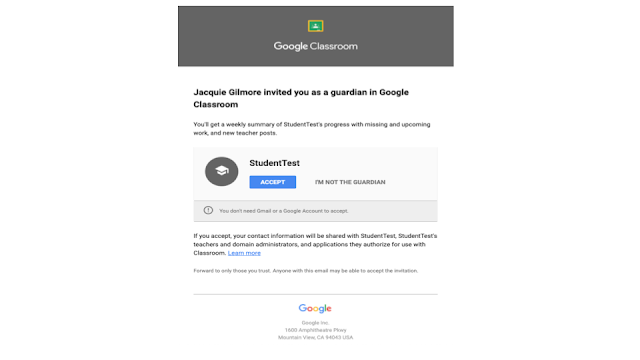
3. Once you invite guardians they receive an email to confirm how they want to receive their summary.


4. Once they accept, they select a daily or a weekly summary


5. A Guardian Summary gives them a simple view of all work and scores for their student


6. Push out a summary to students and guardians at any point

Monday, February 4, 2019

New Google Classrooms for New Quarters with Classroom Copy

1:00 PM 1
New Google Classrooms for New Quarters with Classroom Copy
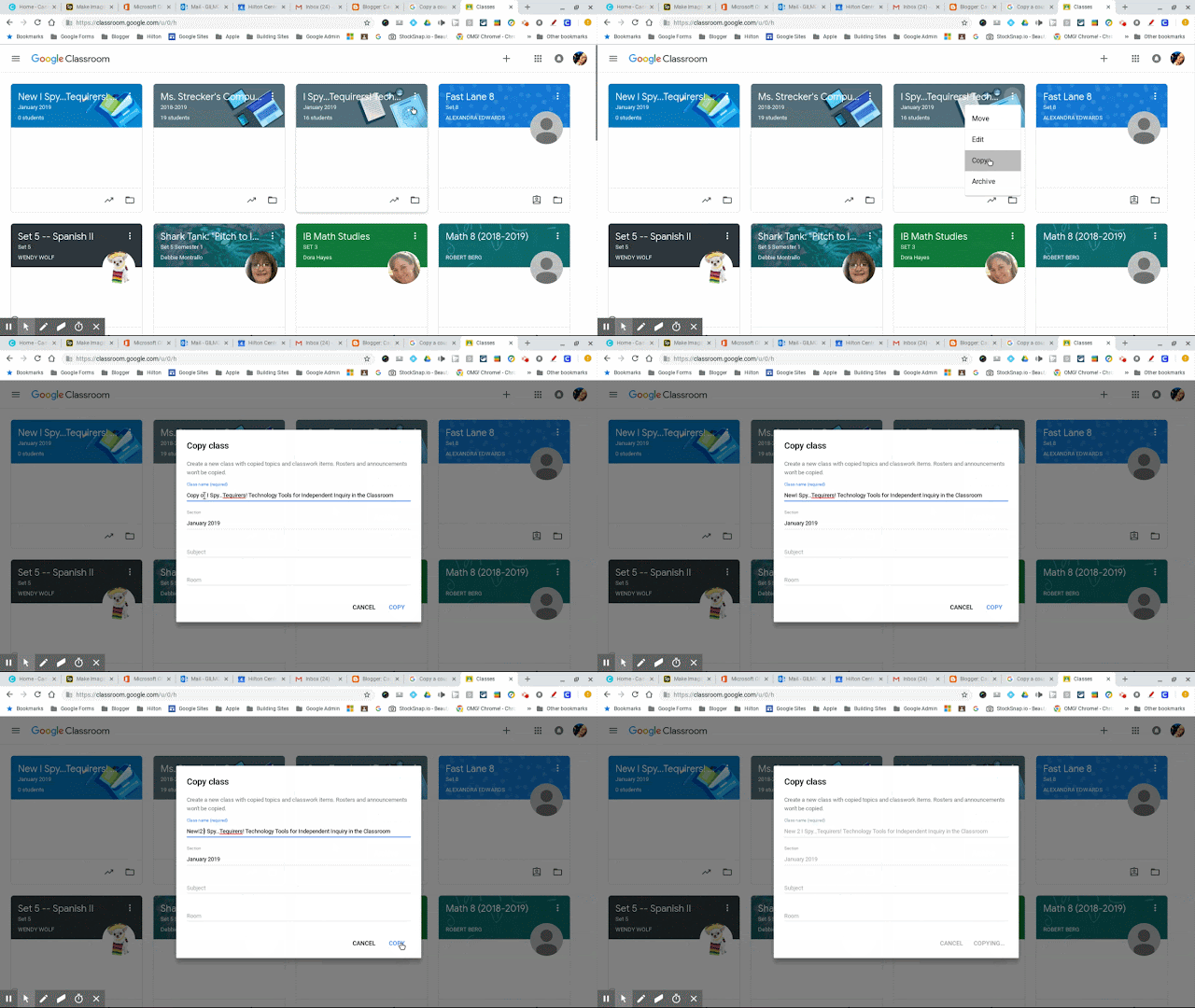
Use the Copy option from your Google Classroom home to make a new course with the same content in Classroom.

From your classes page, click on the three dots of the course to copy


Classroom will create a new course without any items in your stream, and revert all of your posts back to draft


It will also remove all of your students so you are ready to give them the new code!

Tuesday, August 8, 2017

Christmas, Hanukkah, Kwanzaa or whatever you celebrate in August!!!

9:10 AM 0
Christmas, Hanukkah, Kwanzaa or whatever you celebrate in August!!!

It's the most wonderful time of the year!
With the kids Chrome OSing,
And Google updating you be of good cheer.
It's the most wonderful time of the year!
It's the hap-happiest season of all,
With those new Classroom codes and quiz score importing
When students log into Chrome,
It's the hap-happiest season of all.
There'll be Google Classrooms for hosting,
Google Forms for testing,
And reordering your classes galore.
There'll be Classroom ownership transfer,
And tales of the glories of the
missed assignments, long, long ago.
It's the most wonderful time of the year!
There'll be much app integrations,
And hearts will be glowing
When decimal point grading is near.

It's the most wonderful time of the year!

Google has 10 back to school updates to get you back into the work state of mind. Here is the rundown:
1. Track student progress with a single page view of student work
2. Reorder the classes in your homepage so your most used classes are on top
3. Decimal grading
4. Transfer classroom ownership
5. Mobile profile pics
6. New app integrations: Quizziz (Check out my post here!) Kami, Edcite (I'm excited to check this one out)
7. Full screen class code display
8. Import Google Forms scores into Classroom
9. Feedback for Question by Question Quizzes in Forms
10.School Directory Sync (not sure if this one is necessary)

Check out their fabulous post here: https://www.blog.google/topics/education/10-ways-were-making-classroom-and-forms-easier-teachers-school-year/

Wednesday, April 26, 2017

Communication, Reflection and All Kinds of Assessment with ReCap

9:11 AM 0
Communication, Reflection and All Kinds of Assessment with ReCap
Quick Videos with ReCap.

Recap allows students to record video responses or create quick videos up to two minutes, and as short as fifteen seconds. This tool is ideal for using videos in non-project or mini-project assignments. Maybe you don't want students to dedicate too much time to editing or making videos more professional, but maybe you just want a quick raw video alternative. Recap is your solution.

ReCap is software by Swivl. We also have a number of Swivls that work with devices for recording if you want to kick it up an additional notch.

I will lead off with a few ideas (though I can't wait to hear yours)...


Ideas, Ideas, Ideas
  • Speaking conversations in LOTE
  • Opinion sharing
  • Book reviews
  • Quick skits recorded (history or English)
    • (As a history teacher, we used ReCap for students showing the changing of borders on video and to create propaganda commercials).
  • Phys Ed tutorials on mechanics/form
  • Explaining, showing, or tutoring in literally anything
  • Free feedback on books/stories/readings
  • Showing art techniques
  • Music performances
  • Read alouds and alongs

I Want In!


1. Logon to the ReCap website, Chrome App, or iOs App 
2. Sign in as a teacher using your GA account (this will allow for easy Google Classroom integration)


3. Add a class (or classes, or individual sets)


4. Click "Add Recap"

Here you have the chance to add your questions. Type a topic title for your question(s) and type your questions or instructions in the box below.


ReCap will let you add up to ten questions in an assignment. You can also record instructions or an example by clicking record video. This technique might allow for a more conversational assignment or if you would like to give added instructions (or if you are a better speaker than typist)


6. Click next to set up the assignment. Here you can roll out your questions or instructions to the whole class, or just specific students. You can also adjust the maximum recording time (15s, 30s, 60s, or two minutes), and you can set a due date. You can also set up a feedback system if you'd like to acknowledge that you watched the videos.


Getting Students Signed Up Is Super Easy 

When students go to the website, they sign up as a student using the automatic signup with their google accounts. 

Regardless of what type of registration you have selected, there will be a join pin. Soon as students are given the join pin, they are in the class and ready to learn!


Grading

Grading is particularly easy, you can provide three levels of feedback on the site itself, but it is easy to watch the videos and grade them according to your own rubric. The assignment will come with a teacher panel that allows you to watch all the videos without clicking in and out of pages.


Just a quick link to a great article on ReCap if you are interested, from iPad Educators

The fine people from the FMS Tech Squad also put this video together regarding ReCap.

UPDATE: ReCap just unleashed a Beta 2.0 Version. The update includes the option to create "Journeys". Journeys multiple step ReCap videos that allows you to create videos, or pull videos from YouTube, Discovery, and several other sites.


In order to create a journey, click "Create Journey" next to the Add recap button and follow the steps. This allows you to record instructions or stick with typed prompts, and to add a few pages to the journey. Still super easy, now three times as powerful. You could do entire lessons through a Journey.


Please please please let your friendly local Instructional Tech Teacher know if you need any assistance with this tool, or if you would like to set up a co-teaching opportunity.

Monday, April 10, 2017

Don't Flip Out: Increase Information Literacy in the Unflipped Classroom with Video Tools EdPuzzle and Updated PlayPosit

1:23 PM 1
Don't Flip Out: Increase Information Literacy in the Unflipped Classroom with Video Tools EdPuzzle and Updated PlayPosit
Don’t Flip Out: Increase Information Literacy in the Unflipped Classroom with Video Tools EdPuzzle and the Updated PlayPosit

As the flowers are in bloom and spring break is nearly upon us, you may be tempted to fire up your youtube bank of Crash Course or Bill Nye. Let’s review a couple tools that may have fallen by the wayside for you. These sites can increase engagement for students as they watch with customized checks for understandings, quizzes and reflections.

EdPuzzle and PlayPosit allow you to clip, crop, record narration and add quiz questions right in to videos from most sources. Perhaps part way through this classic clip of Jim Harbaugh’s visit to Bayside High on Saved By The Bell, you may want to ask a question to support your inquiry, or point something out to students. With EdPuzzle and the new PlayPosit, students are forced to answer your questions individually and stay engaged through the video.

PlayPosit                                        EdPuzzle 


PlayPosit  (formerly EduCanon)

**If you have been using PlayPosit, there is a new interface and they are celebrating by allowing more question types: You can now hold a discussion forum, run a poll, fill in the blank, check all, embed a webpage, in addition to the classic multiple choice, free response, and reflective pause. 


In PlayPosit, when you add questions/prompts to videos, they are called bulbs. PlayPosit recently updated its interface, and allows new question types, as seen above. It is easy to use too.

To use
  • Head to Playposit.com
  • Signup or Login with your google account
  • Click Design Video Bulb


Search for a video or copy/paste the URL of the webpage with the video. Most video sites work well.
Once you are in the bulb edit mode, scroll over to the upper right hand corner. A box will magically appear asking if you would like to see the NEW PLAYPOSIT DESIGN. You want to do this, it offers many more options.

After you have chosen the video, use the waffle in the lower center to add questions. The video will abruptly stop anywhere you add a question.


Click the gear, then finish after your questions and prompts are written. Remember, there are a ton of question types to use, only if you activate the new view in the upper right hand corner. 


EdPuzzle


In EdPuzzle, you are limited in question types, but many find it easier to use, especially when it comes to connecting to google classroom.

  • Click My Content Click +Create
  • Copy/paste your URL

  • Use the scissors to trim the video
  • Use the microphone to record audio over the video (as it is playing)
  • Use the speaker to record audio notes (will stop the video)
  • Use the question mark to add questions (multiple choice, free response or reflection)
  • By clicking on the question mark, a question editor pops up on the left and you can input questions.


  •       Click finish to assign the video to the class or to copy the link for projection.


If you would like support or would like to plan a lesson, please utilize your friendly neighborhood LTT Support Teacher. 


Monday, March 27, 2017

Reflection Skills, Literacy and Formative Assessment Through Pear Deck

10:51 AM 0
Reflection Skills, Literacy and Formative Assessment Through Pear Deck
Make presentations interactive using the Chrome App Pear Deck!
Pear Deck allows for teachers to integrate reflection questions, formative assessment prompts, or any kind of responses or tasks they may want students to perform. Teachers can choose to project the responses to share them with the class, or check them later after the presentation.

It is actually pretty easy and self-explanatory, but this post will walk you through it all if needed!

Exciting Features:
  • Allows students to respond and participate in real time.
  • Easy integration with Drive and Office.
  • Turn on "Student Pace Mode" to allow students to work through at their own pace, independently of a formal presentation.
  • Allows for free response, multiple choice, polls, numbered response, free drawing, graph paper drawing, or temperature checks (thumbs up/down).

Getting Started

Connect the Pear Deck app on your Chromebooks or iPads (in Safari) or go to Peardeck.com on a computer/laptop.

Sign in with Google to get started!


If you would like to work with a presentation you have already created, click to upload from Google Drive or from the computer.

If you need more help uploading a presentation (Slides, PowerPoint, PDF) this video may help...


You can also create a new presentation from scratch.

You can create, edit or add to the presentation using edit mode. Start by clicking a presentation and clicking the edit button. This feature will allow you to add any prompts or interactions you may want the students to work with.


Now you can add prompts, interactions, questions or content to the "student view" 

Feel free to watch the videos to learn how to input questions and prompts.


After Your Prompts Are In, What Do The Students See??


Students will see a split screen of the presentation or content you have selected and the opportunity to answer.


As the teacher, you can see the bar graph of your class responses LIVE. You might want to project the results, especially if it is a poll or opinion response. 

(what the teacher sees, which can be projected)

***After you create the prompts, make sure to save the presentation in Pear Deck. If Pear Deck recognizes the presentation as a PowerPoint or Slide file, it will limit the amount of times you can present.


Can I Create a Prompt While Presenting?

Of course you can! In presentation mode, click the + icon and you can add a variety of interactions on the fly for your students such as:

  • Thumbs up/down
  • Free Drawing
  • Grid Drawing (graph paper)
  • Free Response
  • Multiple Choice
  • Numeric Answer
  • True False
  • AND MANY MORE!
(Adding on the fly actually offers more options)

To add while presenting, click the + icon, select question type, the students' screens will change to allow for them to answer and the teacher can verbally ask a question. Refer to this video for help.


IDEAS, IDEAS, IDEAS

  • Run an interactive live poll with student feedback or opinions.
  • Students provide live document analysis.
  • Brainstorming with Pear Deck's answer clusters.
  • Visual learners can draw their responses, draw a battle map, draw a flowchart, or draw a brain web.
  • Live answers for math equations or graphing.
  • Labeling diagrams.
  • Creative drawing for live projection. 

***If you would like support in working with this tool, please reach out to your friendly LTT Instructional Technology Teacher.


Thursday, January 12, 2017

Differentiate your Google Classroom Assignments and More!

8:01 AM 1
Differentiate your Google Classroom Assignments and More!
When you log in to Google Classroom this morning my favorite "What's New" box is hovering around! Google released two really nice updates that will help you to differentiate your Google Classroom assignments and streamline your instruction with improved notifications

1. Assign posts in the stream to all students or individual students/groups


2. Improved notifications for late assignments and unsubmitted/resubmitted assignments


Wednesday, October 19, 2016

Guardian Summaries in Google Classroom

3:44 PM 0
Guardian Summaries in Google Classroom

In August, Google released Guardian Summaries in Google Classroom. This new Google Classroom feature allows guardians who have signed up to receive weekly or daily updates on Google Classroom assignments. As more of us are using Google Classroom this is a great way to let parents get a run down of what assignments and scores students have received through Google Classroom. It is important to note that this tool, though great, does not replace our Parent portal or official grades in Infinite Campus.

So how do I set it up?

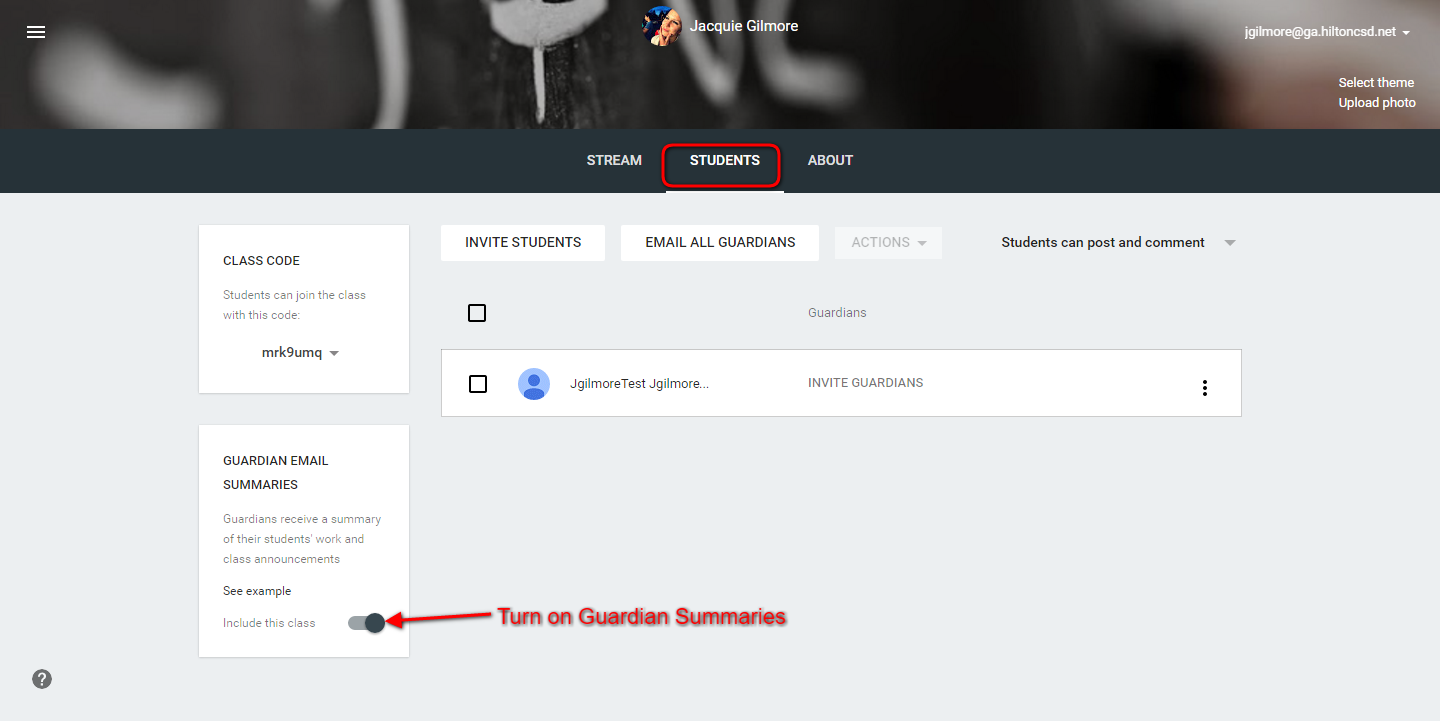
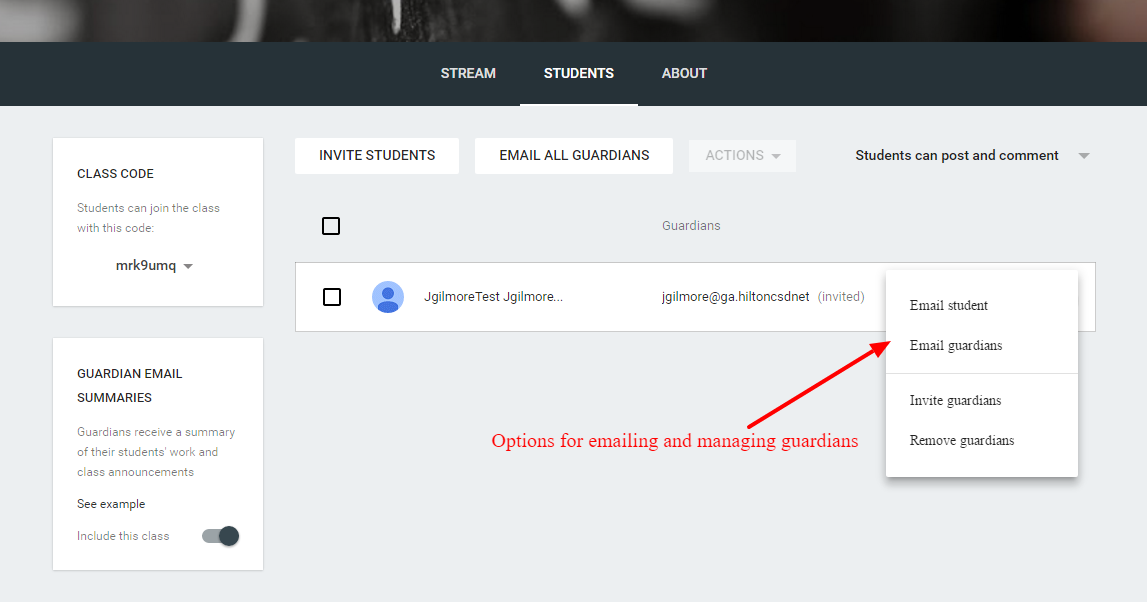
As the teacher, you need to enable guardian summaries in your Google Classroom(s). You can do this, by going to the "Students" tab and toggling "Include this class" on


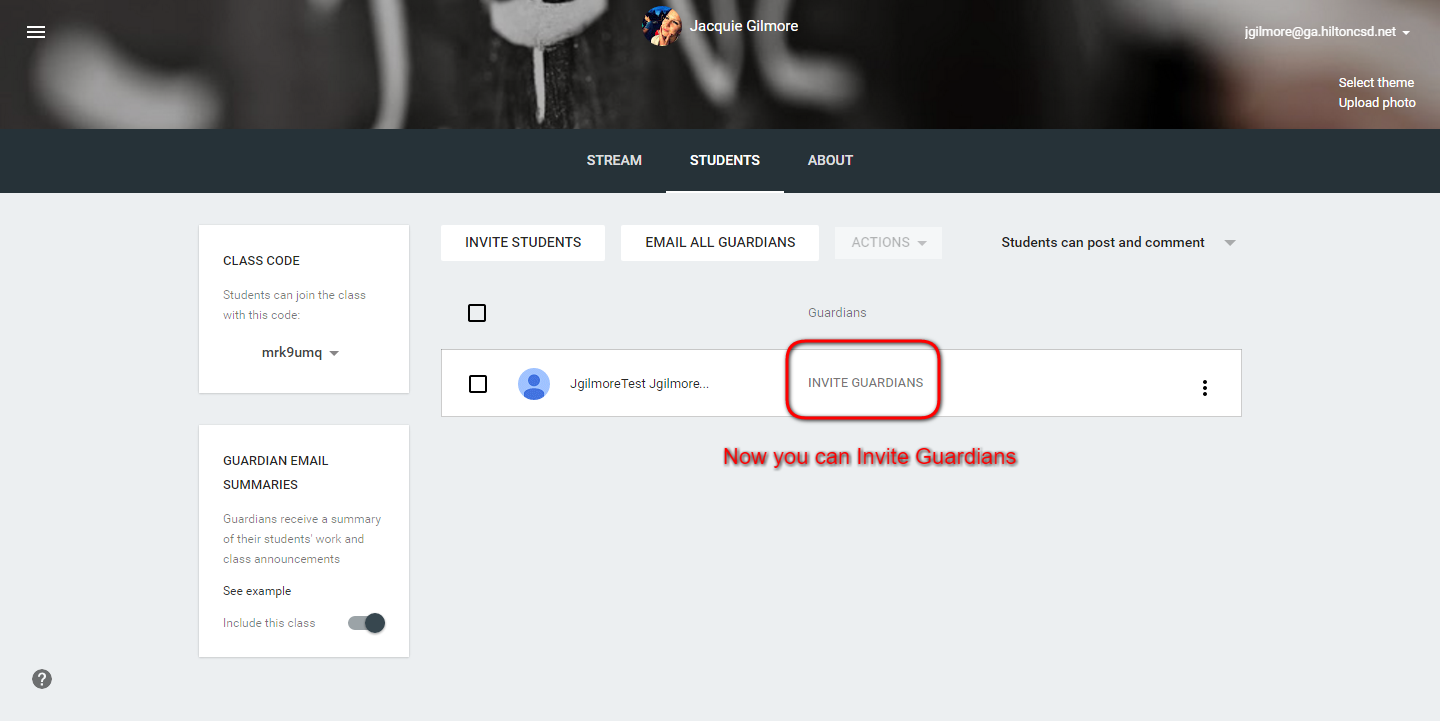
Once enabled you get the option to "Invite Guardians". You can include more than one


Once invited you have options to email guardians or edit/ remove guardians


Guardians

In order to receive guardian summaries, guardians need to have a Google Account. They can create this with their own email, it does not need to be a Gmail: Create account without Gmail

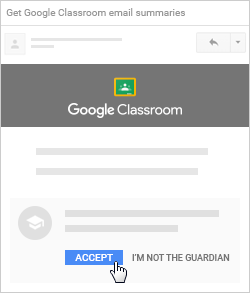
Guardians receive an invitation to that email. They have 7 days to take action on the invitation


When they first accept the invitation, they can choose whether to receive emails: Weekly, Daily or No Summaries


Guardians can adjust these settings at any time by clicking on "Settings at the bottom of the email summary. They can also "Unsubscribe" at any time


Check out this FAQ for more guides

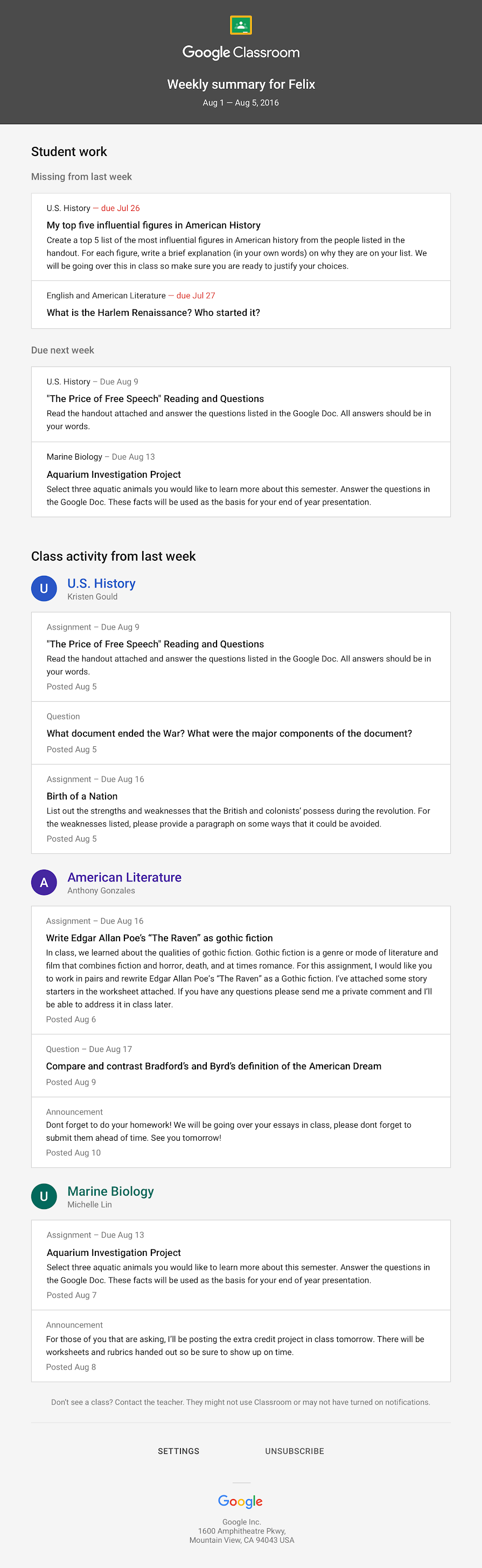
Here is an example Email Summary: