Cadet Tech : Google Forms
Showing posts with label Google Forms. Show all posts

Friday, November 4, 2022

🧠🤖 Study Guides with Automated Feedback in Forms

9:54 AM 0
🧠🤖 Study Guides with Automated Feedback in Forms

I have said this before and I will keep saying it. Google Forms is one of the most versatile tools we have! You can customize a form to provide feedback to students based on the answers that they submit as well as navigate them to various sections. With a few clicks, you can have the ultimate study guide, self assessment, review activity and more! 

With the addition of the auto save in Google Forms (Yay for updates!) students can come back to their form for up to 30 days which saves their progress automatically. I even created some templates for you to copy and use, see below! 


Check it out! 

Here is a breakdown of the steps 

1.  Create your form. You want your form to be a "Quiz" which means it will allow you to mark responses as "correct" or "incorrect". Keep in mind, these don't have to be right or wrong they could be as simple as "I Can" statements around what they should know. 


2. Set the feedback for your "correct" or "incorrect" responses. You can link to notes pages, review sheets, videos, etc.


If you wanted to create a study guide that jumps students to sections based on their responses here is how to do that. 

1. Create and title the sections. Add directions, resources, questions, whatever you want students to review.

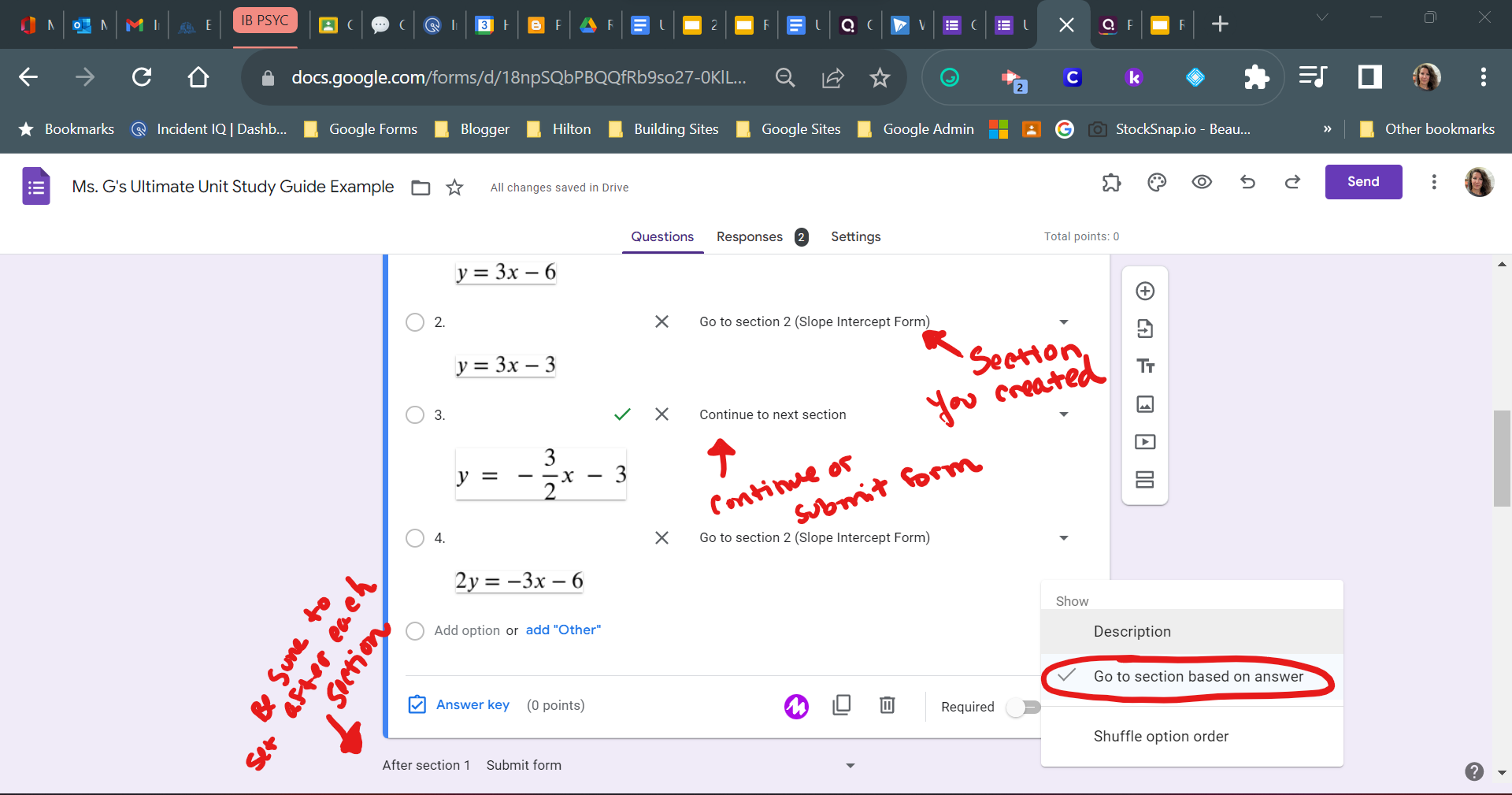
2. Select the question that you want to determine where the student goes next. Click the three dots and choose "Go to section based on answer". Set the each choice to either go to that specific section you created or "Go to next section" if you want them to continue through the form or submit at the end of that section. 

Copy the Templates below! 

Unit Self Check Template

Unit Study Guide Template

Wednesday, February 3, 2021

Quiz Assignments with Google Forms Save Time and Grading!

11:30 AM 0
Quiz Assignments with Google Forms Save Time and Grading!


Grading is just one more thing on the ever growing To-Do list. Save time and energy using Google Forms to do your grading for you. Better yet, it integrates seamlessly into Google Classroom to assign, import scores and provide immediate feedback for your students. Even better? If you are syncing grades to Infinite Campus your score can export from Google Classroom directly into IC. Have I sold you yet? 

Ok, ok... Let's take a look at how to use Google Forms Quiz Assignments to make all of your grading dreams come true. 

Step 1 - Make a Google Form Quiz. You can either start a blank quiz inside Google Classroom by clicking Create Assignment- Quiz Assignment or you can go to Google Forms and create a quiz there
Step 2 - Have students take the quiz 
Step 3 - Import student's quiz scores into Google Classroom 
Step 4 (Optional) - Once you return scores to students you can export your grades to Infinite Campus


Tuesday, August 8, 2017

Christmas, Hanukkah, Kwanzaa or whatever you celebrate in August!!!

9:10 AM 0
Christmas, Hanukkah, Kwanzaa or whatever you celebrate in August!!!

It's the most wonderful time of the year!
With the kids Chrome OSing,
And Google updating you be of good cheer.
It's the most wonderful time of the year!
It's the hap-happiest season of all,
With those new Classroom codes and quiz score importing
When students log into Chrome,
It's the hap-happiest season of all.
There'll be Google Classrooms for hosting,
Google Forms for testing,
And reordering your classes galore.
There'll be Classroom ownership transfer,
And tales of the glories of the
missed assignments, long, long ago.
It's the most wonderful time of the year!
There'll be much app integrations,
And hearts will be glowing
When decimal point grading is near.

It's the most wonderful time of the year!

Google has 10 back to school updates to get you back into the work state of mind. Here is the rundown:
1. Track student progress with a single page view of student work
2. Reorder the classes in your homepage so your most used classes are on top
3. Decimal grading
4. Transfer classroom ownership
5. Mobile profile pics
6. New app integrations: Quizziz (Check out my post here!) Kami, Edcite (I'm excited to check this one out)
7. Full screen class code display
8. Import Google Forms scores into Classroom
9. Feedback for Question by Question Quizzes in Forms
10.School Directory Sync (not sure if this one is necessary)

Check out their fabulous post here: https://www.blog.google/topics/education/10-ways-were-making-classroom-and-forms-easier-teachers-school-year/

Tuesday, January 17, 2017

QR Codes and Homework Check In

1:41 PM 0
QR Codes and Homework Check In
Using Google Forms for Homework Check ins. Use the video tutorials or the steps below to set up a Homework Check in System for your students!

Video Tutorials


Step 1 - Make a copy of the templates

Use the "Make a Copy" links below to make a copy of the Form and the responses spreadsheet

Make a copy of the Form: https://docs.google.com/forms/d/1SwPeNSdvF00ad9dO9ccnwRAwOgg5IF1lxMLxnH08mC0/copy?usp=sharing

Make a copy of the Responses spreadsheet
https://docs.google.com/spreadsheets/d/1AXOu3AIjtIdsJE4z4NgutTkDwLW1tTGJU7LyJrQYdR8/copy?usp=sharing


Step 2 - Edit your Form to suit your needs

Change the questions, add or remove as you see fit


Step 3 - Set up your responses sheet

1. Link your Google Form to the new copy of the responses spreadsheet. Click on the "Responses" tab on your Google Form and link it to an Existing Spreadsheet and select your new copy of the sheet.

2. Submit a sample submission into your form

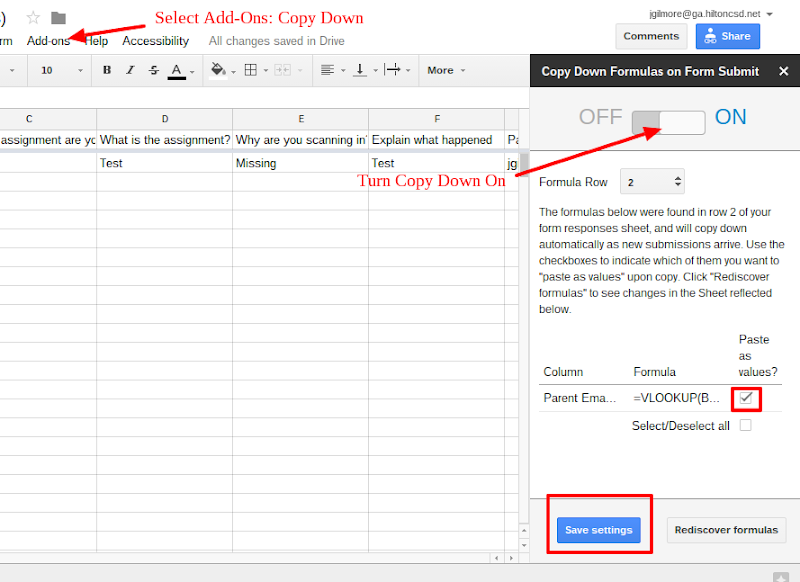
3. Copy the Parent Email 1, Parent Email 2 and the formulas from Form Responses 1 sheet and Paste these into Form Responses 2 sheet in G1

4. Install the Add- on - Copy Down


Step 4 - Set up your email merge

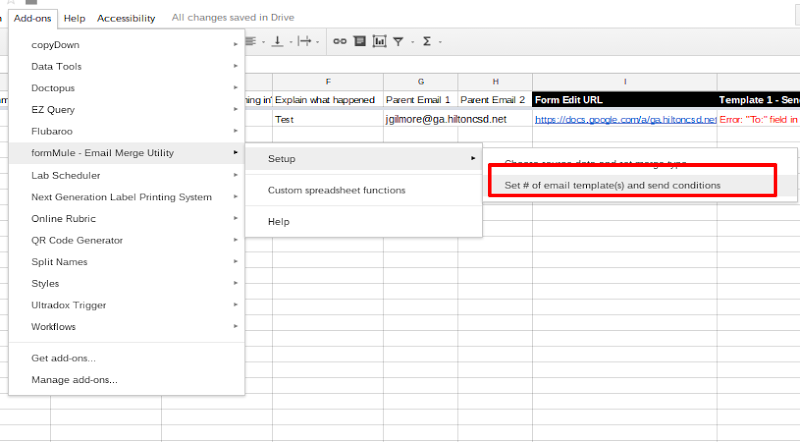
1. Install the Add- on Form Mule

2. Launch Form Mule

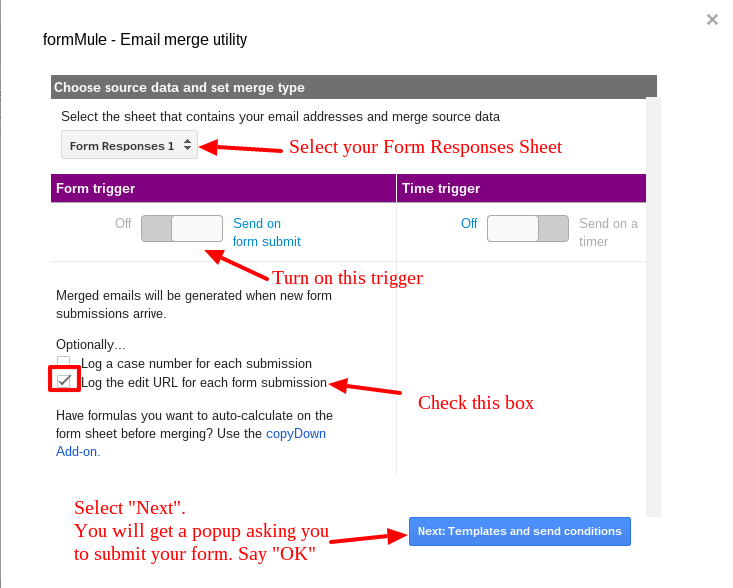
3. Select the sheet Form Responses 2. turn on your Trigger, and log the URL


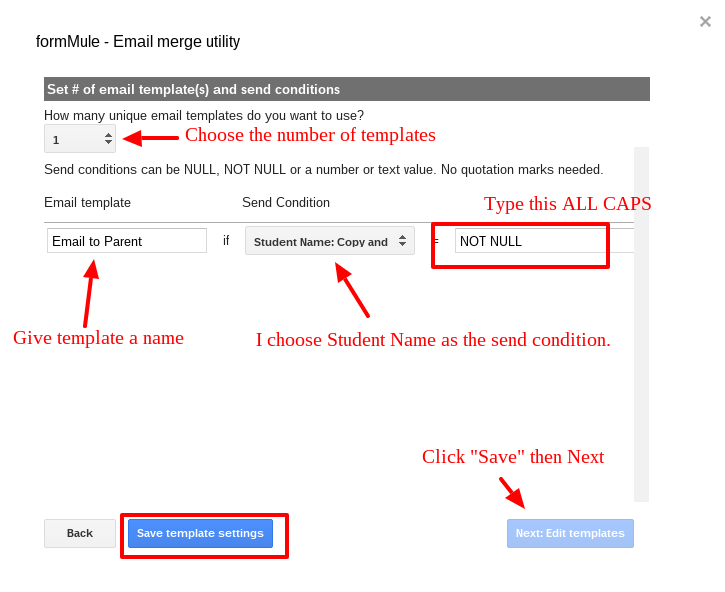
4. Set the number of templates and the send condition.
Give your template a name and choose the send condition to be student email and the trigger to be NOT NULL (All CAPS)


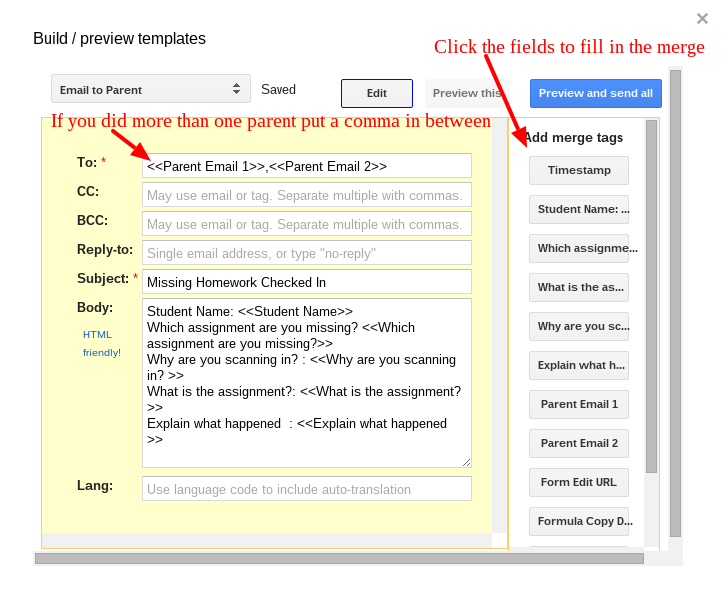
5. Build your email template


Thursday, March 3, 2016

Google Forms and QR in the Classroom!

4:39 PM 0
Google Forms and QR in the Classroom!

QR codes can be an amazing tool for students. Since QR codes link to any URL you can virtually make anything a QR code!

Sean D'Abreu has started a trend mashing up QR Codes and Google Forms. We built a slick workflow where students scan in the QR code and submit which assignment they are missing and why. The Google Form then compiles all of the information and generates an email merge that pulls from a database of emails associated with that student. As soon as a student submits that they did not do their homework their parents are emailed with their submission reason. No more paper homework slips. Sean has helped set up some team members with the same workflow at Village and I have set up a few Forms for NW teachers as well! Check out my guide on creating a missing homework QR code check in: http://hiltoncadettech.blogspot.com/2016/03/missing-homework-check-in.html

Coleen Maccracken and Jen Sica also use QR code Google Forms for Maccria Points - Their classroom tool for student self management. Students scan in the QR code and enter their points for each day. Behind the scenes the spreadsheet compiles each students points for the week and even totals up the class for Sica and Maccracken.

Jen Humphreys and Casey VanEpps are using Google Forms for daily reflections following their "Genius 1/2 Hour" activities. Students use Google Forms for reflecting on their problem solving strategies, successes, struggles and utilization of different IB learner profile traits. In addition to this, Jen and Casey have dove head first into Google Forms using them for exit tickets and checks for understanding as well as quick pre assessment strategies to get a gauge on student understanding and learning.

These are just a few examples... The possibilities are endless!

Missing Homework Check In

3:47 PM 1
Missing Homework Check In
So you want to make a missing homework check in. Here are the steps to getting up and running with this:

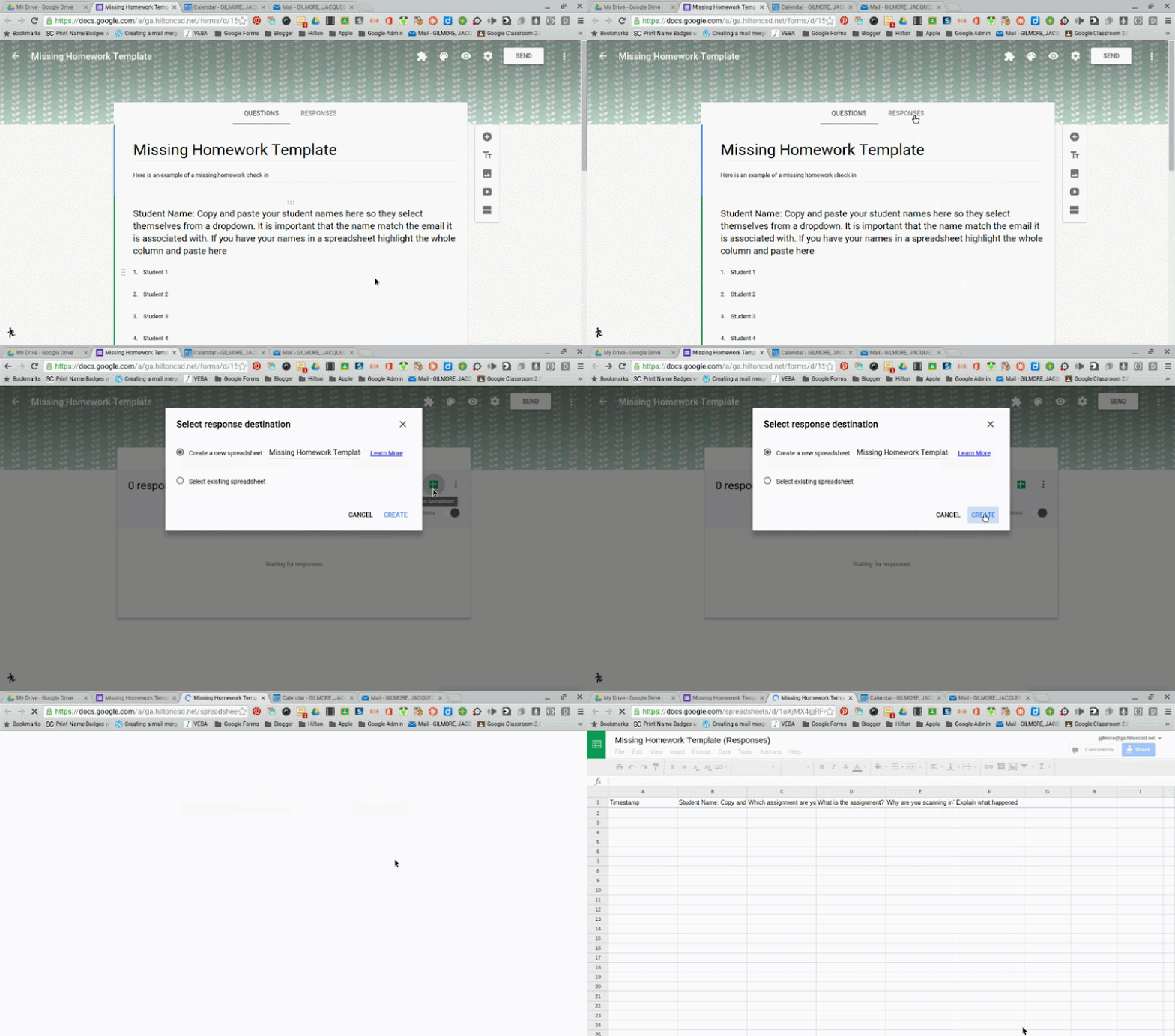
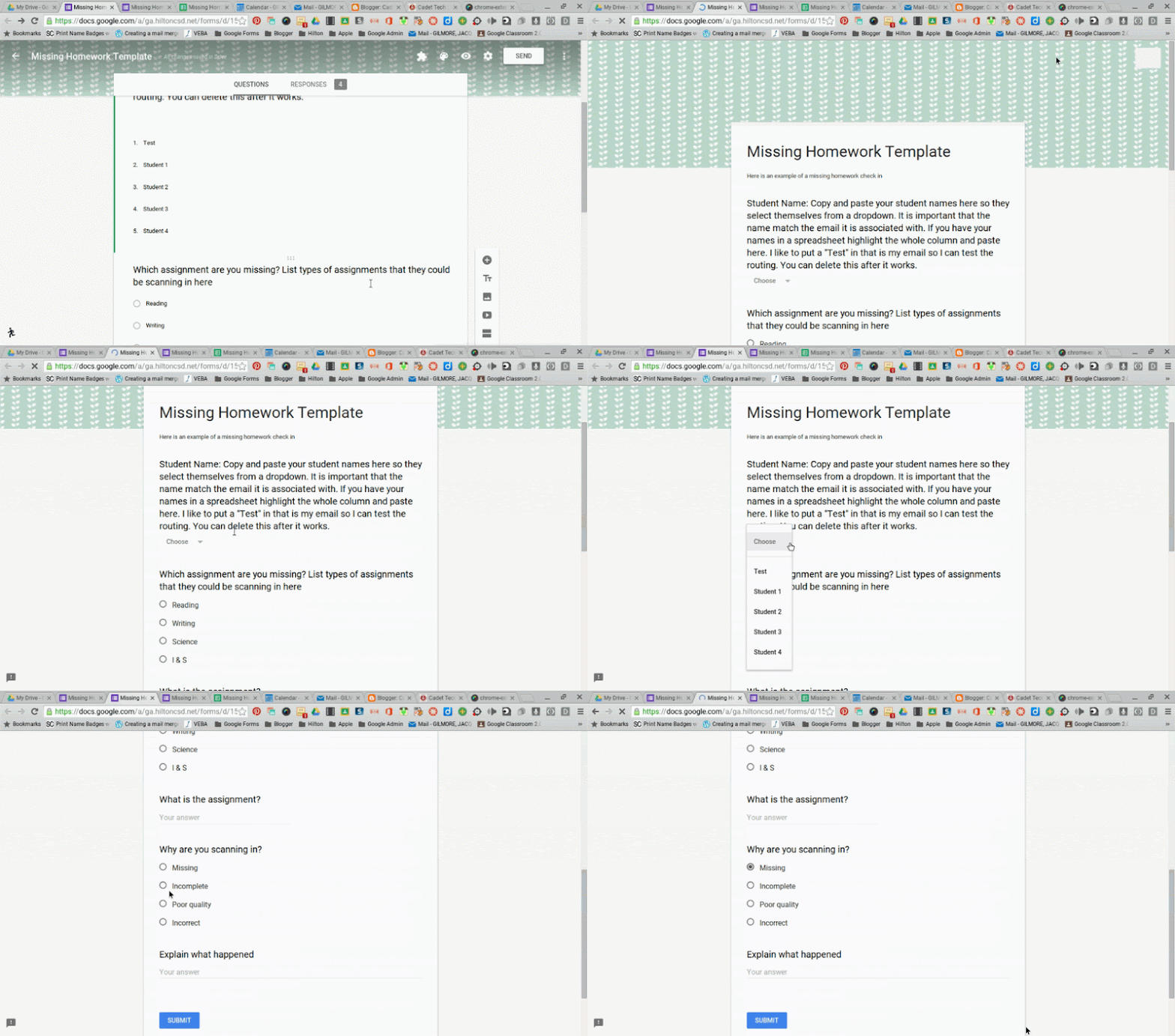
1. Create a Google Form where the student would select themselves from a list and check in the assignment that they are missing. It is important that the student name question is a dropdown so that the name that is captured by the form will match the email list associated with it.
Here is an example Missing Homework Check In

2. Once you have created the form. Click on the "Responses" tab to generate the spreadsheet to gather your form data.


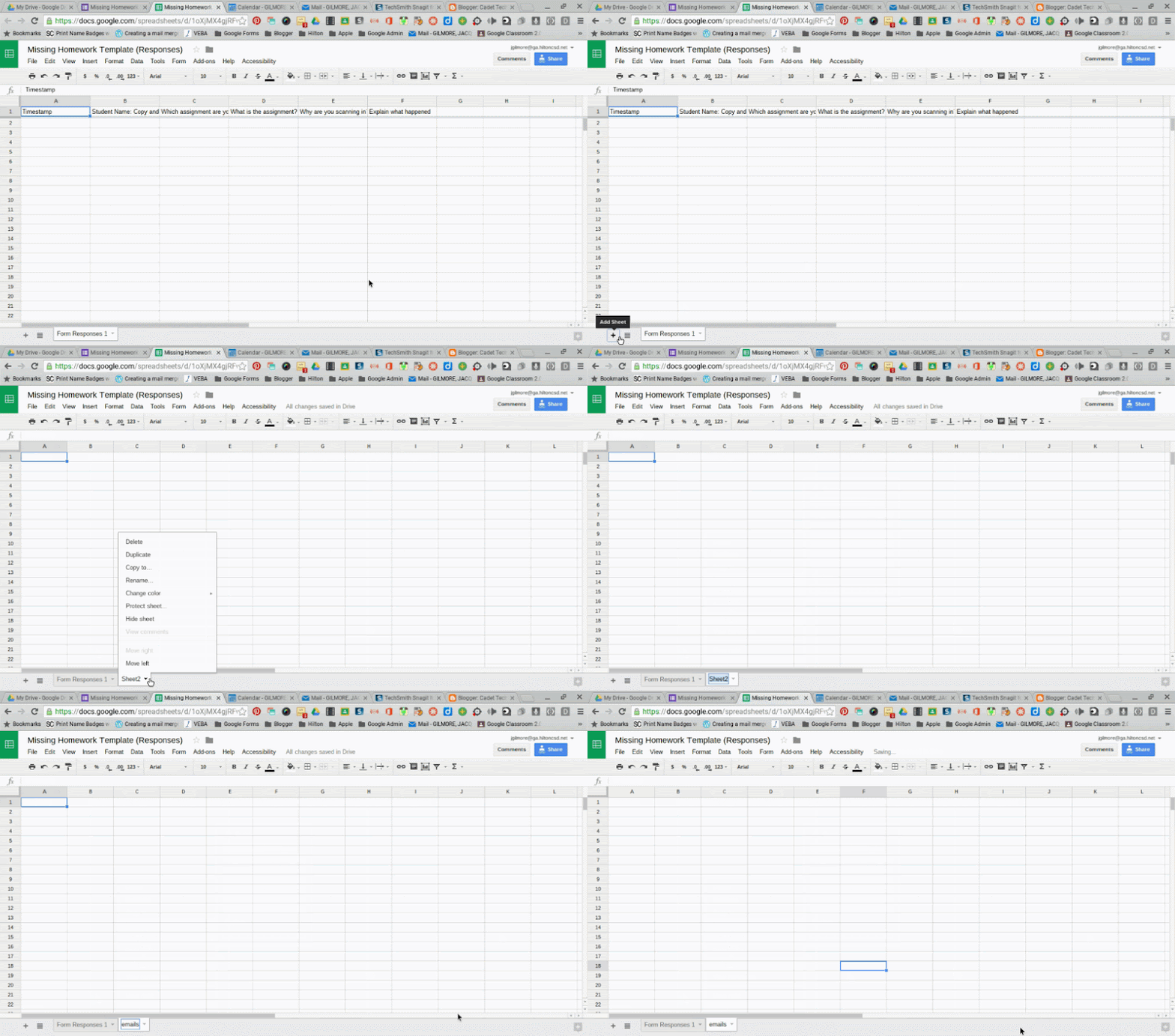
3. Every time your form is submitted the data will be collected into this spreadsheet. At the bottom of your spreadsheet create a new tab called "emails"


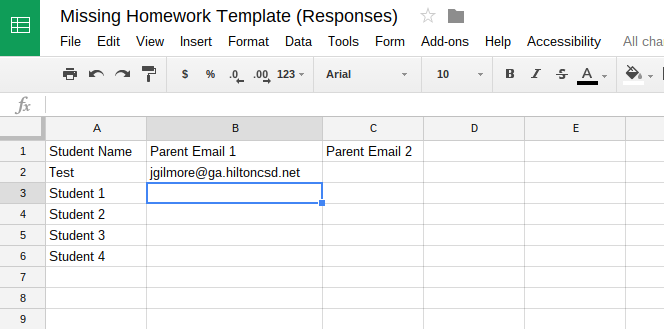
4. In this spreadsheet you want the following headers: Student Name, Parent Email 1, Parent Email 2.
In the Student Name column you want exactly the same names that you put in the Google Form dropdown question for student name. *Start with a Test that will be linked to your email so you can test the form routing. You do not need a Parent Email 2 column, this is optional.


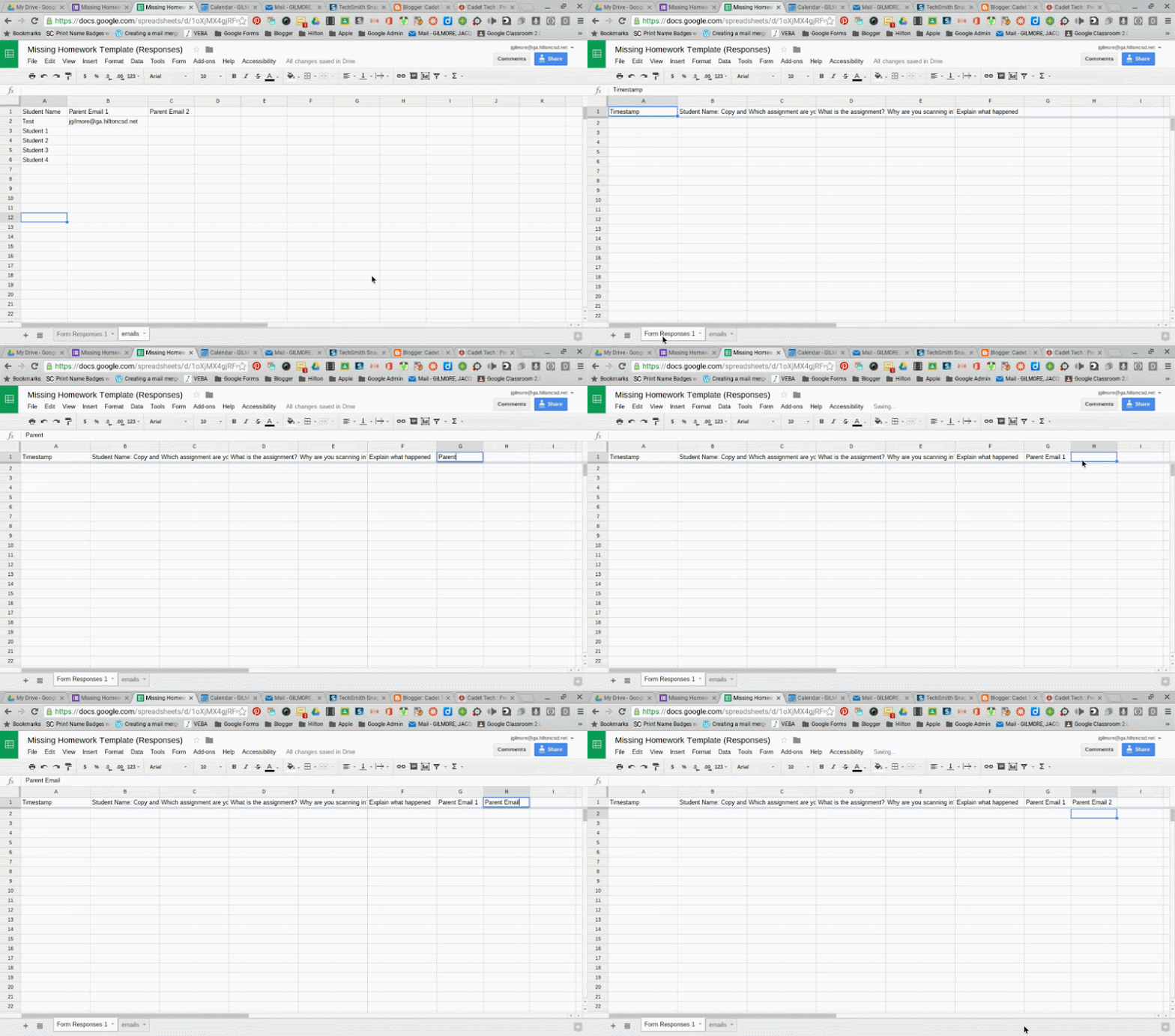
5. In the Form Responses 1 spreadsheet add a new column for Parent Email. If you added two columns to the spreadsheet for Parent Email 1 and Parent Email 2 you will need to add two columns to the spreadsheet.


6. Run/add the Formmule Add-on. If you don't have it installed click "Get Add-ons" at the bottom of the menu.


7. Go back to your Google Form. Click "preview" and submit the form as the "Test" student you put in.


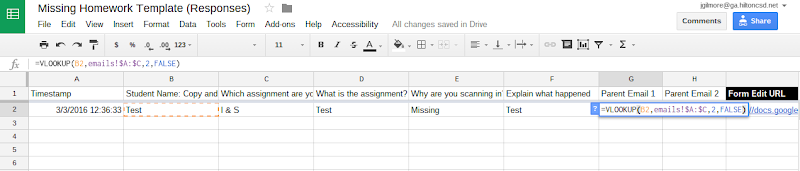
8. In your spreadsheet enter the following formula into the Parent Email Columns for your Test Student. *Note you only need to do Parent Email 2 if you choose to do two parent email columns in your spreadsheet.

Parent Email 1 Column (Copy and paste the formula from below
=VLOOKUP(B2,emails!$A:$C,2,FALSE)

Parent Email 2 Column (Copy and paste the formula from below)
=VLOOKUP(B2,emails!$A:$C,3,FALSE)


9. Run/add the CopyDown Add-on. If you don't have it installed click "Get Add-ons" at the bottom of the menu.


10. Once CopyDown is enabled you are set to set up your email templates. Go back to Add-Ons > FormMule


11. Choose the number of templates you want. Typically 1 will work. Give your template a name. Set the student name to be the send condition. Set NOT NULL as the trigger. Click "Save Template Settings" and then click "Next: Edit Email Templates". *Some teachers thought they would have everyone check in their homework and then only send emails to students who checked it in as Missing. In this case that question would become the send condition and then the answer to that question as the trigger.


12. Select the fields from the form on the right to fill in the email template. Select Parent Email 1 and Parent Email 2 for the To field. *Note: separate emails with commas. Give you email a subject. I usually fill the body of the email with the students answers to the form questions. Just click on each one to merge the fields into the email.


13. Once this is done you should submit your form again as Test and see if it worked! You can see in the spreadsheet the log of the submissions and the email send status.

If you wanted to make your Form a QR code then you can take the link to the live form and do a QR code generator. If you are using this in a Chromebook classroom you can post the link in your Google Classroom for students to check it in.

Google Updates you will Love!

11:38 AM 0
Google Updates you will Love!
It's my favorite time of year, well... except for Christmas, it's the time of year where Google starts to revisit some of their Google Apps for Work (formally Google Apps for Education) and begin to make updates, enhancements, and improvements. Here are some of the latest updates!

Google Forms

Google Forms updated to a new interface in the fall. In our first Google Forms Cadet Tech On Demand course we explored the old versus the new. In the original release, the new interface left a few key features out. That is no longer the case! Not only did they incorporate the previous functionality of the old Forms into the new interface, they enhanced it as well!

Some key features:

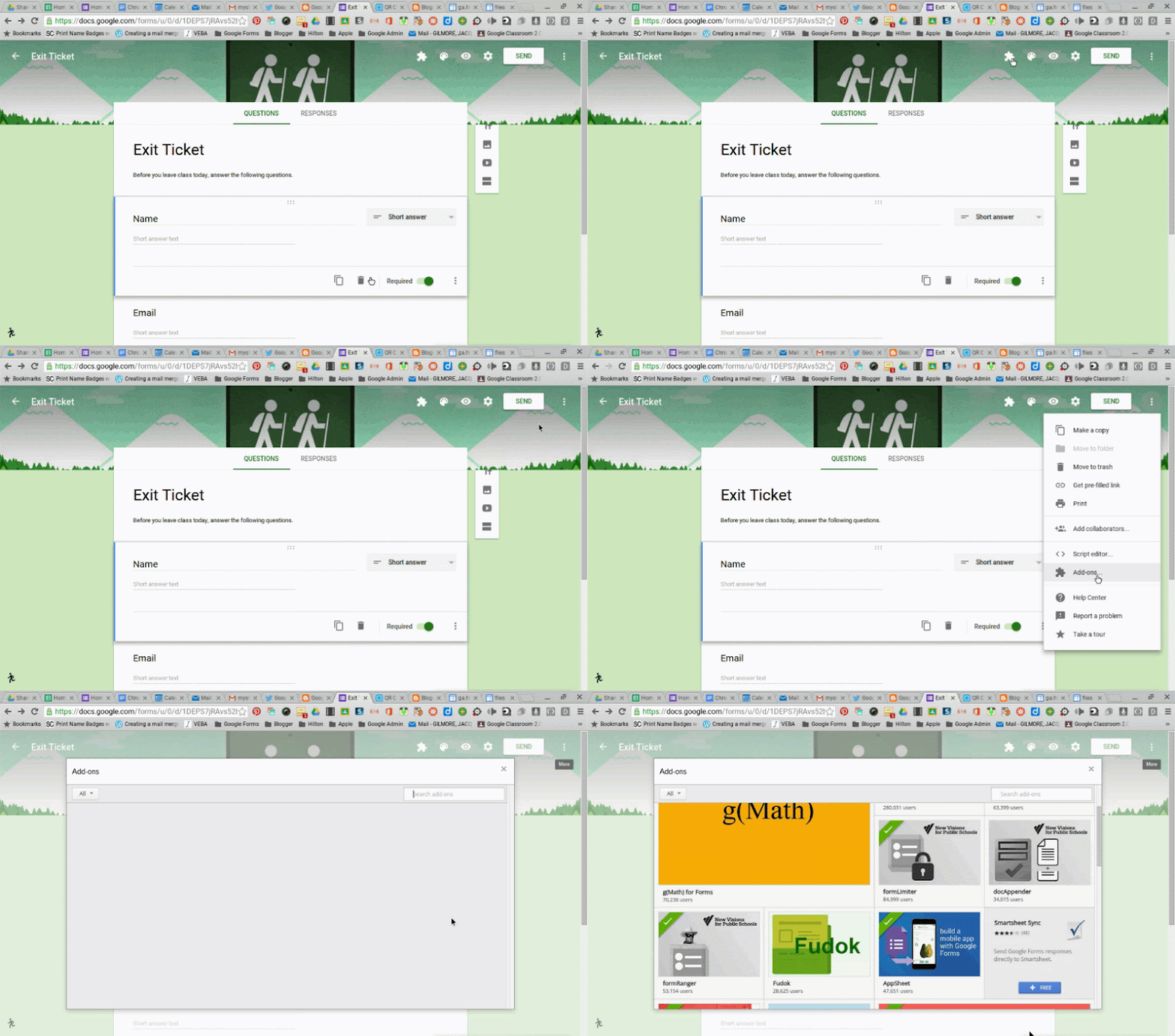
  • Add-ons menu - You know I love me some Add-ons. Click on the Add-ons icon to run a currently installed add on to your Google Form. To get new Add-ons click on the settings icon.
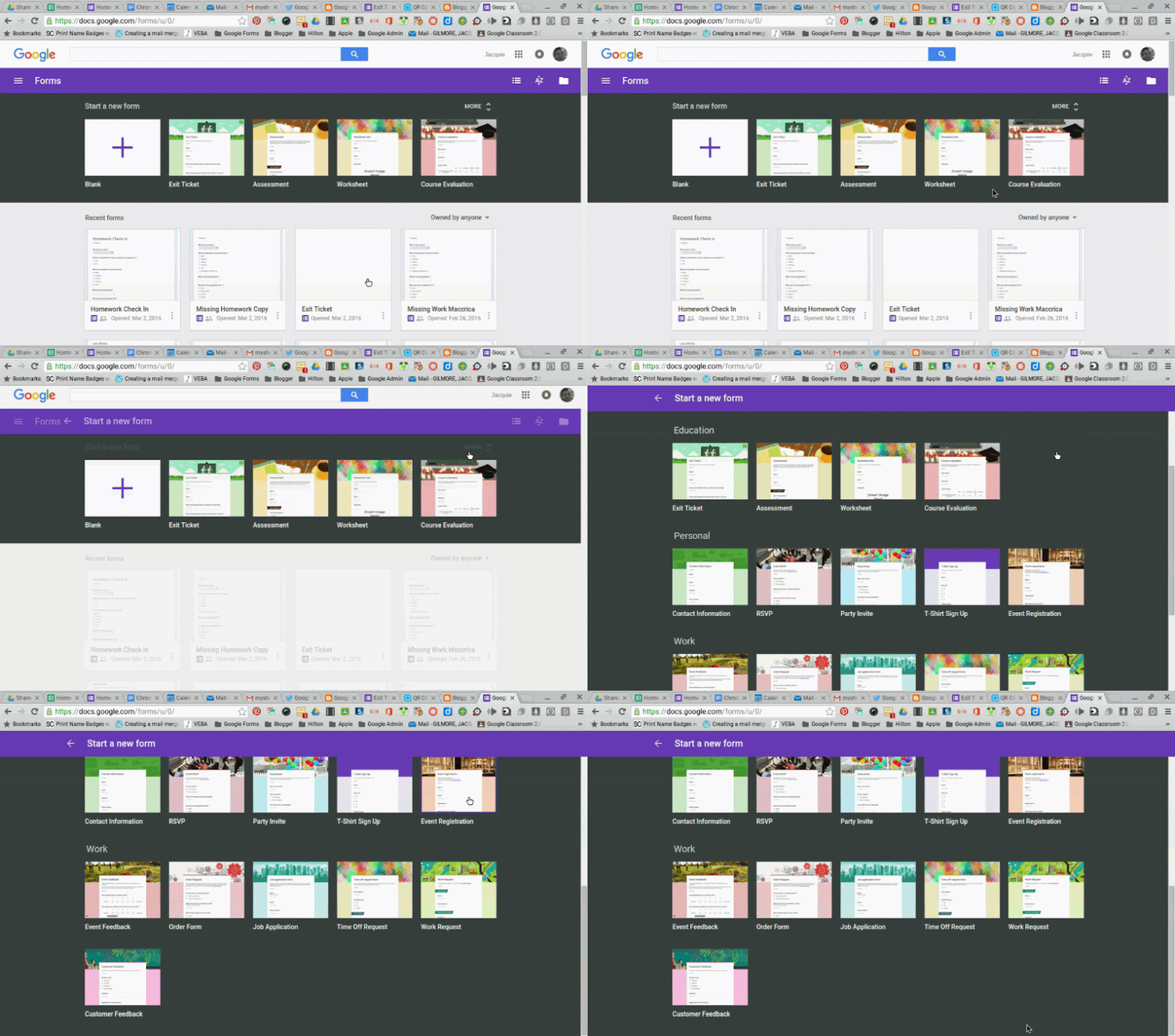
  • New Forms Template Gallery!
    http://forms.google.com
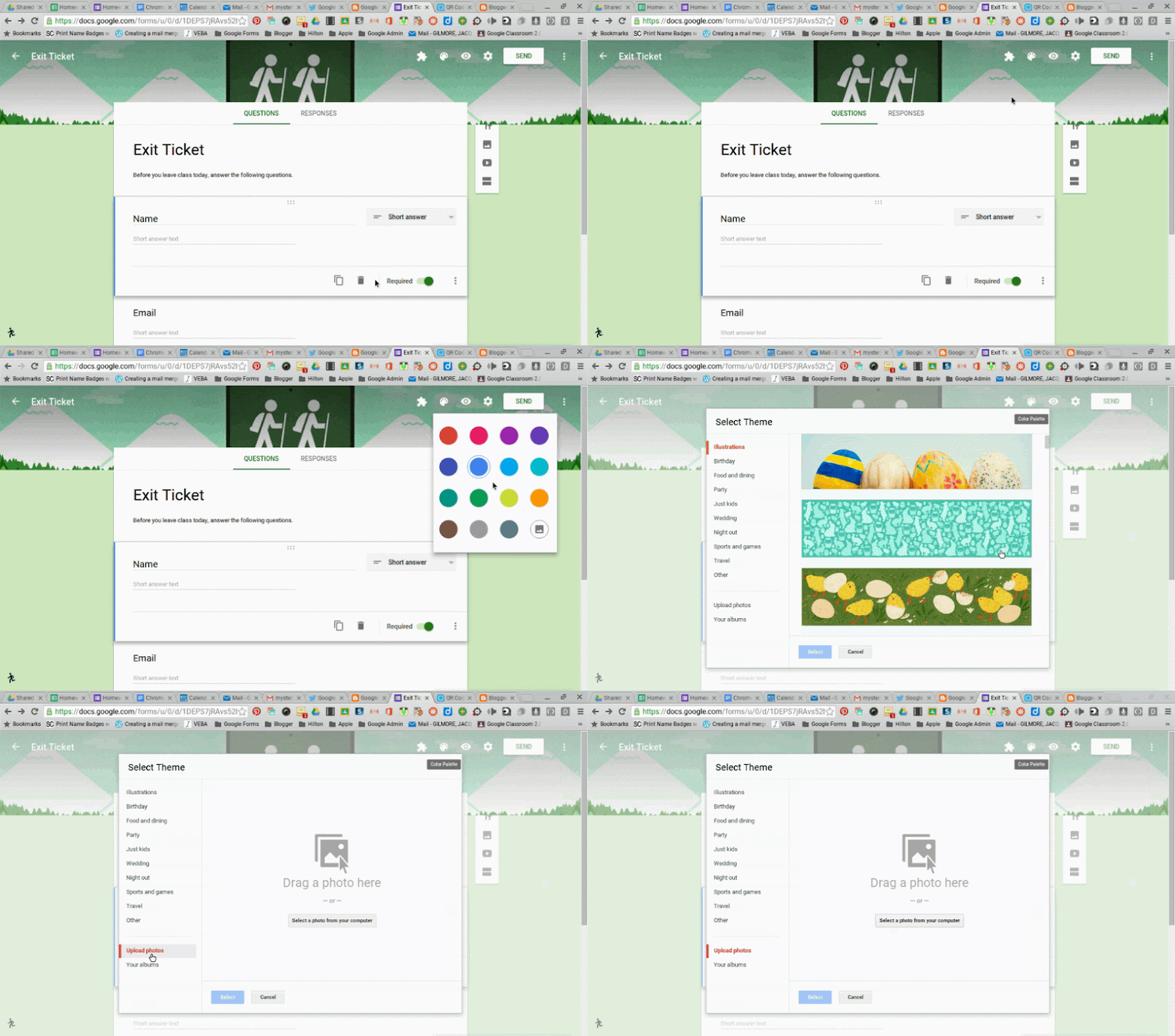
  • Customized Theme and Header options
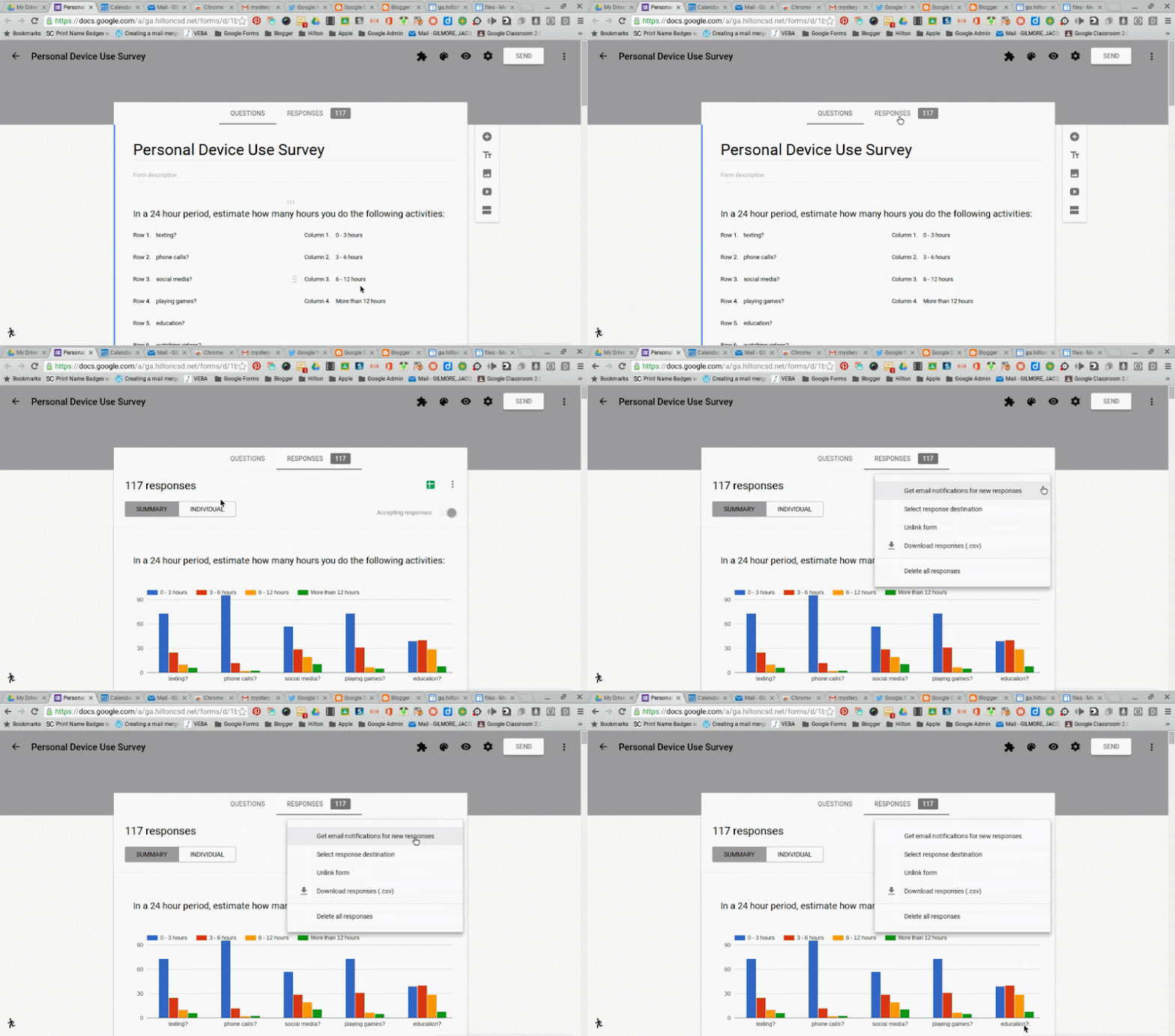
  • Individualized form results. Not only can you see a summary of your form responses. You can also see the individualized form submissions without having to go to the spreadsheet.
  • Email notifications for Form submissions- No longer do you need an Add-on for form submission notifications. Click on the Form Responses Tab to get email notifications when new Forms are submitted.

Tuesday, February 9, 2016

Flipping Science

2:05 PM 0
Flipping Science
February 9, 2016

Cool Science Labs

Mike Szczepanik's students (HS Biology) have been exploring learning using a flipped classroom model. Below two students are working on taking pictures through a microscope using their iPad. The trick they found is to put the timer on 3 seconds to avoid some shakiness in the image. The photos are of guard cells surrounding stomata on the underside of a leaf. 


Mike created mini videos that students watch in small groups, then they proceed with the inquiry process to create a solution to the task provided. Mike shares the videos via a Google Form. Students must watch the video then take either a video or a picture using their iPad to document their learning. The students share the link to their image or video that they upload to their Google account on the same Google Form then proceed with the next lesson link.

A sample of one of Mike's mini video lessons.


Sample of one group's response via video:


Sample of an image a student group shared:


Mike has been exploring many ways to use technology and the inquiry approach to learning to help his students learn difficult biology concepts. 


Monday, March 16, 2015

Spring and the New LTT Blog!

2:01 PM 0
Spring and the New LTT Blog!
Spring has sprung for Learning Through Technology. With assessments right around the corner and end of the year projects on the near horizon we have the tools to engage learners and help you streamline your classroom.

Here is what we are loving right now... OneNote classroom notebooks are out! These handy tools allow you to create a digital binder for your students and control documents, notes, and collaborative spaces. You can bounce between students view progress and individualize feedback. Sounds pretty nifty! Check out are resources on integrating these into your daily workflow.

Assessments, Assessments, and more assessments- You have the power of assessment in your one-to-one classroom right now. Two great tools to integrate assessment of all types into your workflow: Socrative, and Google Forms. Both are great, and super easy to integrate right now!
Great ways to use them:
  • Check for understanding
  • Quizzes and tests... and they are graded for you
  • Polling
What is better than that!