Cadet Tech : Apps in the Classroom
Showing posts with label Apps in the Classroom. Show all posts

Wednesday, May 30, 2018

Some Juicy Pear Deck Updates Increase Ease, Accessibility, and Reflection Possibilities

11:06 AM 0
Some Juicy Pear Deck Updates Increase Ease, Accessibility, and Reflection Possibilities
You might remember trying Pear Deck once or twice and then going on about your life. Pear Deck has since totally been redesigned and their approach has completely changed! Basically, it is a lot more accessible and all the things you hated about it are gone...which means you might actually want to use it now.

The News:
1. Pear Deck is now exclusively a Google Slides Extension.
2. There are no more limits or subscriptions or workarounds to worry about that will make it more difficult to use, all the free features are very sustainable. You can just plan and rock it!
3. There are some pretty fun templates that might streamline your student feedback and formative assessment.

How do I use it now:
1. If you do not have it yet, go to Google Slides, click Add-ons, Click Get Add-ons and add Pear Deck.
2. Make a Google Slides Presentation or open one that you have already made.
3. To any slide to which you'd like students to respond, open the Pear Deck add-on (in Add-ons).


From here you can choose how you want students to respond, whether it be in text, multiple choice, numbers, or a few other options. Draggable and drawing slides only last your first 30 days.

If you have any Slides or PowerPoint presentations hanging around, why not throw in some checks for understanding? Student responses (which they've given on their Chromebook) can then be projected for the class with the click of a button.


I also like the templates, especially the T-chart template. Anytime you are doing a T-chart, students can type or draw right in it and it can be instantly projected.


If you are presenting, just click present and share the code with your students.

Tuesday, January 17, 2017

QR Codes and Homework Check In

1:41 PM 0
QR Codes and Homework Check In
Using Google Forms for Homework Check ins. Use the video tutorials or the steps below to set up a Homework Check in System for your students!

Video Tutorials


Step 1 - Make a copy of the templates

Use the "Make a Copy" links below to make a copy of the Form and the responses spreadsheet

Make a copy of the Form: https://docs.google.com/forms/d/1SwPeNSdvF00ad9dO9ccnwRAwOgg5IF1lxMLxnH08mC0/copy?usp=sharing

Make a copy of the Responses spreadsheet
https://docs.google.com/spreadsheets/d/1AXOu3AIjtIdsJE4z4NgutTkDwLW1tTGJU7LyJrQYdR8/copy?usp=sharing


Step 2 - Edit your Form to suit your needs

Change the questions, add or remove as you see fit


Step 3 - Set up your responses sheet

1. Link your Google Form to the new copy of the responses spreadsheet. Click on the "Responses" tab on your Google Form and link it to an Existing Spreadsheet and select your new copy of the sheet.

2. Submit a sample submission into your form

3. Copy the Parent Email 1, Parent Email 2 and the formulas from Form Responses 1 sheet and Paste these into Form Responses 2 sheet in G1

4. Install the Add- on - Copy Down


Step 4 - Set up your email merge

1. Install the Add- on Form Mule

2. Launch Form Mule

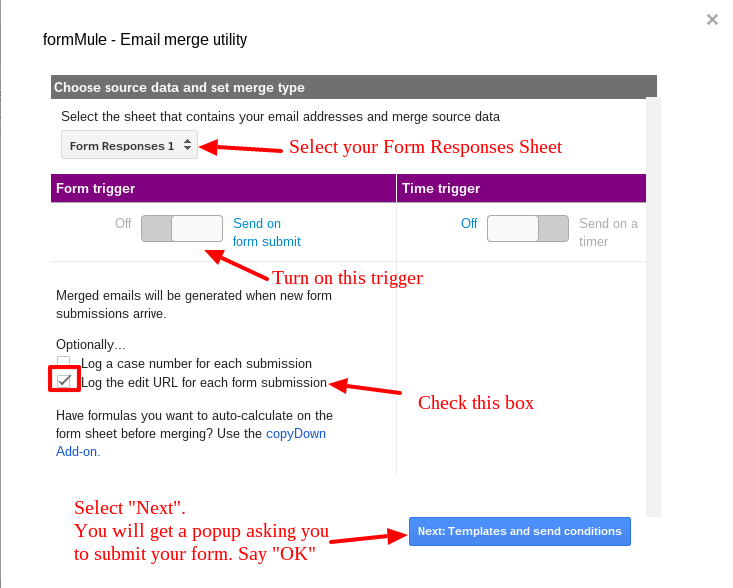
3. Select the sheet Form Responses 2. turn on your Trigger, and log the URL


4. Set the number of templates and the send condition.
Give your template a name and choose the send condition to be student email and the trigger to be NOT NULL (All CAPS)


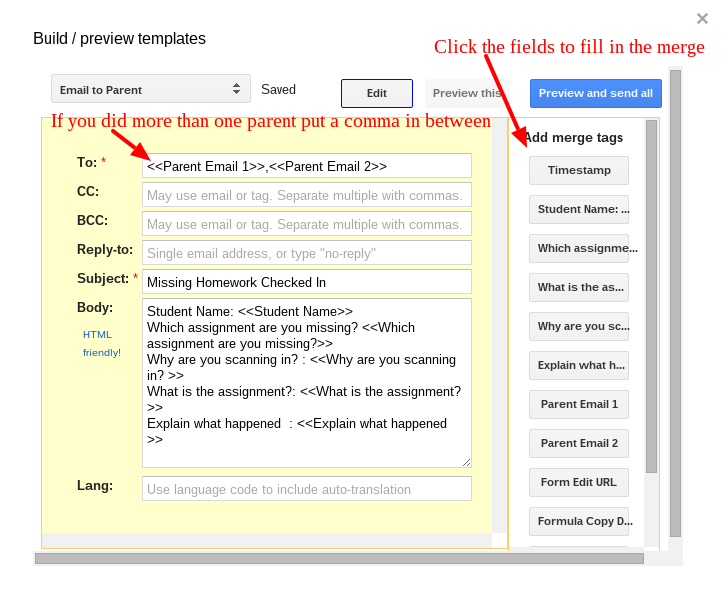
5. Build your email template


Thursday, May 19, 2016

Spark It Up!

11:51 AM 0
Spark It Up!
Not 1:1? No Problem! Former iOS apps Adobe Voice and Adobe Slate have become part of of the Spark family. The new Adobe Spark suite includes Spark Video (formerly Voice), Spark Page (formerly Slate), and Spark Post (which was just Post before). With the creation of the new Spark Suite, these amazing creation tools are now web friendly! Get started at https://spark.adobe.com/

The new streamlined Spark interface allows to seamlessly create a Post, Page, or Video from one location.


Click the "+" to start creating


Better yet, your Spark project library houses all of your Posts, Pages and Videos in one place!


Friday, May 13, 2016

Plickers - Tech For Those Without Tech

8:58 AM 0
Plickers - Tech For Those Without Tech


ATTENTION: Specifically all Kindergarten, Primary, and Elementary Teachers. Plickers is a great way for instant feedback very fast and a way to introduce new technology into your classroom even though your students do not have their own device. Plickers is a powerfully simple tool that lets teachers collect real-time formative assessment data without the need for student devices. 

Click here to check out the Plickers website.

Please reach out to your school instructional technology support teacher to help get you setup or answer any questions.

Here is a short video that shows a teacher demonstrating Plickers and explaining how she uses it:


Thursday, May 12, 2016

Three great tools for writing with students

1:22 PM 0
Three great tools for writing with students

Adobe Slate

1. Adobe slate - Web and App. Beautiful app and website that allows you to combine a combination of text, images, video and links to create a one page scrolling website. Jen Roberts at Nowthwood used Adobe slate for informational text writing with her sixth graders. Once students publish their Slates they get a public URL to share or link to. Students will need to create an Adobe ID, passwords require eight characters and our case sensitive. We recommend First initial(capital) last initial and 6 digits ex: Jg000000

Check out some amazing student examples

https://slate.adobe.com/cp/x456E/
https://slate.adobe.com/cp/7NHTX/
https://slate.adobe.com/cp/ZrLwe/
https://slate.adobe.com/cp/B99zr/

Creating an Adobe Slate


2. Storybird

Storybird - Web only but is Mobile friendly. Create beautiful chapter books, picture books and poetry with your students. Sign up as a teacher and invite students to join your class. Students will be able to read each other's stories. You can even invite parents to join with a view link and password. Use Storybird's art collection to inspire you writing.

Steps for Creating a Story with Storybird


Video Guides

Creating a story:
Storybird guide on how to create a story
https://storybird.com/blog/2015/11/how-create-picture-book/


Setting up a class:
Storybird guide on how to set up a class: https://storybird.com/blog/2015/10/how-create-class-storybird/


3. Story Creator

Story Creator- Free App. Allows you to draw or upload local images for your story. You can add text as well as voice recording on each page. When you are done you can share or publish your story.


Friday, April 29, 2016

Animated Gifs in the Classroom

1:58 PM 3
Animated Gifs in the Classroom

Animated Gifs are all the rage these days! They allow you to put a collection of images together and create a single animated image. They are also a great tool to use in the classroom. In Casey VanEpps and Jen Humphreys' fifth grade class they used animated gif creation to support learning and understanding the phases of the moon. Students used their iPads to gather images of each phase of the moon. They used the app GIF Maker to create the animated gif. Gif Maker has a simple and streamlined interface that allows you to add emojis, text, images, or both to a page. Add pages to stitch together as either an animated gif or video.


Using Google Docs with Animated Gifs

Students were then able to take their beautiful animated gifs and insert them into a Google Doc and write about what they learned. Some students used the new Google Docs template library on iOS to produce a slick doc with animations. Check out the final product below!

Friday, March 4, 2016

Kahoot

1:53 PM 0
Kahoot

Want to make learning fun? Are you sure?

Even if they advertise it as...

Then try Kahoot!
Free
Easy
No apps
Internet based
No student accounts
Assessment based game

Click here for a quick and easy Kahoot start guide created by HS teacher Vicki Newman.

You create a quick Kahoot (multiple choice), get a code then share it with the class. 

This is popular in many classrooms, what are you missing out on?

Thursday, March 3, 2016

Google Forms and QR in the Classroom!

4:39 PM 0
Google Forms and QR in the Classroom!

QR codes can be an amazing tool for students. Since QR codes link to any URL you can virtually make anything a QR code!

Sean D'Abreu has started a trend mashing up QR Codes and Google Forms. We built a slick workflow where students scan in the QR code and submit which assignment they are missing and why. The Google Form then compiles all of the information and generates an email merge that pulls from a database of emails associated with that student. As soon as a student submits that they did not do their homework their parents are emailed with their submission reason. No more paper homework slips. Sean has helped set up some team members with the same workflow at Village and I have set up a few Forms for NW teachers as well! Check out my guide on creating a missing homework QR code check in: http://hiltoncadettech.blogspot.com/2016/03/missing-homework-check-in.html

Coleen Maccracken and Jen Sica also use QR code Google Forms for Maccria Points - Their classroom tool for student self management. Students scan in the QR code and enter their points for each day. Behind the scenes the spreadsheet compiles each students points for the week and even totals up the class for Sica and Maccracken.

Jen Humphreys and Casey VanEpps are using Google Forms for daily reflections following their "Genius 1/2 Hour" activities. Students use Google Forms for reflecting on their problem solving strategies, successes, struggles and utilization of different IB learner profile traits. In addition to this, Jen and Casey have dove head first into Google Forms using them for exit tickets and checks for understanding as well as quick pre assessment strategies to get a gauge on student understanding and learning.

These are just a few examples... The possibilities are endless!

Wednesday, February 10, 2016

MW French Cuisine and Comics on Circulation

2:39 PM 0
MW French Cuisine and Comics on Circulation
Exciting student projects in production at Merton Williams!

French Cuisine!
First, Mrs. Herbert's French class piloted using Adobe Voice on their iPads to share French cuisine. The students viewed a sample from Northwood's Toy Project and also Mrs. Herbert's model video. They gathered images and made them professional looking using the Canva app. They worked in collaborative groups to create the video and included the recipe, the region it came from with interesting facts, the ingredients and basic cooking directions. Since these are early French speakers, some of the speaking is in  French (especially the food vocabulary) and some was in English. They did a great job of ensuring all students found images and participated in the recordings. Below is one sample from Zack, Aaron and Lucas.


Pathway of Blood Comic Book
Cheryl Sugrue and Angela Boccuzzi-Reichert teamed up to try a new way to demonstrate student learning. In the past students created booklets showing the path that blood takes as it travels through the heart and lungs before traveling through the body and back to repeat the cycle. Students had a variety of tools to create their drawings including pencils and paper, Notability, and other drawing apps. They used Comic Maker App to host their comics then shared them to Google Classroom as Google Slides. Note: Cheryl and Angela recommend using a different comic creation app or website since the free version of Comic Maker doesn't allow easy sharing of student work. Jacquie and several teachers have found Powtoons to be very useful for a project like this. 

See Kyle's Comic and Bryce's Comic (in PDF).


Here are some handouts Cheryl Sugrue shared via Google Classroom


Friday, January 8, 2016

Curate a Virtual Museum Exhibition with Google Slides!

9:59 AM 1
Curate a Virtual Museum Exhibition with Google Slides!

Virtual field trips are all the rage these days! Now you can have students apply their learning on a topic and have them curate their own museum exhibit. David Lee Ed Tech has created a beautiful Google Slides template that provides students the space to curate two exhibits per room in a four room virtual museum. The template works by hyperlinking visitors between rooms and in depth looks at each exhibit. The best part is... It's Google Slides! It works on iPads, Chromebooks, and laptops and students can work together on the same exhibit by sharing their presentation with one another.

Click the link to create your own copy of the Google Slide Template: Virtual Museum Template. Reach out to your Instructional Tech Teacher at your building to get rocking and curating your own virtual museum exhibit with students.


Here is what the slideshow would look like:


If you would like to read more on how to utilize the template here is David Lee Ed Tech's post on the virtual museum template:
Virtual Museum Guide

Tuesday, January 5, 2016

Sixth Grade Toy Project Wraps Up With A Bang!

3:01 PM 0
Sixth Grade Toy Project Wraps Up With A Bang!

Students at Northwood geared up all December to pitch their toy to be inducted into the Strong Museum National Toy Hall of Fame. Each group presented on why their toy meets all the criteria to be the 60th toy inducted.

This year, in addition to a toy display board and presentation, students used the apps Adobe Voice and Adobe Slate to support their claim for their toy. The presentations were superb! Here are just a few of the presentations that really display the creativity and ingenuity behind the project. Think about all the ways you could use these awesome tools!


Paper


Clue


Scooter


Chalk


Check out Chalk's Adobe Slate: Chalk Adobe Slate


Nerf


Check out Nerf's Adobe Slate:Nerf Adobe Slate

Jenga


Check out Jenga's Adobe Slate:Jenga Adobe Slate


Operation


Check out Operation's Adobe Slate:Operation Adobe Slate


Thursday, December 10, 2015

Hour of Code at Northwood!

1:11 PM 0
Hour of Code at Northwood!


Students at Northwood are Coding with Hour of Code.Mr. Donnelly has offered lab time and support to students interested in getting their feet wet with code to get started with the Hour of Code this week! Mrs. Thompson's class got started with the Hour of Code on their Chromebooks yesterday. Mr. Sutton has been working with different classes at Village and at Quest with Hour of Code. After break, fifth graders in Mr. VanEpps and Mrs. Humphreys are also going to get started with coding using Hour of Code's Minecraft puzzles.

It is super easy to get started and students can continue to learn from home on their own. Check out their tutorials and support student's learning and extension outside of the classroom. Click Here for more info

Northwood students doing Hour of Code


Image Slider


Hour of Code Promo


Friday, December 4, 2015

Cadet Tech On Demand!

8:29 AM 0
Cadet Tech On Demand!


Cadet Tech On Demand Offerings


Google Classroom 1.0

- Get to know Google Classroom! This introductory component will teach you the basics of accessing, building and utilizing Google Classroom. We will be covering:
Setting up your Google Classroom
Updating your "About" Tab
Creating and posting announcements and assignments
Creating and asking Questions to your class
The basics of Grading and managing your Google Classroom

Google Classroom 2.0

- Amp up your Google Classroom! Dive into using the question tool to create and foster digital conversations with students, provide feedback using Google Docs and annotating tools on turned in assignments, export grades and manage grades, and explore different integration strategies.
Tools Include:
Google Docs - Options and advanced features
Goobric- Grading rubrics within Google Docs


Google Forms 1.0

- Meet Google Forms and see what Forms can do you for you. Find out how to use Google Forms for summative and formative assessment. Link up your forms with Flubaroo for automatic and hassle free grading. Automate individualized feedback, review documentation and email grades with the click of a button.

iMovie

-iMovie is a great tool that allows students to demonstrate learning by creating videos on their iPads. You can also use this to create your own instruction and to make videos to hook students on a new topic. For some examples on how to use iMovie as a student tool, check out these higher level examples: http://www.appsinclass.com/imovie.html
You will learn the basics of inserting video, images, and audio then expand upon the basics to using transitions, filters, cropping, finishing your video and sharing with your students.

Flipped, Tossed or Gently Shaken 1.0

- iMovie is a great tool that allows students to demonstrate learning by creating videos on their iPads. You can also use this to create your own instruction and to make videos to hook students on a new topic. For some examples on how to use iMovie as a student tool, check out these higher level examples: http://www.appsinclass.com/imovie.html
You will learn the basics of inserting video, images, and audio then expand upon the basics to using transitions, filters, cropping, finishing your video and sharing with your students.

One Note 1.0

-OneNote is a great solution to create an online binder with multiple notebooks, sections (similar to tabs), and pages. You can organize your subjects with all your notes using text, images, web clips, video and audio. You will learn the basics of creating notebooks and how to add various media. OneNote is available online and also can be viewed and edited on mobile devices. This course is a pre-requisite for a future course on OneNote Classroom Notebook; a great way to allow your students to have online binders that you can view anytime.

Notability Soup to Nuts

- This app has proven to be very useful on student iPads for students to write on PDF files that you share with your class (less paper!) and to create documents with more than basic typing. Learn the basics of how students can annotate and type on Notability files and more advanced topics including organization, inserting web clips, bookmarking, searching, recording voice and creating a video playback of their work. Notability supports differentiation for creation of documents. This class is open only to those using Notability on iPads.

Be sure to check out the details in MLP!

Thursday, May 14, 2015

Gamification at its Best!

11:54 AM 2
<h2>Gamification at its Best! </h2>
Fifth graders are not playing games, they're designing them in Village classrooms. Using the App Pixel Press Floors students are experiencing the design cycle fist hand by creating their very own video game. Today, Mr. VanEpps and Mrs. Humphreys' fifth graders hosted students from other classes to play, test, and provide feedback for their games.


In Pixel Press Floors students can design the levels in their game using the "Draw on Paper" or the "Draw in App" blueprint. The App recognizes the "Glyphs" that represent different elements that are available to each game designer. Currently, they supply 14 creator glyphs: terrain, moving blocks, ladders, portals, monkey bars, power-ups, coins, super coins, falling blocks, spikes, exploding blocks, start and end position, pits & fire balls, and keys to make each gaming experience unique.


Mr. D'Abreu's class is getting ready to start designing their own games as well! Today they not only had an opportunity to play games that students created in VanEpps and Humphreys' room, they had an opportunity to Skype with the Pixel Press Floors game designers! Students had prepared questions for the designers and got a first hand experience to explore the Pixel Press Floors game design process. How Great!


Getting Started Toolkit


Sketch Guide: Pixel Press Floors Sketch Guide

Educator Lesson Plans : Pixel Press Lesson Plans

How-to videos: How To Videos