Cadet Tech : Google Drive
Showing posts with label Google Drive. Show all posts

Friday, March 16, 2018

Google Drive File Stream

1:01 PM 1
Google Drive File Stream
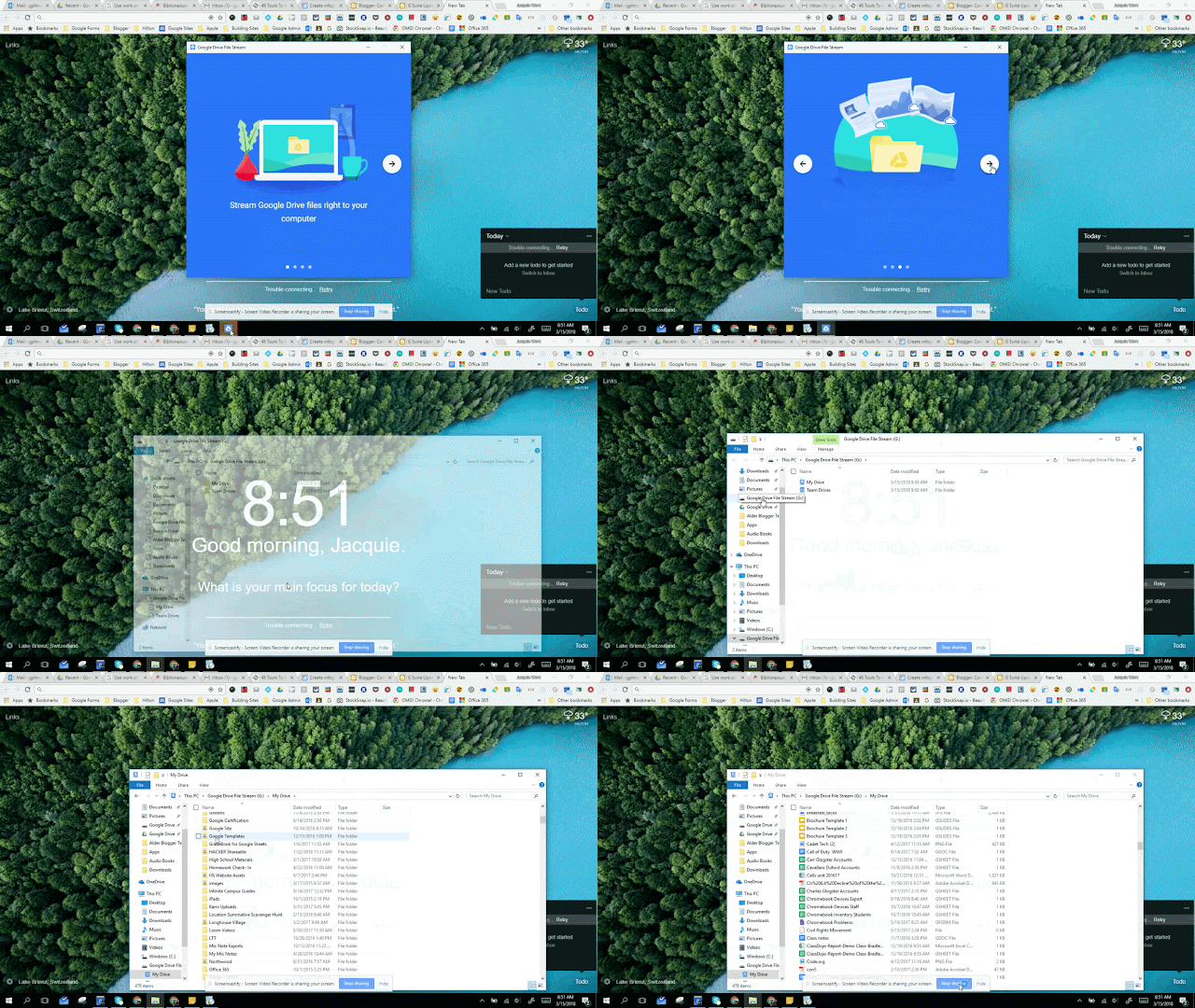
Google Drive File Stream allows you to access both your Google Drive and any Team Drive files locally through your File Explorer on your PC. This is a handy feature if you are storing non Google files in your Google Drive. Without Google Drive File Stream you would have to download individual files to edit and then re upload the edited version to your Google Drive. ** If you previously had Google Drive Backup and Sync installed you will need to install this.

With Google Drive File Stream you can open, edit and save files directly back to your Google Drive in seconds.

Here is how you get it:

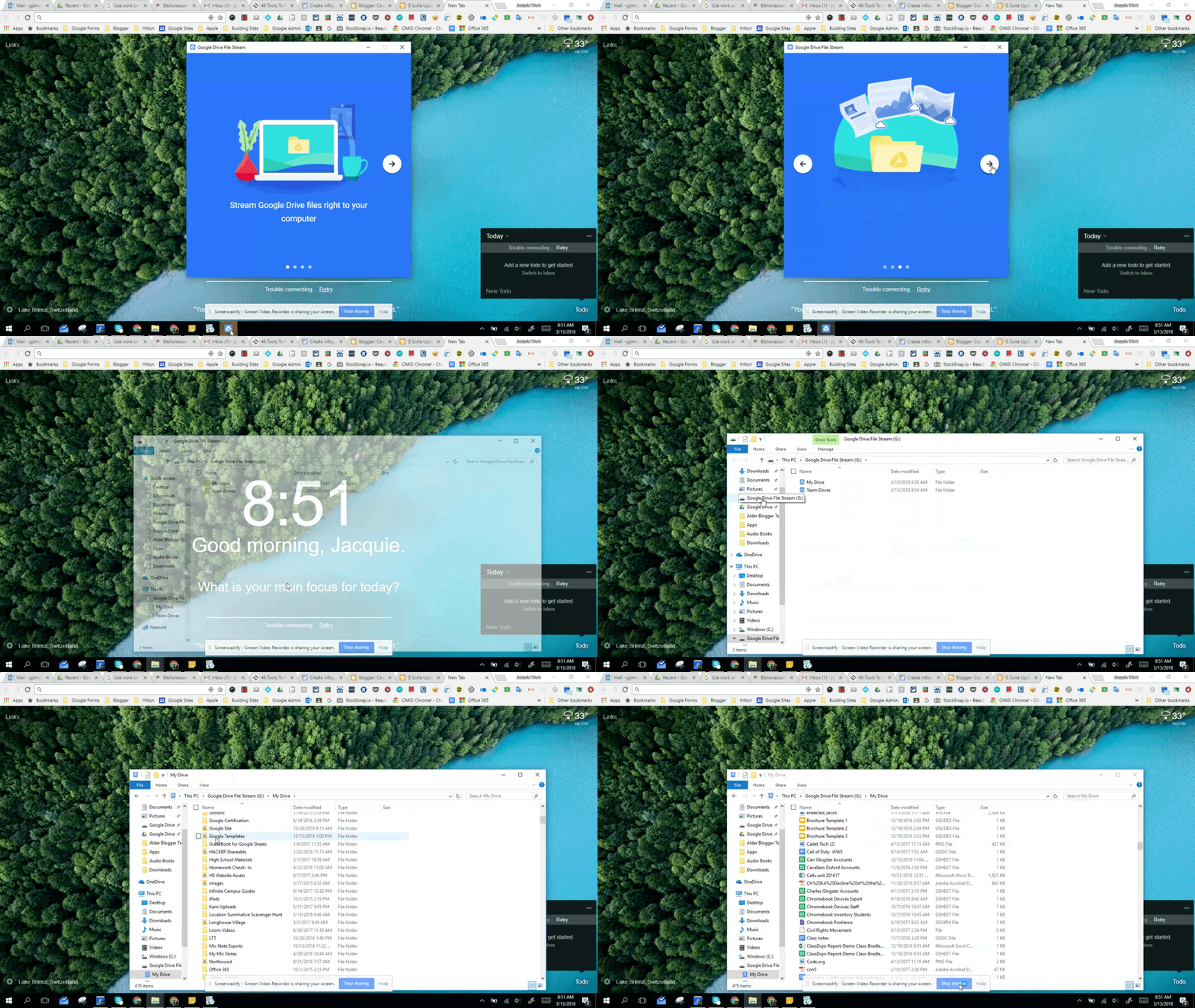
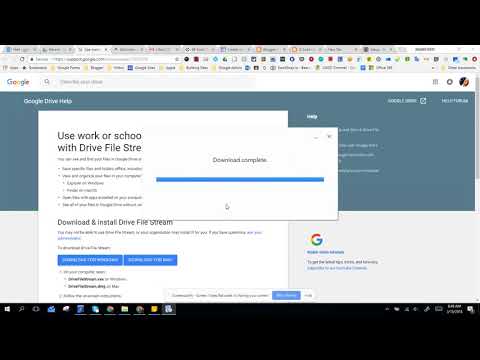
1. Download Google Drive File Stream from the Approved Software Self Install > Intranet > LTT > Approved Software Self Install. Remember you have to open this in Internet Explorer.

2. Run the downloaded program on your PC.


3. Once you have installed the file Stream. It should open up for you to sign in


4. Click through their overview to view your active File Stream

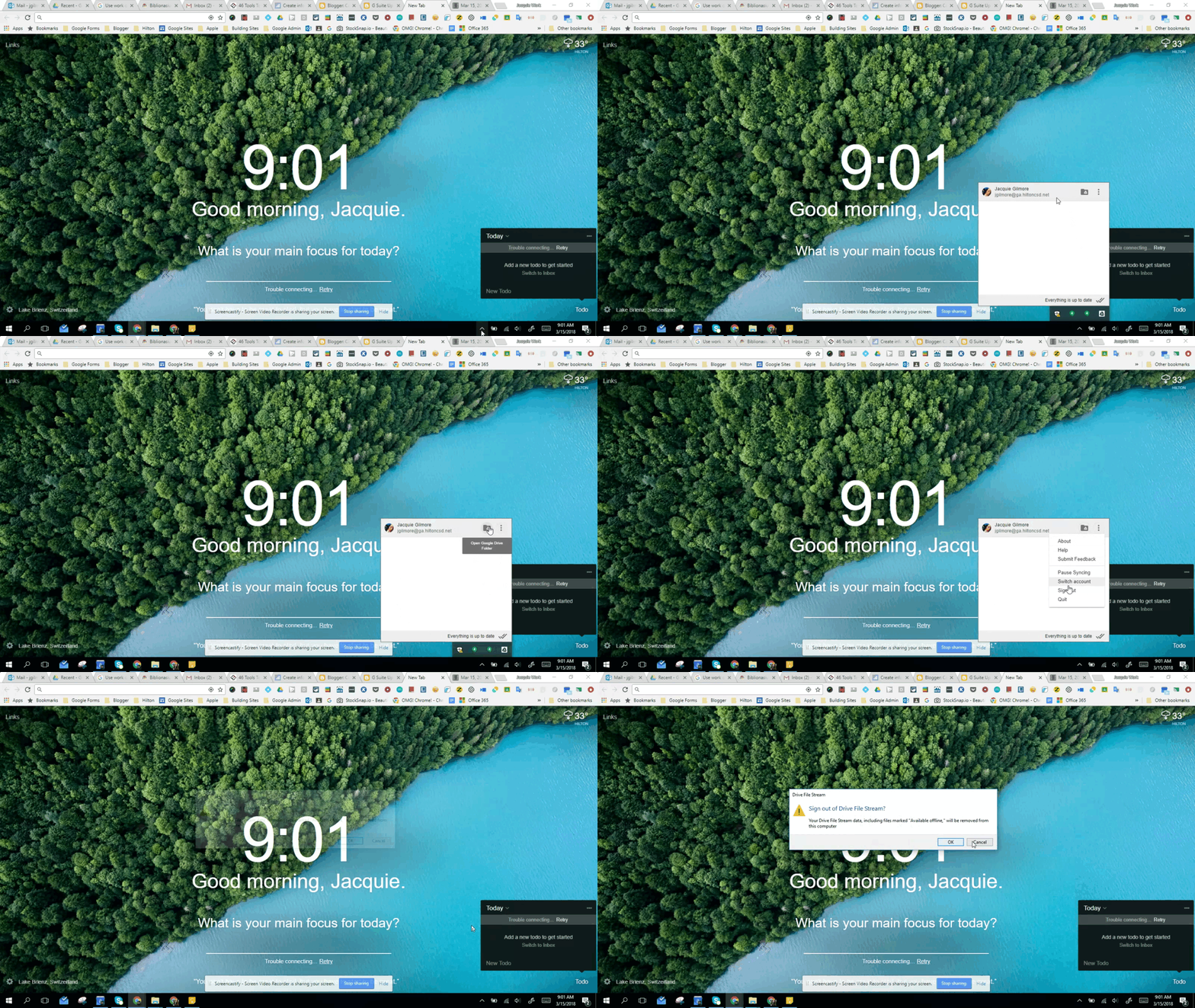
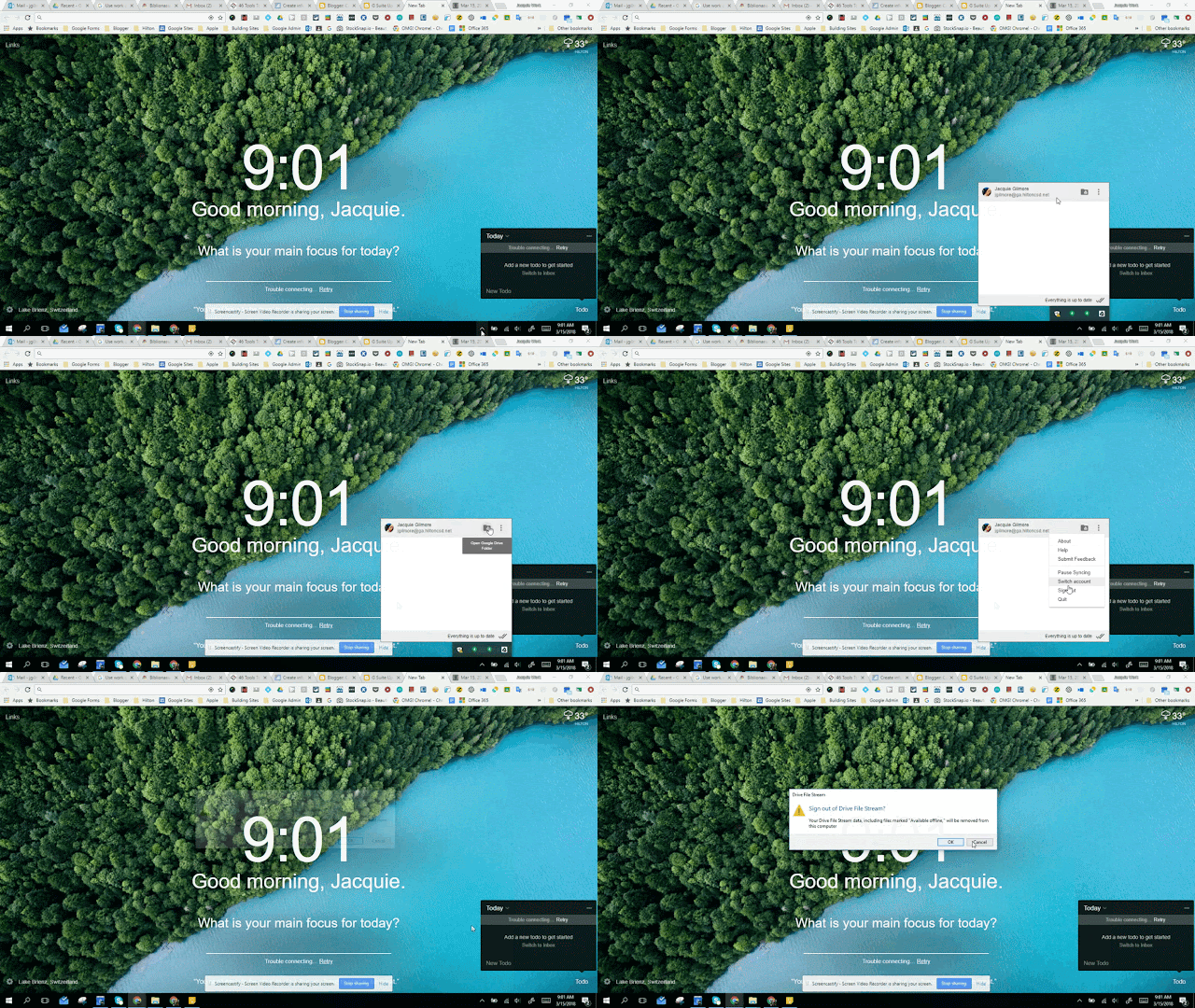
5. You can view your File Stream status from the dashboard. Also, if for some reason your stream throws an error. We found if you come here and sign out and sign back in, it clears the cached error.

Friday, October 13, 2017

The Perfect Pear

1:10 PM 0
The Perfect Pear
The new Google slides features just rolled out and we are super stoked about the #perfectpear - Pear Deck add-on for Google Slides... WHAT!!!!!

Need I say more?


-Open a Google Slide, Powerpoint or Keynote with Google Slides

-Go to the Add-ons menu and install Pear Deck

-Once installed - Select from pre made formative assessment slides or make your own.


-Use the awesome features of Google Slides to Trick out your Slides

-When you are ready present with Pear Deck

-As you advance your slides your questions and their answers will appear on your teacher dashboard in real time. Answers can also be displayed anonymously in the classroom on the projector


Here is a little how to!

Friday, June 2, 2017

Grab a To-Go Box and Pack Up your Google Drive When you Graduate

12:16 PM 0
Grab a To-Go Box and Pack Up your Google Drive When you Graduate

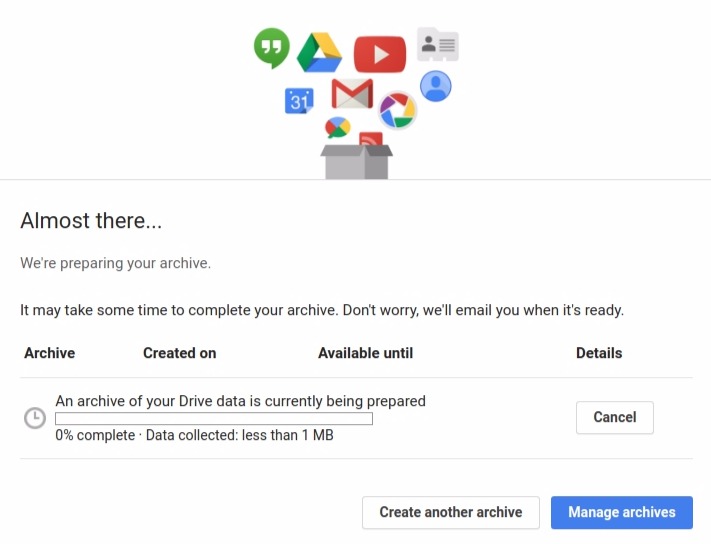
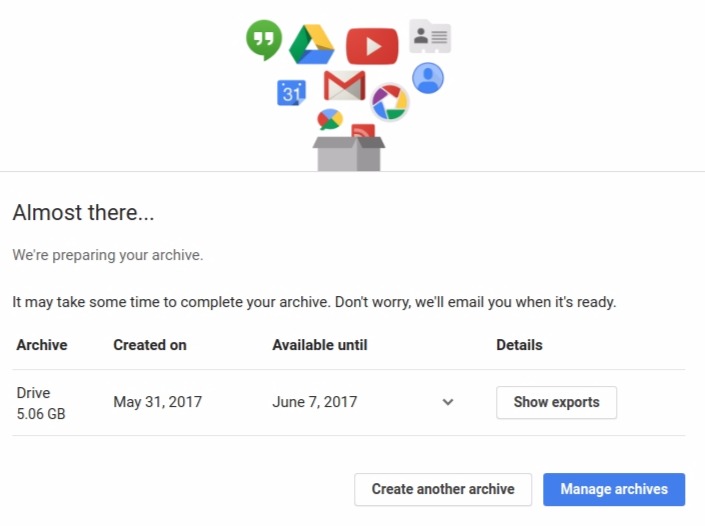
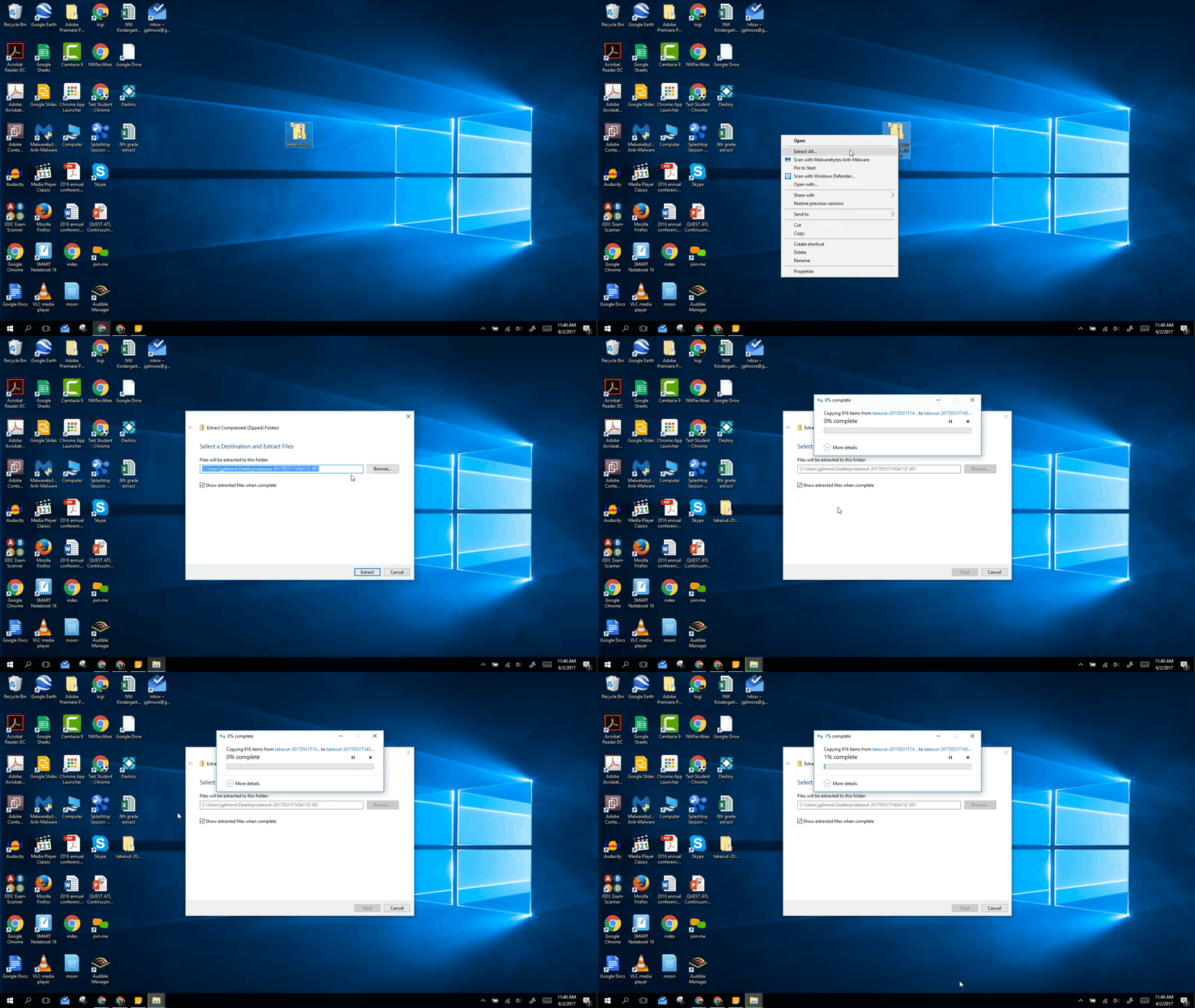
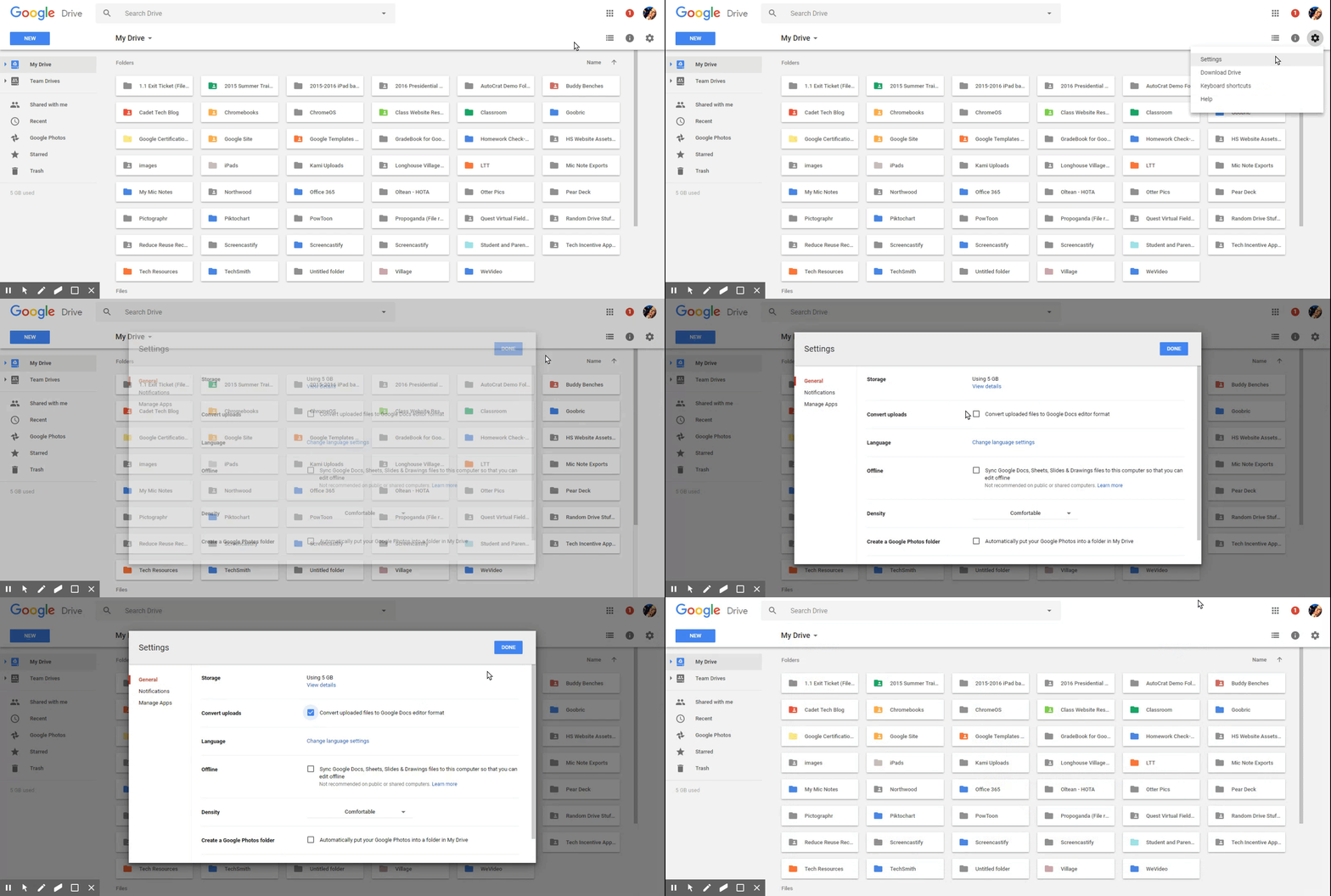
If you need to take any files with you when you graduate then Google Takeout is the tool you need. Below you will find a video tutorial that will walk you through the following steps.


Steps to create a Takeout:
1. Vist: https://takeout.google.com/settings/takeout
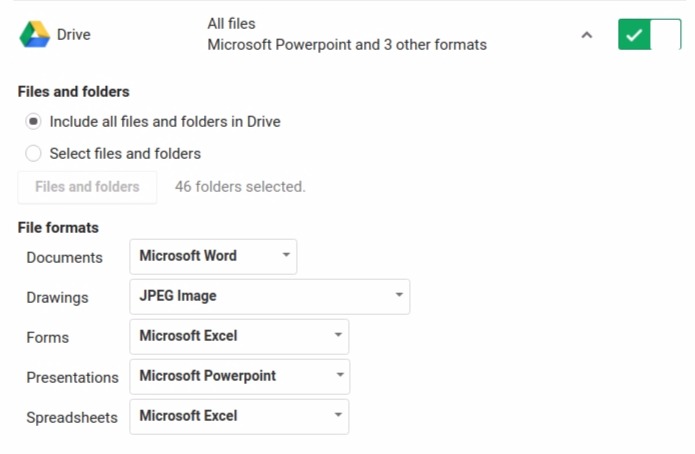
2. Select which Google Services you want to Export. At the very least, you want to select Google Drive


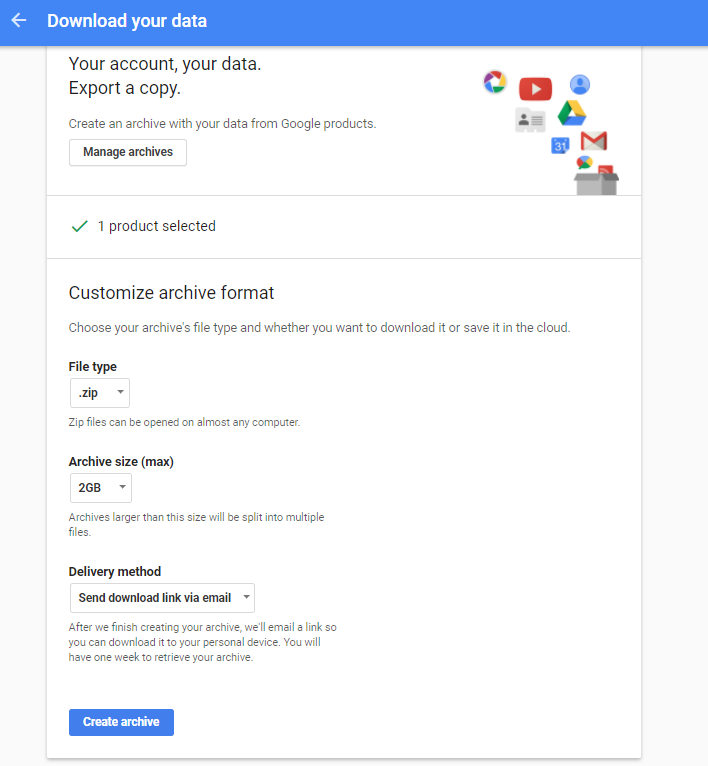
3. Click Next

4. Create your archive


5. Google Takeout will prepare and finish your archive


6. Once your archive is complete you will receive an email with your data


7. Your files will download as a .zip file. You will need to right click on it and extract the files


8. Set your New Google Drive to automatically convert uploaded files to Google Docs format


9. Upload your files and you are done!


Tuesday, December 20, 2016

Have no Fear, Team Drives are Here!

10:39 AM 0
Have no Fear, Team Drives are Here!
Ladies and Gentleman, may I introduce you to....

Team Drives!!

- Shared collaboration space for students and colleagues to build files and work on projects together. No more digging through your "Shared with me" to find a file or folder for a group project, and no more losing it when someone organizes their Drive.

Create a Team Drive with the click of a button in one convenient location!


Add Full Access, View only Access or Comment Access to any member when you click "Manage Members"

Friday, April 29, 2016

Animated Gifs in the Classroom

1:58 PM 3
Animated Gifs in the Classroom

Animated Gifs are all the rage these days! They allow you to put a collection of images together and create a single animated image. They are also a great tool to use in the classroom. In Casey VanEpps and Jen Humphreys' fifth grade class they used animated gif creation to support learning and understanding the phases of the moon. Students used their iPads to gather images of each phase of the moon. They used the app GIF Maker to create the animated gif. Gif Maker has a simple and streamlined interface that allows you to add emojis, text, images, or both to a page. Add pages to stitch together as either an animated gif or video.


Using Google Docs with Animated Gifs

Students were then able to take their beautiful animated gifs and insert them into a Google Doc and write about what they learned. Some students used the new Google Docs template library on iOS to produce a slick doc with animations. Check out the final product below!

Templates, Templates, and more Templates!

1:57 PM 0
Templates, Templates, and more Templates!
Google Slides and Google Drawings are fabulous tools that allow you to do some pretty awesome things such as: layer objects on the page, utilize transparency, add animated images, and even customize the size of the page. These features make them perfect vehicles for different projects in your classroom. Get excited and mash up some tools to create amazing student projects!


Google Slides Templates

Facebook Page


Have students build a Facebook page on a famous figure, topic, or item. They can design page posts and come up with comments. Use the Canva App or Website to make a stunning Facebook cover photo.

Click Here to Make a Copy of the Template

Instagram Feed


Curate a series of images on an Instagram feed. Come up with taglines and hashtags that are relevant to the feed.

Click Here to Make a Copy of the Template

Twitter Profile


Create a twitter profile for a person, place or a thing. Students can posts tweets that would come from that profile.

Click Here to Make a Copy of the Template

Google Drawing Templates

Magazine Article 1


Click Here to Make a Copy of the Template

Magazine Article 2


Click Here to Make a Copy of the Template

Magazine Article 3


Click Here to Make a Copy of the Template


A few more:

Click Here to Make a Copy of the Template


Friday, January 8, 2016

Curate a Virtual Museum Exhibition with Google Slides!

9:59 AM 1
Curate a Virtual Museum Exhibition with Google Slides!

Virtual field trips are all the rage these days! Now you can have students apply their learning on a topic and have them curate their own museum exhibit. David Lee Ed Tech has created a beautiful Google Slides template that provides students the space to curate two exhibits per room in a four room virtual museum. The template works by hyperlinking visitors between rooms and in depth looks at each exhibit. The best part is... It's Google Slides! It works on iPads, Chromebooks, and laptops and students can work together on the same exhibit by sharing their presentation with one another.

Click the link to create your own copy of the Google Slide Template: Virtual Museum Template. Reach out to your Instructional Tech Teacher at your building to get rocking and curating your own virtual museum exhibit with students.


Here is what the slideshow would look like:


If you would like to read more on how to utilize the template here is David Lee Ed Tech's post on the virtual museum template:
Virtual Museum Guide

Friday, May 1, 2015

Google Drive Overview

12:38 PM 0
<h2>Google Drive Overview</h2>

Sharing truly is caring... and google drive is the tool for showing that you care. Create, upload and manage documents and folders. Share with the click of a button and customize sharing permissions. This overview of Google Drive will get you up and running in no time!
We are going to break up your Google Drive into three sections; left, middle and right. On the left hand side of your Google Drive you can create new Google files or upload folders and files by clicking on "New". In addition to this, you can navigate between files in "My Drive" and files that others have "Shared with me".

In the middle of your Google Drive you can navigate between your files and folders. You can view the middle in a grid view pictured here or a list view. Click on the three horizontal lines in your file tools on the left to toggle between the two views.

On the right you have your file tools. If you select a file in your drive you will see additional file tools on the right as seen here. Click on the "i" to get file details and activity in the pane on the right. It list general file information, who you have shared it with, last activity and much more! With a file selected you also get the share icon in the file tools to easily share the file with others from this view.
With Google Apps for Education you can create Google Doc, Sheets, Slides, Forms, and Drawings right in your Google Drive. Share you file with collaborators and work on the same file at the same time remotely. From Google Drive you can also upload documents and folders from your computer.
You can share a file a variety of different ways. You can share by right clicking on a file and selecting "Share". With a file selected you can also click on the Share icon from the File Tools on the right. You can also share a file when you are actively working a file by click "Share" in the upper right or by going to File > Share. Google Drive also allows you to share a link to a file. You can get the link by right clicking on the file and selecting "Get Link" or from the Link icon in the file tools. You can also set the permissions of what the link does from the share menu. It is a great tool for you to share out examples of student work or provide students with resources from your Google Drive.
>From the sharing menu start typing in the last name of the person you would like to share the file with. As you type a list of possible suggestions will appear. Select the individual you want to share with. You can also set whether that person has Edit, View, or Comment rights to the file. You are also able to get the shareable link here as well. The advanced sharing menu allows you to change or customize your sharing permissions at any point.
When files have been shared with you they are listed in the Shared with Me folder in your drive. You will see a running list of all files that have been shared with you, who shared it, the date shared, and if you have moved it to a different location. Select any file in Shared with Me and move it to your drive by right clicking and selecting Add to My Drive or selecting Add to My Drive from the file tools. When a file is shared with you, you are not the owner of the file. To make a copy of a file right click the file and choose Make a Copy.
Google Drive functions very similarly on the iPad. On the left you have links to My drive and Shared with me, and in the middle you files. Click on the "hotdogs" on the left to navigate around your drive.
Click on the "i" of a folder or document to view the document details. Here you can share, move, rename, etc. It also provides you with options to keep the file locally on the device for offline editing.
From Shared with me on the iPad click on the "i" to view document details, move and manage the file.

Sunday, April 26, 2015

Gett'n Googley with Google Drive

7:09 PM 0
Gett'n Googley with Google Drive
Google Drive is an amazing resource for you, your students and your classroom. It allows you to create, upload, share and collaborate in the cloud with your colleagues and students. Google Drive sharing eliminates the need to email documents back and forth, with the click of a button you can share and collaborate in the cloud.

Julie Dioguardi is using Google Drive in tandem with Google Classroom to organize, share, collaborate, grade, and provide feedback for students on their Power of One Project. She can also use these great tools to invite and share with other teachers! She is now a Googling Hero and you can be too! Link to the handout