Cadet Tech : Tech Tools
Showing posts with label Tech Tools. Show all posts

Friday, June 2, 2017

Grab a To-Go Box and Pack Up your Google Drive When you Graduate

12:16 PM 0
Grab a To-Go Box and Pack Up your Google Drive When you Graduate

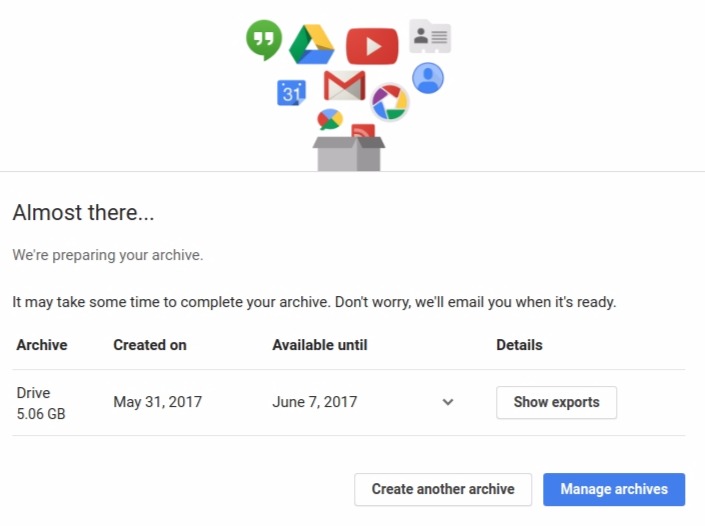
If you need to take any files with you when you graduate then Google Takeout is the tool you need. Below you will find a video tutorial that will walk you through the following steps.


Steps to create a Takeout:
1. Vist: https://takeout.google.com/settings/takeout
2. Select which Google Services you want to Export. At the very least, you want to select Google Drive
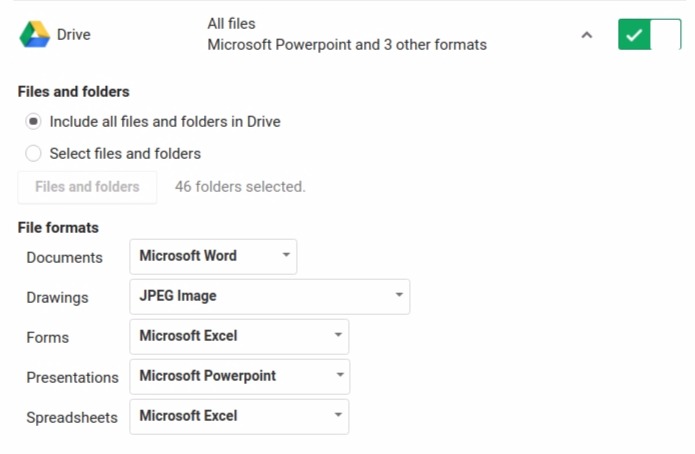


3. Click Next

4. Create your archive
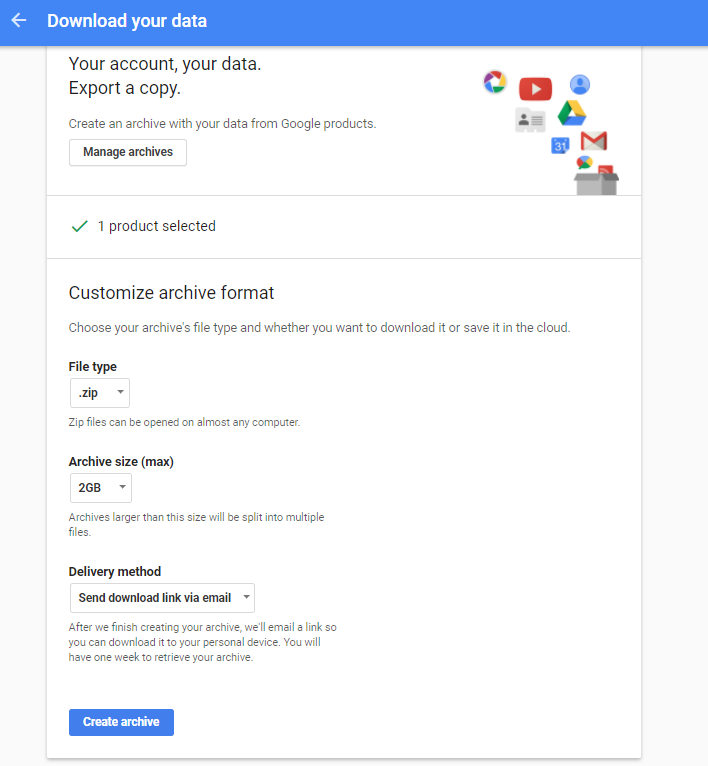


5. Google Takeout will prepare and finish your archive
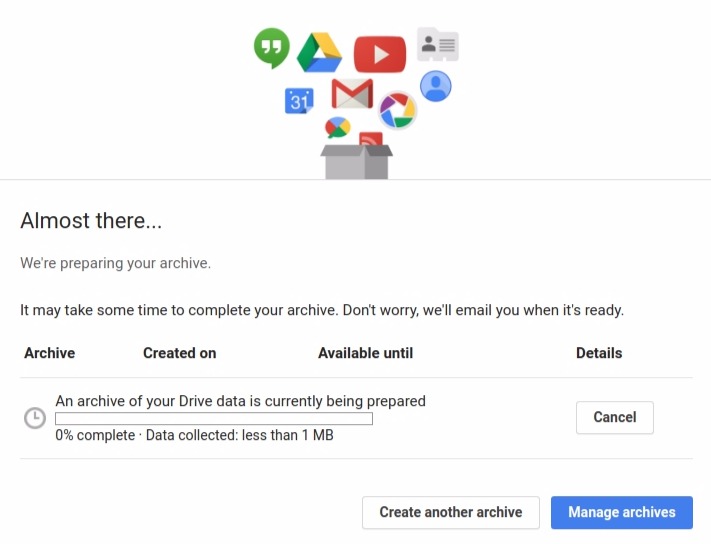


6. Once your archive is complete you will receive an email with your data



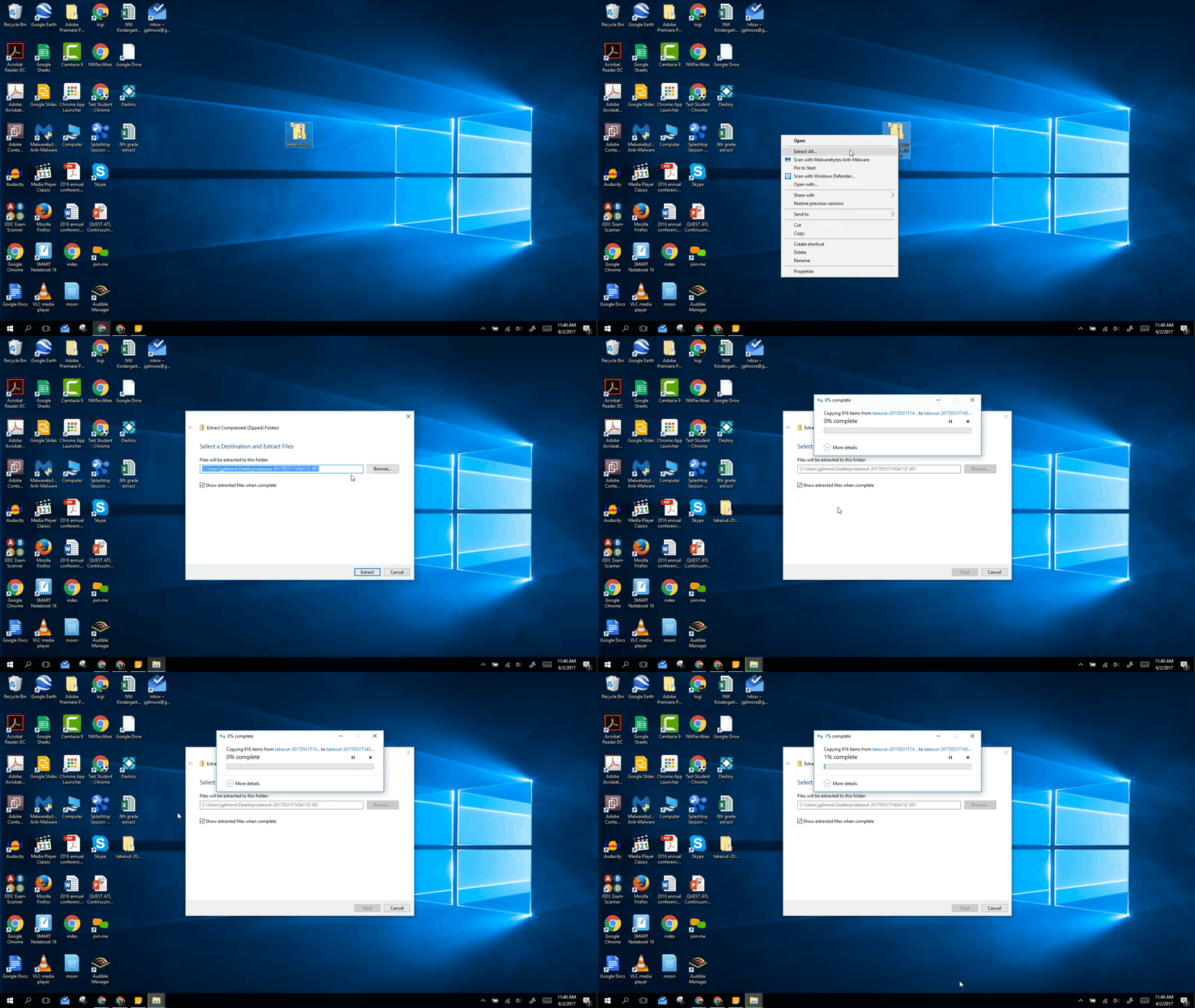
7. Your files will download as a .zip file. You will need to right click on it and extract the files


8. Set your New Google Drive to automatically convert uploaded files to Google Docs format
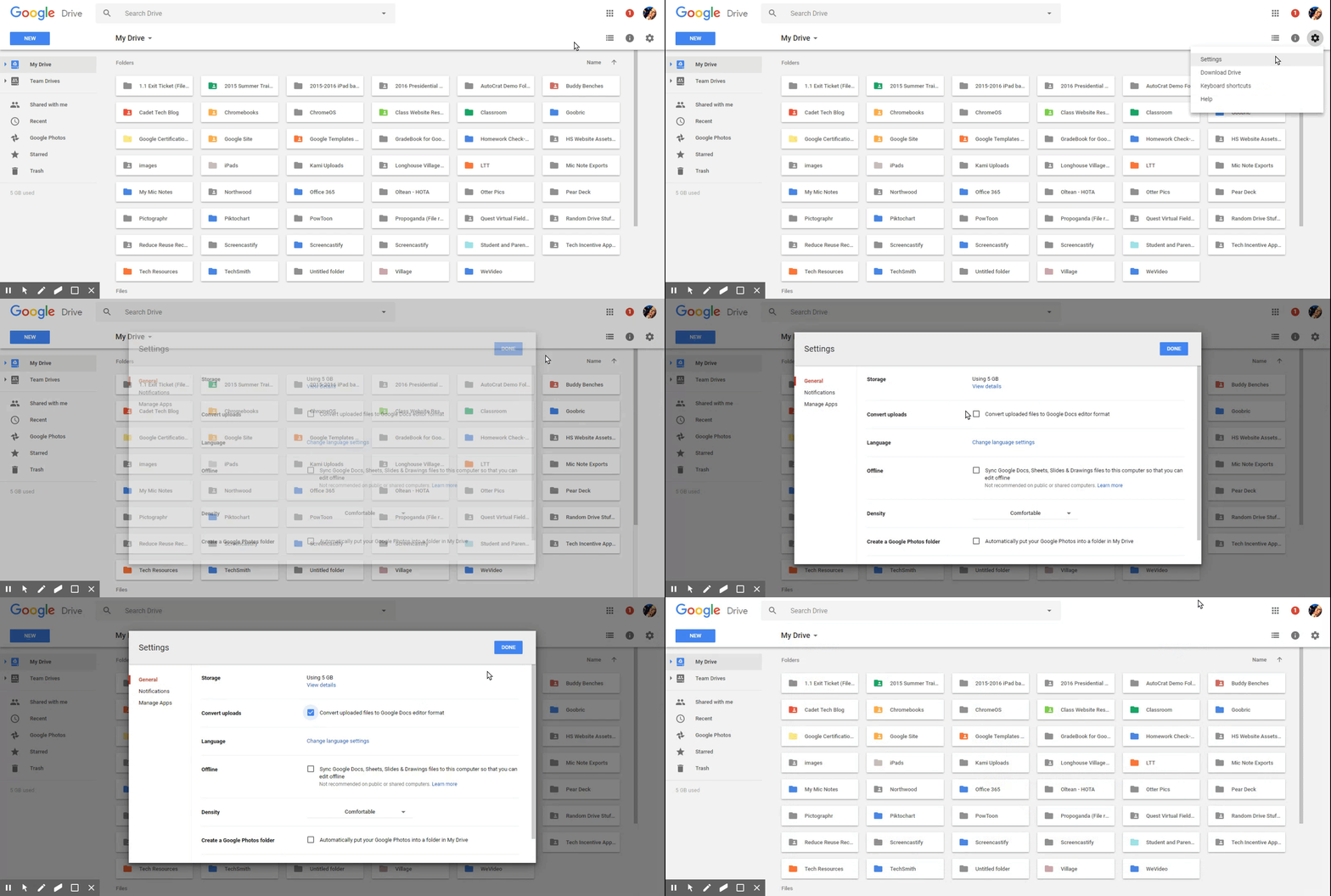


9. Upload your files and you are done!


Tuesday, May 30, 2017

Rock the Notes for Review with VideoNot.es

1:58 PM 0
Rock the Notes for Review with VideoNot.es
Remember as those review videos are being watched and rewatched and rewatched again, you and your students might find it useful to use VideoNot.es. Research is made easy with VideoNot.es after you sign in with your Google Drive. It is a very simplistic, bare-bones way of note-taking based on videos. Notes are taken with the time stamp of the video and can be useful in research, flipped-classrooms, inquiry learning and projects.

It is an extremely simple tool that you can use without any tutorial.

It is all on one webpage, and your notes will automatically live sync to your google drive into an automatically created doc in an automatically created folder.


Ideas, Ideas, Ideas


  • Taking notes on review videos
  • Research
  • Inquiry lessons
  • Noting examples of a theme
  • Video source analysis
  • Students note, comment, analyse or critique videos created by other students


Available on Chrome and Online (it'll work in Safari, but it is kind of a struggle)! Talk to your friendly local instructional technology teacher for more help.

Tuesday, May 2, 2017

It's Flip'n Awesome

2:34 PM 1
It's Flip'n Awesome
Flipgrid is a video discussion community for your classroom that supercharges your students’ voices. You add the topics, your students respond with short videos, and everyone engages! Mike Potter has been using this with his HS English Class and loves it!


Here are awesome ways you can use Flipgrid Today!

1. Featured Flipgrid. Learning about living and non living things? Check out Flipgrid's Explorer Series. Spend the month of May learning from wildlife expert Mike Billington and the University of Minnesota Raptor Center: https://flipgrid.com/raptors

2. Use them for LOTE or IOC Speaking Practice: Post a pompt- students post back a 2 minute or less video response
Here is an example Spanish Converstations Grid: https://flipgrid.com/sp212

3. Classroom discussions- Post a topic and let students engage!

4. Use them for opinion writing! Post a prompt have students respond

5. Use it for Book Reviews or Literature Circles

6. Use it for a classroom debate

7. Check for understanding/formative assessment - Ask a question based on a video, reading and/ or homework and have students respond

8. Use it to engage your whole class!

Get started with Flipgrid Today! https://info.flipgrid.com/


Thursday, April 27, 2017

Ready, Set, Review - Assessment Superpowers with Quizizz!

8:37 AM 0
Ready, Set, Review - Assessment Superpowers with Quizizz!

Are you looking to mix it up and review with your students like an assessment superhero? Welp, you are in the right place. The streamlined interface, ease of access and use, organizational tools and Google Classroom integration of Quizizz will have you ready to jump in with both feet!

Quizizz is an online quiz game, similar to Kahoot that allows you to build question sets to quiz and assess your students. I know what you are thinking... I already use Kahoot why would I want this? Here are five reasons to start using Quizizz today:
- You can create collections to organize your Quizizz by topic, subject or skill
- You can assign Quizizz as homework or out of class activities
- Design your own custom memes for question sets
- Search for pre made questions to add to your custom set or a remixed or reuse set
- Quizizz integrates with Google Classroom. Make a Quizizz, share your Quizizz as an assignment or announcement with the click of a button

Quizziz also has:
- A library of pre- made Quizizz you can duplicate and add to your collections and remix as needed
- Detailed question analysis and student reports tools
- Apps for any device!

Let's Get Started with Quizizz!
Create your account with Google. From your dashboard you can browse premade Quizizz or design your own.


If you select a premade set you can start a homework or a quiz right away as well as duplicate it and edit it as needed.


Whether you are creating a set from scratch or remixing someone else's set you can search and add questions to your set at any point


Once you create your Quiz you can either assign it immediately or assign it for homework. Share your Quizizz to Google Classroom for one stop shop assignment and announcement creation.


Quizziz also has an extensive progress tracking and reporting feature. Click on "Reports" from your dashboard to analyze student results. Click "Download to Excel" to get a detail spreadsheet of results.


View results by individual question:


Or by player:


Lets make some Quizizz!


Monday, March 27, 2017

Reflection Skills, Literacy and Formative Assessment Through Pear Deck

10:51 AM 0
Reflection Skills, Literacy and Formative Assessment Through Pear Deck
Make presentations interactive using the Chrome App Pear Deck!
Pear Deck allows for teachers to integrate reflection questions, formative assessment prompts, or any kind of responses or tasks they may want students to perform. Teachers can choose to project the responses to share them with the class, or check them later after the presentation.

It is actually pretty easy and self-explanatory, but this post will walk you through it all if needed!

Exciting Features:
  • Allows students to respond and participate in real time.
  • Easy integration with Drive and Office.
  • Turn on "Student Pace Mode" to allow students to work through at their own pace, independently of a formal presentation.
  • Allows for free response, multiple choice, polls, numbered response, free drawing, graph paper drawing, or temperature checks (thumbs up/down).

Getting Started

Connect the Pear Deck app on your Chromebooks or iPads (in Safari) or go to Peardeck.com on a computer/laptop.

Sign in with Google to get started!


If you would like to work with a presentation you have already created, click to upload from Google Drive or from the computer.

If you need more help uploading a presentation (Slides, PowerPoint, PDF) this video may help...


You can also create a new presentation from scratch.

You can create, edit or add to the presentation using edit mode. Start by clicking a presentation and clicking the edit button. This feature will allow you to add any prompts or interactions you may want the students to work with.


Now you can add prompts, interactions, questions or content to the "student view" 

Feel free to watch the videos to learn how to input questions and prompts.


After Your Prompts Are In, What Do The Students See??


Students will see a split screen of the presentation or content you have selected and the opportunity to answer.


As the teacher, you can see the bar graph of your class responses LIVE. You might want to project the results, especially if it is a poll or opinion response. 

(what the teacher sees, which can be projected)

***After you create the prompts, make sure to save the presentation in Pear Deck. If Pear Deck recognizes the presentation as a PowerPoint or Slide file, it will limit the amount of times you can present.


Can I Create a Prompt While Presenting?

Of course you can! In presentation mode, click the + icon and you can add a variety of interactions on the fly for your students such as:

  • Thumbs up/down
  • Free Drawing
  • Grid Drawing (graph paper)
  • Free Response
  • Multiple Choice
  • Numeric Answer
  • True False
  • AND MANY MORE!
(Adding on the fly actually offers more options)

To add while presenting, click the + icon, select question type, the students' screens will change to allow for them to answer and the teacher can verbally ask a question. Refer to this video for help.


IDEAS, IDEAS, IDEAS

  • Run an interactive live poll with student feedback or opinions.
  • Students provide live document analysis.
  • Brainstorming with Pear Deck's answer clusters.
  • Visual learners can draw their responses, draw a battle map, draw a flowchart, or draw a brain web.
  • Live answers for math equations or graphing.
  • Labeling diagrams.
  • Creative drawing for live projection. 

***If you would like support in working with this tool, please reach out to your friendly LTT Instructional Technology Teacher.


Thursday, March 23, 2017

Game Changing Updates to Google Keep

10:29 AM 1
Game Changing Updates to Google Keep
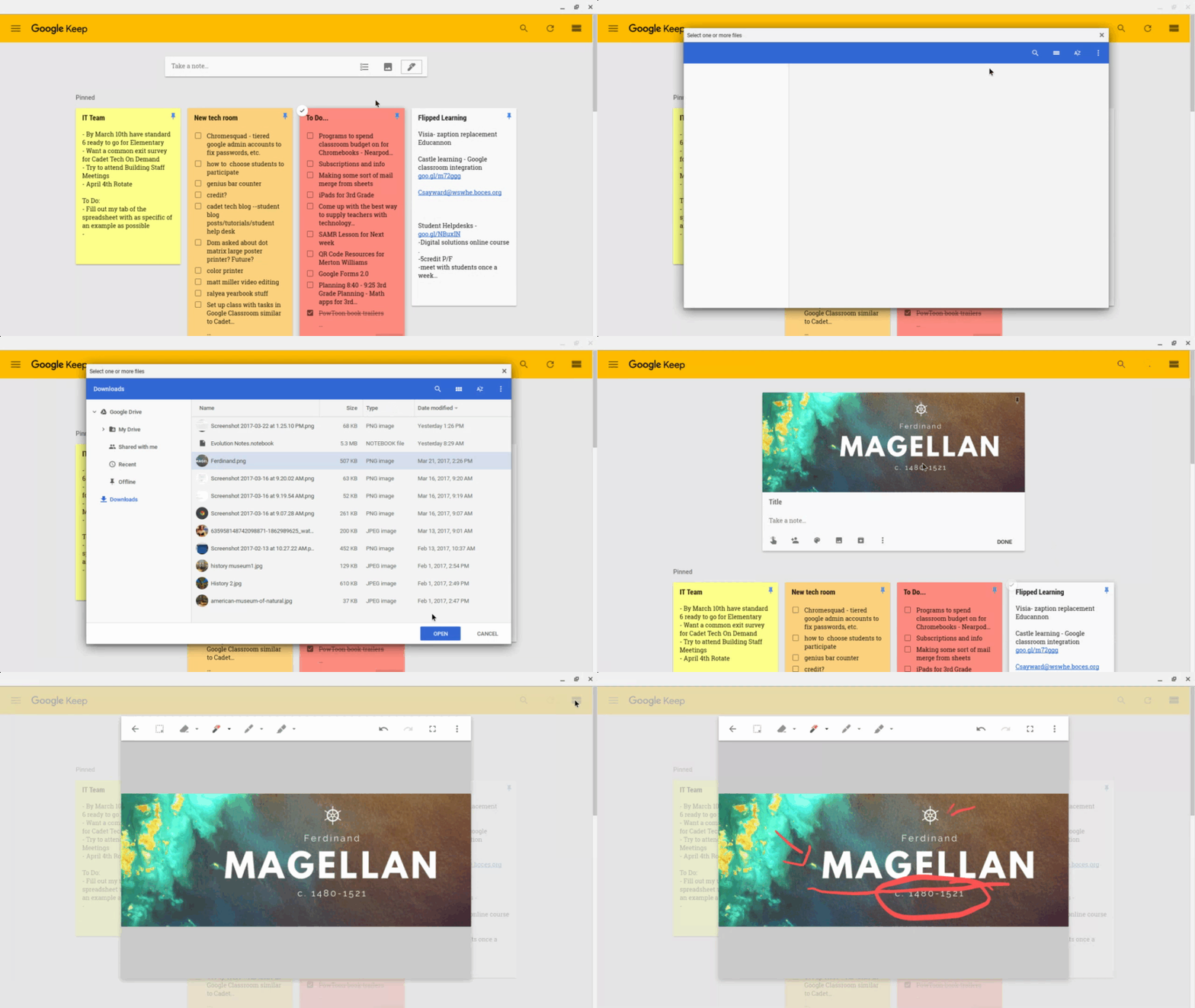
I love Google Keep and here are three reasons to love Google Keep even more!

1. Handwriting Notes in Google Keep!
Click on the pen note to write a note or draw a picture


2. Annotate Images in Google Keep
Add an image note, click on your image and draw on top of it!


3. Google Keep Integration to Google Docs!
Open the Google Keep tool in Google Docs and Drag and drop your notes into your Doc


More Ways to Use Google Keep:


Use labels, tags, and colors to group notes together and identify them. Share your notes and colloborate together. Use the new image tool to snap a pic of a rubric and score student work, drop the rubric into student's docs. Save comments as Google Keep notes and drop them into your Google Doc. Check out this video and post for resources


http://www.controlaltachieve.com/2017/03/keep-grading-comments.html?m=1


Thursday, January 12, 2017

Differentiate your Google Classroom Assignments and More!

8:01 AM 1
Differentiate your Google Classroom Assignments and More!
When you log in to Google Classroom this morning my favorite "What's New" box is hovering around! Google released two really nice updates that will help you to differentiate your Google Classroom assignments and streamline your instruction with improved notifications

1. Assign posts in the stream to all students or individual students/groups


2. Improved notifications for late assignments and unsubmitted/resubmitted assignments


Friday, October 21, 2016

High School Library "Flexes" Its Space

1:07 PM 0
High School Library "Flexes" Its Space

The makerspace in the HS library is beginning to take shape and stretch its wings. This creative haven provides a variety of opportunities and resources for students to tackle all of their projects needs.
Here are some of the things the space has to offer:
  • Bank of amped up desktops equipped Wacom Tablets and Adobe Creative Suite
  • 3D Printer
  • Video Editing and Green Screening Station
  • Brainstorming and Collaboration Pods

This week students are preparing their first FOA for English. These gentlemen were able to use the space to screencast annotating the text with the Wacom Tablet while recording their oral commentary. Looking forward to seeing more students take advantage of this space and everything it has to offer!


Wednesday, October 19, 2016

Guardian Summaries in Google Classroom

3:44 PM 0
Guardian Summaries in Google Classroom

In August, Google released Guardian Summaries in Google Classroom. This new Google Classroom feature allows guardians who have signed up to receive weekly or daily updates on Google Classroom assignments. As more of us are using Google Classroom this is a great way to let parents get a run down of what assignments and scores students have received through Google Classroom. It is important to note that this tool, though great, does not replace our Parent portal or official grades in Infinite Campus.

So how do I set it up?

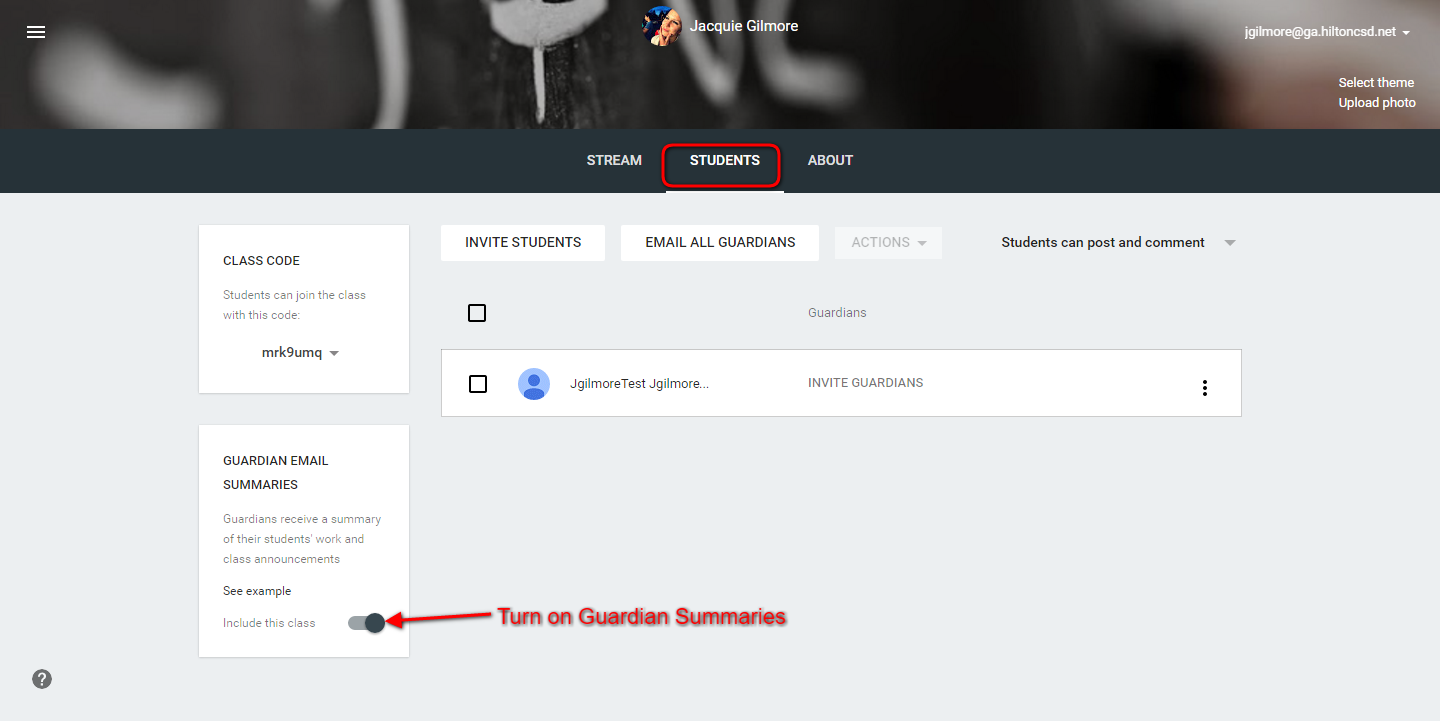
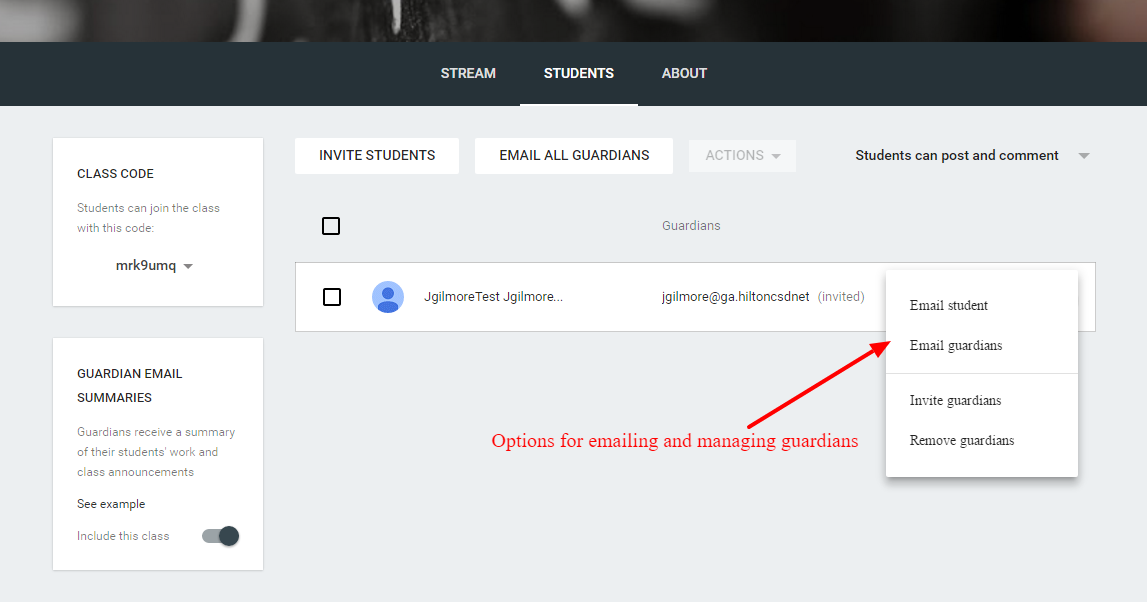
As the teacher, you need to enable guardian summaries in your Google Classroom(s). You can do this, by going to the "Students" tab and toggling "Include this class" on


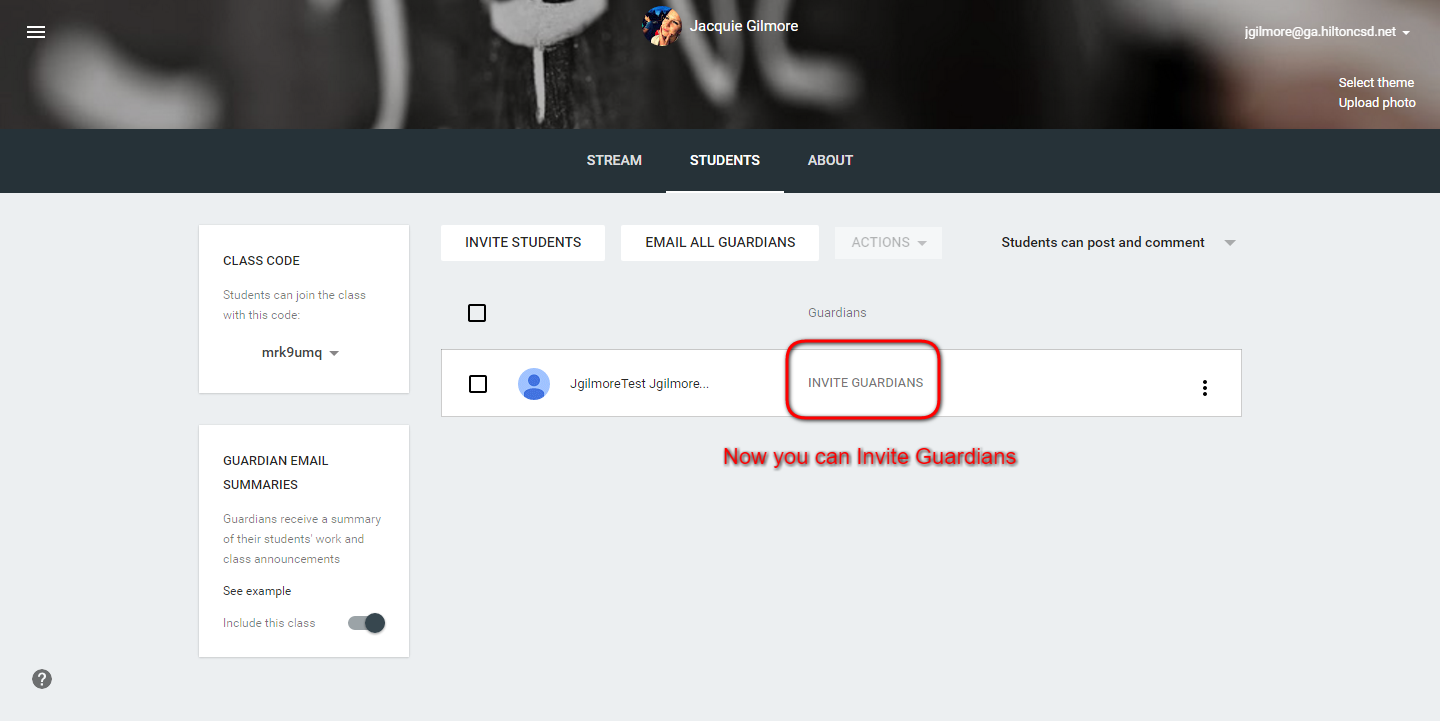
Once enabled you get the option to "Invite Guardians". You can include more than one


Once invited you have options to email guardians or edit/ remove guardians


Guardians

In order to receive guardian summaries, guardians need to have a Google Account. They can create this with their own email, it does not need to be a Gmail: Create account without Gmail

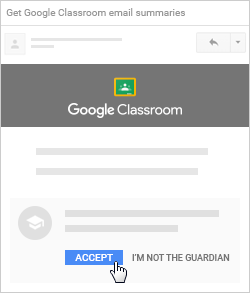
Guardians receive an invitation to that email. They have 7 days to take action on the invitation


When they first accept the invitation, they can choose whether to receive emails: Weekly, Daily or No Summaries


Guardians can adjust these settings at any time by clicking on "Settings at the bottom of the email summary. They can also "Unsubscribe" at any time


Check out this FAQ for more guides

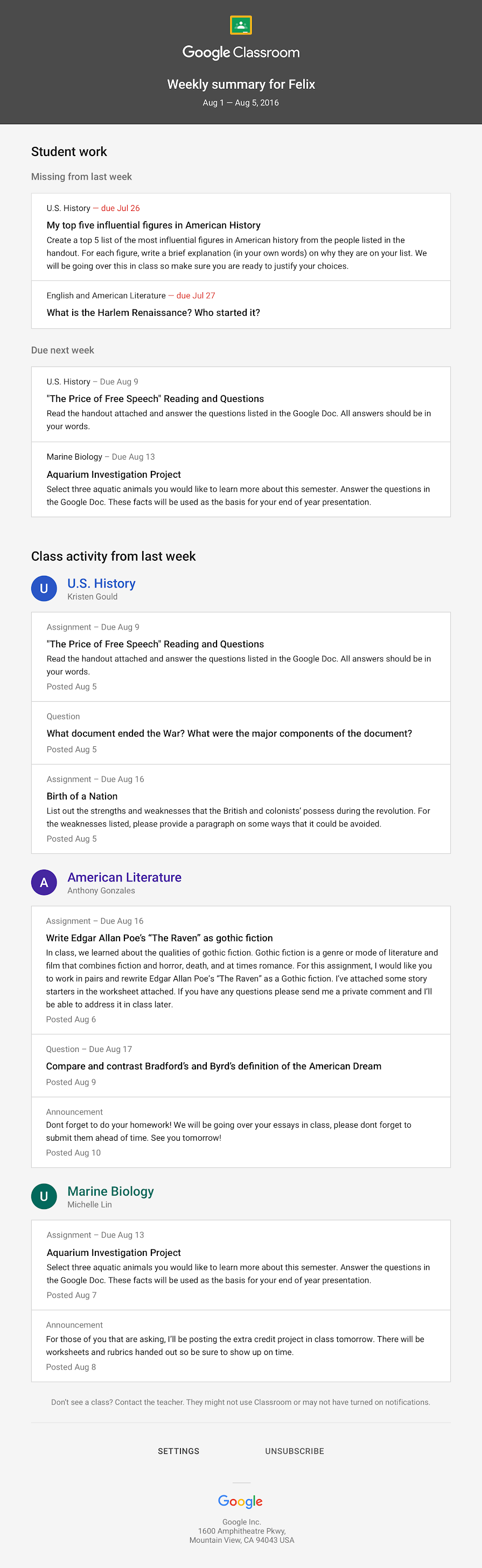
Here is an example Email Summary:

Wednesday, October 5, 2016

Forget Guest - Go Mobile!

12:00 PM 0
Forget Guest - Go Mobile!

District iPads and Chromebooks should be on the Mobile network, not Guest. Below are the steps to have the device not open Guest automatically. 

iPad
Open the Settings icon and select Wifi in the upper left. 
Tap the circled "i" to the right of Guest.


Select "Forget this network"

Mobile should connect automatically; if not, see your building tech person.

---------------------------------------------------------------------------------------
Chromebooks
In the lower right hand corner, click on your "picture", select Settings

Tap Wi-Fi network


Select Preferred networks...

Hover your mouse over Guest then tap the X.
Select Done

Monday, October 3, 2016

Change Your Default Browser

3:01 PM 0
Change Your Default Browser

When HCSD computers were updated to Windows 10, the default browser became Microsoft Edge. If you would like to change to the regular Internet Explorer browser or to Chrome or Firefox, follow these steps.

Click on the Windows icon in the lower left corner of your screen or press the Windows key. 

Select Settings

Select System

Select Default Apps

Scroll down to the Web Browser
Select your preferred browser. If you are working with students we recommend Google Chrome since it's the ideal browser when using Chromebooks. 

You can now close the window; there is nothing you need to check to save.