Cadet Tech : Projects
Showing posts with label Projects. Show all posts

Thursday, January 18, 2018

Doodle for Google

9:04 AM 0
Doodle for Google

Every year Google hosts a competition that allows students to use their imagination and submit a drawing to Google to be featured on the Google Homepage.

Introducing Doodle for Google!

This year's challenge: What Inspires You? Here is the gist: Students in grades K-12 are invited to take part in the 2018 Doodle 4 Google contest, and create an uplifting doodle that tells the world “What inspires me.” From crayons to clay, graphic design, or even food, young artists can utilize any materials to bring their creation to life. Like all Google Doodles, each doodle must incorporate the letters G-o-o-g-l-e. One national winner will receive a $30,000 college scholarship, a $50,000 technology package for their school/non-profit organization, and a behind-the-scenes experience with the Doodle team to transform their Doodle into an interactive experience on Google.com. The contest is open for entries from January 8th – March 2nd, 2018 – only 8 short weeks!

Check out their overview and entry directions on their blog: https://doodles.google.com/d4g/index.html


They also have a library of teacher guides and resources - https://doodles.google.com/d4g/classroom.html

Monday, March 14, 2016

Teachers and Students Star in iMovie

12:08 PM 0
Teachers and Students Star in iMovie

iMovie is an easy to use tool that can be used for a variety of applications. Teachers can use it to create exciting intros to a new topic, to teach a lesson, or to showcase student work. This app is FREE on district iPads. If you search and it is NOT free then please put this on the job list. If it's a shared classroom/cart iPad then note that also.

The first group of teachers created iMovie trailers and videos using their iPads. Check out their great work. Thank you to these teachers for sharing their videos:
  • Quest - Paige Langswager, Heidi Reese
  • Village - Aimmie Cummings 
  • Northwood - Ed Donnelly (final video was made on a Mac), Jen Roberts
  • Merton - Nicole Allen-Hickey, Tait Loe, Sara Meyers, Jim Reichert, Angela Boccuzzi-Reichert, Jen Jordan, Cherie Lohrman
  • High School - Katie Cala, Kate Gilmore-Tep, Scott Michel

Students have also been creating iMovie videos as book trailers, to demonstrate a skill, to showcase their project or to demonstrate their learning.

Johnna Roman and Angela Boccuzzi-Reichert had their students work in groups create Roaring Twenties Newscasts. 

The 1920's was a time of cultural, economic and political change. Students investigated the wonderful nonsense of the 1920's to create an authentic newscast of the times. 


Friday, January 22, 2016

Mystery Skype in the Classroom!

2:27 PM 0
Mystery Skype in the Classroom!

Fifth and Sixth grade classes are testing out their problem solving skills with Mystery Skype! Students are collaborating with other classrooms all over the country and even the world while using 21st century skills. What is better than that??

What is Mystery Skype?

Mystery Skype is a problem solving activity where students must ask Yes or No questions that will help them to identify the location of the classroom they are Skyping. As students ask questions, they refine their questions to narrow down the geographical possibilities and get closer to the other classes location.

Here are just a few reasons to Mystery Skype:
  • Creating a global community of learners
  • Critical thinking
  • Geography skills
  • Practicing listening and speaking skills
  • Authentic purpose for research
  • Collaboration
  • Communication
  • Challenge-based learning

Mystery Skype in Hilton

At Quest, Dave Moore Mystery Skyped with a class from Winnipeg, Canada! He broke his students up into groups including researchers, questioners, picture takers, greeters, answer recorders, and google document managers. The students all worked collaboratively by completing their job and contributing to the task. Mr. Moore's students were acting as great teammates and quickly understood why it was important that everyone do their job. The results of this Mystery Skype was an engaging class conversation on how to work collaboratively with peers, why it is important for everyone to do their part, and also the fun facts they learned about in regarding what life was like for a 6th grader in Winnipeg! The students in both classes had a great time and did not even realize they were practicing 21st century skills.


Today, Ms. Sica and Mrs. Tyler, Mr. VanEpps and Mrs. Humphreys got their feet wet with Mystery Skype between Village and Northwood! Students practiced their map skills, problem solving, and deductive reasoning to pin point the location of their Mystery Skype classroom! Ms. Sica rocked it out with an amazing mash up of 1:1 iPads and laptops utilizing the use of Google Forms for logging questions and updating a shared spreadsheet to record the questions asked, each class's answers, and refining their search field. Mrs. Tylers homeroom and Mr. VanEpps and Ms. Humphreys homeroom worked collaboratively between the two classes to determine the location of their Mystery Skype Classroom. They utilized a shared Google Doc for documenting the questions and responses and narrowing down their guesses. Mr. VanEpps was super techy and used Mirroring 360 with his iPad to have the two rooms join the Mystery Skyping. How Great!

Here are some great photos of the Mystery Skyping Magic!


Image Slider


If you are interested in setting up a #MysterySkype with your class reach out to your building's Instructional Tech support or fill out an Instructional Technology Support Request.


Book Trailers with PowToon

10:42 AM 0
Book Trailers with PowToon

Readers and writers workshop is getting mashed up at Northwood with the awesome web tool PowToon.

Fourth graders in Mrs. Cavallaro's and Mrs. Pignagrande's classes are so excited to share their book trailers that they made with PowToon! Students used the tool's capabilities to add characters, images, text, and even their own voice to share why you should read their book next!

Mrs. Cavallaro has created an amazing classroom blog this year with Blogger and has posted her students trailers there. Check them out! http://cavclassact.blogspot.com/

Mrs. Pignagrande's class presented their trailers yesterday. Check out some of our favorites:
Brianna Delisanti
Brady Gerig
Zamirah Diaz
Ryan Wahl

PowToon is a great tool that you could use for so many projects! Get started using PowToon today!

Friday, January 8, 2016

Curate a Virtual Museum Exhibition with Google Slides!

9:59 AM 1
Curate a Virtual Museum Exhibition with Google Slides!

Virtual field trips are all the rage these days! Now you can have students apply their learning on a topic and have them curate their own museum exhibit. David Lee Ed Tech has created a beautiful Google Slides template that provides students the space to curate two exhibits per room in a four room virtual museum. The template works by hyperlinking visitors between rooms and in depth looks at each exhibit. The best part is... It's Google Slides! It works on iPads, Chromebooks, and laptops and students can work together on the same exhibit by sharing their presentation with one another.

Click the link to create your own copy of the Google Slide Template: Virtual Museum Template. Reach out to your Instructional Tech Teacher at your building to get rocking and curating your own virtual museum exhibit with students.


Here is what the slideshow would look like:


If you would like to read more on how to utilize the template here is David Lee Ed Tech's post on the virtual museum template:
Virtual Museum Guide

Tuesday, January 5, 2016

Sixth Grade Toy Project Wraps Up With A Bang!

3:01 PM 0
Sixth Grade Toy Project Wraps Up With A Bang!

Students at Northwood geared up all December to pitch their toy to be inducted into the Strong Museum National Toy Hall of Fame. Each group presented on why their toy meets all the criteria to be the 60th toy inducted.

This year, in addition to a toy display board and presentation, students used the apps Adobe Voice and Adobe Slate to support their claim for their toy. The presentations were superb! Here are just a few of the presentations that really display the creativity and ingenuity behind the project. Think about all the ways you could use these awesome tools!


Paper


Clue


Scooter


Chalk


Check out Chalk's Adobe Slate: Chalk Adobe Slate


Nerf


Check out Nerf's Adobe Slate:Nerf Adobe Slate

Jenga


Check out Jenga's Adobe Slate:Jenga Adobe Slate


Operation


Check out Operation's Adobe Slate:Operation Adobe Slate


Thursday, November 5, 2015

Using Infographics in the Classroom

12:40 PM 1
<h3>Using Infographics in the Classroom</h3>

Infographics are an amazing tool for presenting important information and facts in a visually appealing and approachable way.

Here are just a few ideas for using Infographics with students:
  • Explaining rules, processes, or concepts
  • Debating or comparing
  • Presenting an argument
  • Sharing data or showing trends
  • Timeline of events
  • Presenting research

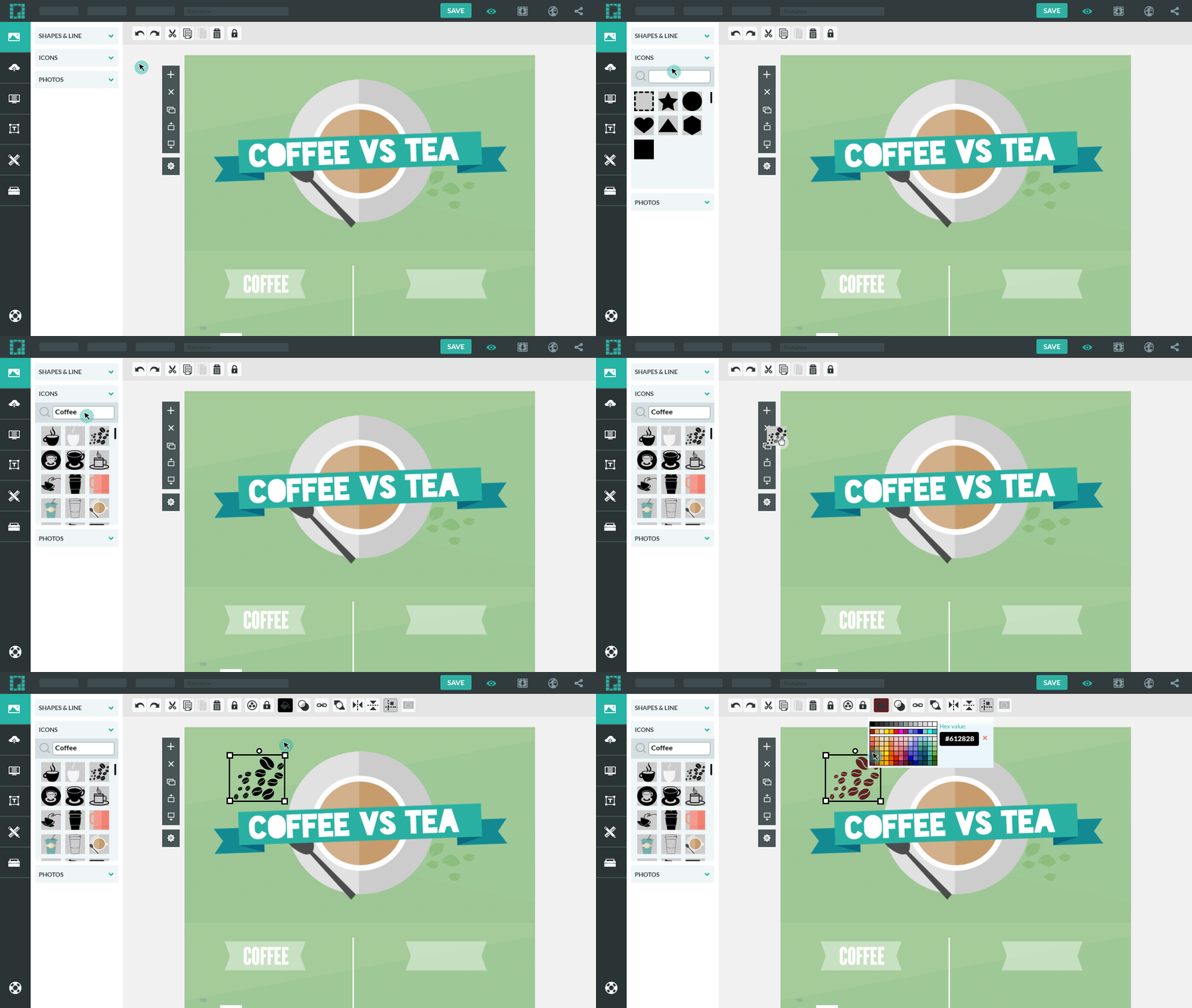
One of the best tools out there for creating Infographics is Piktochart. Piktochart is free, has a library of free templates, is easy to use, and integrates with student Google Accounts. Below is a guide for using Piktochart.

Using Piktochart

1. Log in to Piktochart with your Hilton Google (GA) Account


2. Select the style of your project. You can choose betweeen: Infographic, Presentation, Poster or Report. Below each category there are awesome free templates to choose from and use.


Main Menu:
Rename your Infographic and Save:


3.Once your template is open you want to add or edit your blocks of content. Click on the block of content. You can add, move, clone and delete blocks of content.


Cloning and Deleting:


4. Once a block is selected you can add:

Graphics:


Shapes and lines:


Upload Images:


Change the Background:


Add/Edit Text:


Insert Charts and Data:


Save and Export:


Check out their individualized guides for more help! Help Guides


Friday, October 30, 2015

Instructional Technology Support Request

10:59 AM 1
<h3>Instructional Technology Support Request</h3>
Are you wanting to learn a new tech tool to use with students? Do you need help rolling out technology applications and innovative projects in your classroom? Look no further, Instructional Technology is rolling out an Instructional Technology Support Request!

The new form is located on our Cadet Tech blog under "Contact Us" and will serve as a resource for you to receive instructional support with technology projects or planning. Be sure to check it out!

Tuesday, June 2, 2015

Ride a Fire Truck to School Video Contest

12:54 PM
<h2>Ride a Fire Truck to School Video Contest</h2>
The Hilton Fire Department Presents a Ride a Fire Truck to School Video Contest!

Parents/Guardians:
The Hilton Fire Department is offering students a chance to win a ride to school on a fire truck. Students in grades 3-6 are eligible to participate. All contest participants are required to complete a home fire escape plan video.

Here are a few tools you can use to complete the video.
  • Animoto - free app on any smart phone, tablet, or iPad. Supports photos and short videos
  • WeVideo - free online video creation tool like iMovie. Allows you to layer images, text, videos, and music. Join for free with your Hilton Google Account
  • Magisto - free app on any smart phone, tablet, or iPad. Supports photos and short videos
  • iMovie - Mac or iOS. Free app on student iPad. Layer images, text, videos and music to produce a crisp video
  • Windows Movie Maker - Windows movie making program. Layer images, text, videos and music to produce a crisp video

Take photos and/or video of your family participating in making a home fire escape plan. Follow the instructions in your app/tool of choice to complete your video. Once you have completed your video you will need to submit a link to your video in the video submission form below.

Most of the tools allow you to share a link to your video. Copy that link and paste it into the video submission form below. If for some reason you can not get a link, you can upload your video to YouTube or Google Drive and share out a link to your video that way.
Uploading and sharing from YouTube
Uploading and sharing from Google Drive

The videos will be judged by our fire prevention committee, and one winner from each grade will be announce at the annual Hilton Fire Department Open House on October 24, 2015.

All contest videos must be submitted no later than Friday, October 9, 2015. When submitting your video please include your child’s name, teacher’s name, school, and grade your child will be in for the 2015-16 school-year.

All submitted videos will be played for the public at our annual open house. In addition, the Hilton Central School District will play the videos. Good luck to participants and their families. We cannot wait to see your videos.

Respectfully,

Hilton Fire Department
Fire Prevention Team


Need some inspiration?

Check out Mrs. Mulrooney's example video:

Video Submission Form

Friday, May 1, 2015

Digital Narratives with Explain Everything

3:04 PM 0
Digital Narratives with Explain Everything
Jess Thompson's students are writing narratives. They used iPad minis and the Explain Everything app to record themselves telling their narrative.

Students took pictures of their scenes and characters with the iPad and uploaded those images into Explain Everything. Once in explain everything, they could crop and cut the images to fit their scene. Explain Everything uses a slide like layout where you can add images, text, drawing, video, and audio to each slide. The app, unlike many others, allows you to layer these components and record audio and movement on each slide. When students are done, they can export their movie right to Google Drive and share right from the cloud!

Check out Alex and Aidan's Digital Narratives
Alex's

Aidan's

Tuesday, April 14, 2015

Abraham Lincoln Visited Northwood!

10:10 AM 0
Abraham Lincoln Visited Northwood!
Second grade students at Northwood just attended Abe Lincoln's town hall meeting in 1864 and have a lot to say about it. Teachers Lauren Steinebach and Lucy Hall used the wonderful world of Google to create a 1864 style newspaper article template for students to reflect on their civil war era town meeting.

They sent the "w" drive packing and used Google drive as the vehicle to share a folder housing the template and student pictures of the event. Students were eager to create their own copy of the template, insert their picture and type up their reflection. With the click of a button, Lauren and Lucy are able to view and comment on student progress! Next up, document markup and comments in Google drive.

Remember, sharing is caring in the cloud!
Tool on over to guide on Google Drive to get you up and running in no time

Using Pixie for Digital Storytelling

10:10 AM 0
Using Pixie for Digital Storytelling
= Students in Barb Richardson's kindergarten students have been working on a travel journal for their travel unit. They used Pixie to tell a story about where they are going to travel and what they are going to pack. We created a Pixie template with predefined pages and images. Students told their story, packed their suitcase and even drew a map in Neighborhood Map Machine that they uploaded to their journal. Pixie even allows students to record their voice over their slides as well! Barb is then able to see what students have done and post a link to the shared digital travel journals. How Great!

Check out Kylie's almost finished Travel Journal

Monday, March 16, 2015

Spring and the New LTT Blog!

2:01 PM 0
Spring and the New LTT Blog!
Spring has sprung for Learning Through Technology. With assessments right around the corner and end of the year projects on the near horizon we have the tools to engage learners and help you streamline your classroom.

Here is what we are loving right now... OneNote classroom notebooks are out! These handy tools allow you to create a digital binder for your students and control documents, notes, and collaborative spaces. You can bounce between students view progress and individualize feedback. Sounds pretty nifty! Check out are resources on integrating these into your daily workflow.

Assessments, Assessments, and more assessments- You have the power of assessment in your one-to-one classroom right now. Two great tools to integrate assessment of all types into your workflow: Socrative, and Google Forms. Both are great, and super easy to integrate right now!
Great ways to use them:
  • Check for understanding
  • Quizzes and tests... and they are graded for you
  • Polling
What is better than that!